Queue Notification Settings
You can provide notification services to administrators and waiting users (end users) based on queue status.
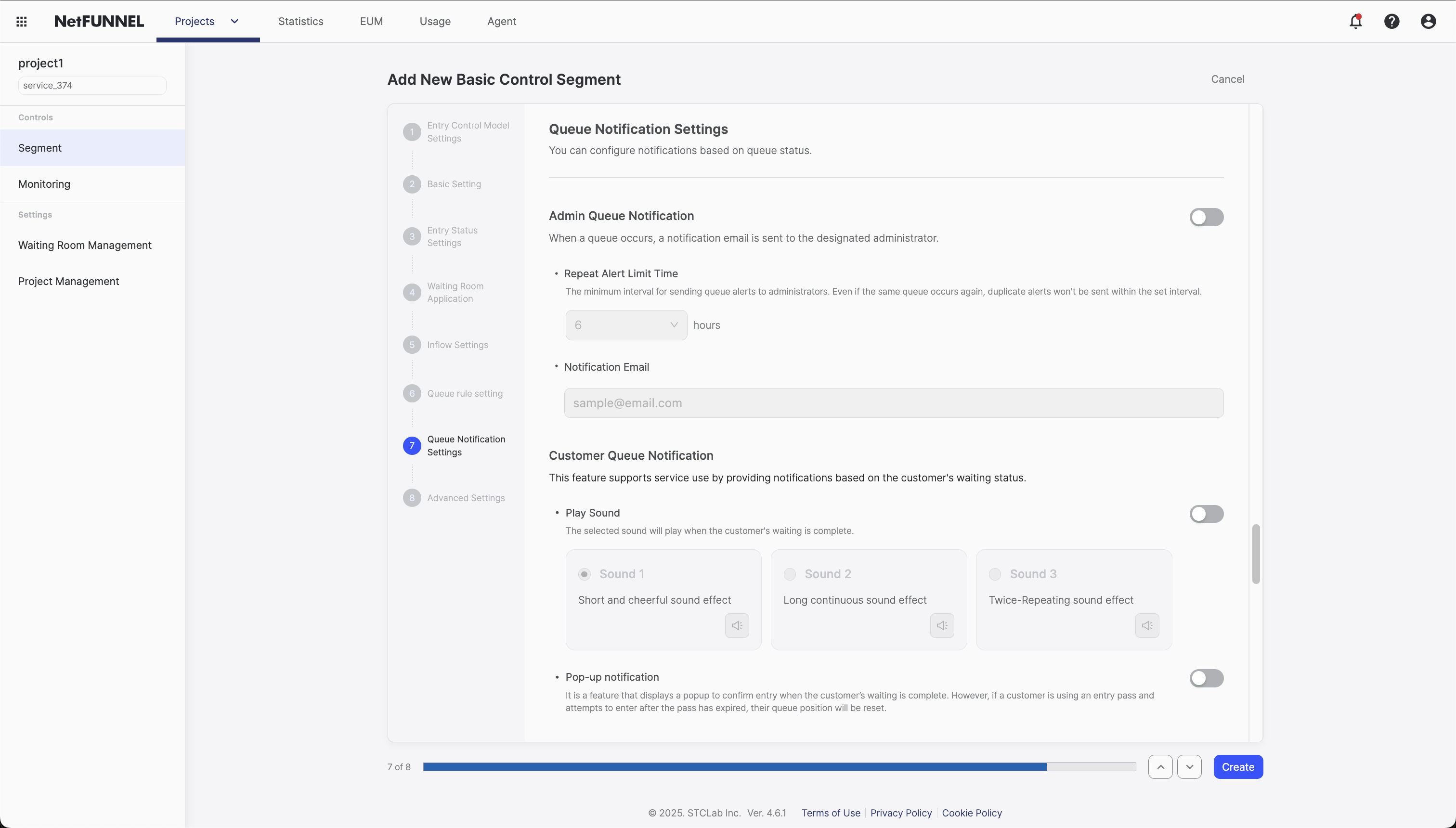
Overview
The Queue Notification Settings provides various notification services to administrators and waiting users (end users). Administrators can receive email notifications when queues occur, and waiting users can receive convenient notification services through entry time notifications (sound, popup).
Configuration Options
1. Admin Queue Notification
When a queue occurs, a notification email is sent to the designated administrator.
Configuration Items:
- Enable/Disable Feature: You can turn the admin queue notification feature on or off
- Repeat Alert Limit Time: The minimum interval for sending queue alerts to administrators. Even if the same queue occurs again, duplicate alerts won't be sent within the set interval. (Unit: hours)
- Notification Email: Set the administrator email address to receive queue occurrence notifications
2. Customer Queue Notification
This feature supports service use by providing notifications based on the customer's waiting status.
Play Sound
The selected sound will play when the customer's waiting is complete.
Configuration Items:
- Enable/Disable Sound Playback: You can turn the sound playback feature on or off
- Sound Selection: Choose one of the following:
- Sound 1: Short and cheerful sound effect
- Sound 2: Long continuous sound effect
- Sound 3: Twice-repeating sound effect
Pop-up notification
It is a feature that displays a popup to confirm entry when the customer's waiting is complete. However, if a customer is using an entry pass and attempts to enter after the pass has expired, their queue position will be reset.
Configuration Items:
- Enable/Disable Pop-up Notification: You can turn the pop-up notification feature on or off
Admin Queue Notification
When a queue occurs, a notification email is sent to the designated administrator.
Feature Overview:
- When a queue occurs in a segment, a notification email is sent to the configured administrator email address
- The notification includes segment information, limited inflow, entry requests, queue occurrence time, number of waiting users, etc.
- Even if the same queue occurs again, duplicate notifications will not be sent within the configured repeat alert limit time
Configuration Items:
- Enable/Disable Feature: You can turn the admin queue notification feature on or off
- Repeat Alert Limit Time: The minimum interval for sending queue alerts to administrators. Even if the same queue occurs again, duplicate alerts won't be sent within the set interval. (Unit: hours)
- Notification Email: Set the administrator email address to receive queue occurrence notifications
Admin Queue Occurrence Notification Email Template:
Subject: {Segment Name} Queue Occurrence Notification

Hello, Administrator.

A queue has occurred in the {Segment Name} segment.

Segment: {Segment Name}
Limited Inflow: {Limited Inflow}
Entry Requests: {Entry Requests}
Queue Occurrence Time: {Queue Occurrence Time}
Number of Waiting Users: {Number of Waiting Users}

[Go to NetFUNNEL Console]: {Console URL}

Thank you.
NETFUNNEL
Customer Queue Notification
This feature supports service use by providing notifications based on the customer's waiting status.
Key Features:
- Real-time notification feature that alerts waiting users of entry time while they are in the waiting room
- Provides entry time guidance through two methods: sound playback and pop-up notification
- Helps waiting users not miss their entry time even if they are not actively viewing the waiting room screen
Notification Methods:
Play Sound
The selected sound will play when the customer's waiting is complete.
How It Works:
- When the queue position is reached, the selected sound automatically plays
- Depending on the browser's sound policy, the sound may only play after the user has interacted with the waiting room page
Pop-up notification
It is a feature that displays a popup to confirm entry when the customer's waiting is complete. However, if a customer is using an entry pass and attempts to enter after the pass has expired, their queue position will be reset.
How It Works:
- When the queue position is reached, the "Waiting is complete" popup is automatically displayed
- When the waiting user clicks the confirm button, they are navigated to the service
If you are using an Entry Pass and attempt to enter after the validity period expires, your queue position may be reset.
Using Notification Combinations:
- You can enable both sound playback and pop-up notification simultaneously
- It is more effective to use sound to notify entry time and popup to confirm entry intention
- Each feature can be enabled/disabled independently, so you can select and use them as needed
Configuration Process
Step 1: Access Queue Notification Settings
- Navigate to Basic Control Segment in NetFUNNEL
- Click "Queue Notification Settings"
- Review the configuration screen
Step 2: Configure Admin Queue Notification
- Enable Feature: Enable the admin queue notification feature
- Set Repeat Alert Limit Time: Set the minimum time interval to prevent duplicate notifications from being sent, even if the same queue occurs again (Unit: hours)
- Enter Notification Email: Enter the administrator email address to receive queue occurrence notifications
Step 3: Configure Customer Queue Notification
Sound Playback Configuration
- Enable Sound Playback: Enable the sound playback feature
- Select Sound: Select the sound to play at entry time (Choose from Sound 1, 2, or 3)
Pop-up Notification Configuration
- Enable Pop-up Notification: Set to display a popup to confirm entry when entry time arrives
Step 4: Save Settings
- Save Settings: Save the changes