Advanced - Queue Position Retention
"Queue Position Retention" is advanced configuration that restores existing queue position even after browser accidental closure or temporary disconnection, preventing re-waiting and reducing duplicate queues. This guide covers configuration, implementation, and best practices for queue preservation.
Overview
Queue Position Retention allows visitors to restore their queue position even after their client (browser or native app) loses connection. This prevents users from having to wait again and reduces duplicate queues.
Think of it like a restaurant that remembers your place in line: if you step away and come back within the retention window, you return to your original position instead of starting from the end.
What This Feature Does
When enabled, visitors who disconnect from the waiting room can reconnect and resume their place in the queue instead of being assigned a new position. This improves user experience by:
- Preventing re-waiting: Users don't lose their place if they close their browser or app
- Reducing duplicate queues: Fewer users creating new positions unnecessarily
- Maintaining fairness: Users keep their original wait time and position
How It Works
The retention mechanism operates through a multi-stage process to preserve queue positions even when clients disconnect:
Retention Timer Starts
The retention timer begins counting immediately when a waiting visitor stops making re-request calls to the NetFUNNEL server. Technically, this occurs after the visitor's last entry check request.
When a visitor is actively waiting in the queue, they periodically send re-request calls asking "Can I enter yet?" When these calls stop—whether due to browser closure, app termination, network interruption, or navigating away—the retention timer starts.
Reconnection Window
Within the retention window, visitors can reconnect and access the waiting room-protected service. When they attempt to enter again:
If within retention time:
- The system recognizes the visitor using their stored identifier
- They're restored to their original queue position
- No re-waiting required - they continue from where they left off
If retention time expired:
- A new key is issued for re-entry
- They receive a new queue position (at the end of the current queue)
- Treated as a new visitor with no position preserved
Storage Mechanisms
Browser clients:
- Uses HTTP cookies to store queue position identifiers
- Cookie persistence follows browser settings:
- Cookies survive browser closure (session cookies expire, persistent cookies remain)
- Cookies are browser-specific (Chrome cookies ≠ Firefox cookies)
- Cookies are domain-specific (different websites = different cookies)
Native app clients:
- Uses app data storage (local storage, keychain, etc. depending on platform)
- More reliable than cookies - data persists across app sessions
- No browser-specific limitations
Timeline Example
Timeline: Retention in Action

10:00:00 AM  Visitor enters waiting room, assigned Queue #47
10:00:30 AM  Visitor's browser/app is active, making re-requests every few seconds
10:01:15 AM  Visitor closes browser/app (or loses connection)
            ╱
            │ Retention timer starts here
            │
10:05:45 AM  [4 minutes 30 seconds later]
            │ Visitor attempts to access service again
            │
            ├─ IF retention time (e.g., 5 minutes) still active:
            │   → Restored to Queue #47
            │   → Continues waiting from original position
            │
            └─ IF retention time expired:
               → New key issued
               → Assigned new Queue #150 (end of current queue)
Configuration
Default Behavior
When disabled (default OFF):
- Queue position is maintained for only 1 second
- Provides minimal reconnection window
When enabled:
- Default retention time is 60 seconds
- You can customize retention time (maximum 7,200 seconds / 2 hours)
- System maintains queue position for the configured duration
Configuration Steps
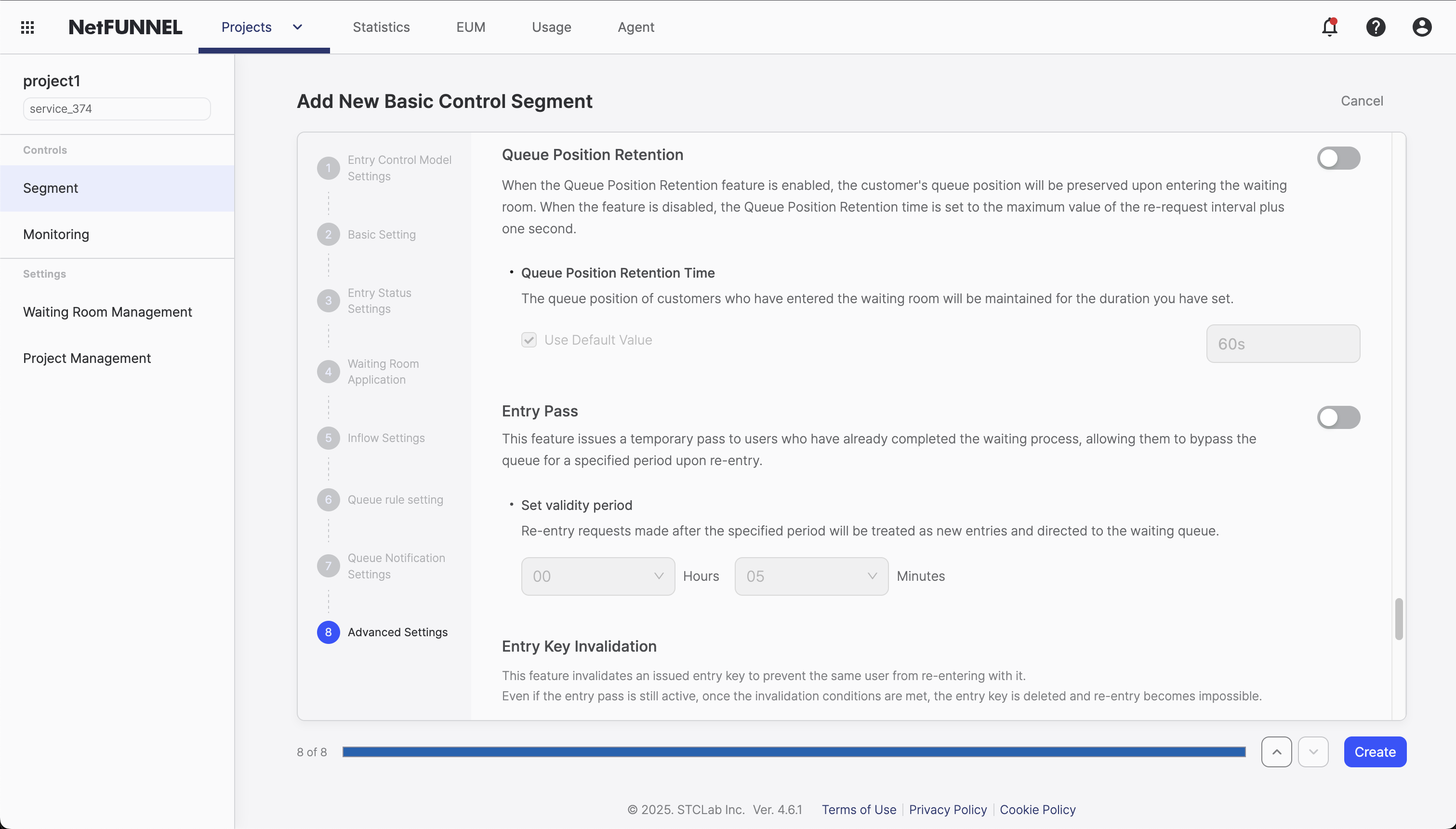
You can configure Queue Position Retention when creating or editing a Basic Control Segment:
- Navigate to your segment's settings (creation or edit mode)
- Go to Advanced Settings section
- Enable Queue Position Retention: Turn on the retention function
- Set Retention Time: Specify time in seconds (default is 60 seconds)
- Save Configuration: Apply your settings
The retention time must be greater than your segment's "Re-request Interval Maximum Value". This is critical!
For example, if you're using the default re-request interval settings (1-10 seconds), your retention time must be greater than 10 seconds. This ensures that the retention window is longer than the longest re-request interval, giving visitors enough time to reconnect before their position expires.
Best Practices
Recommended Retention Settings
Default recommendation: 60 seconds
- Provides a balanced window for accidental disconnections
- Short enough to prevent abuse while offering legitimate reconnection opportunity
- Works well for most typical events and traffic patterns
For most events (10-30 minutes / 600-1,800 seconds):
- Short events (less than 1 hour): Use 10 minutes (600 seconds)
- Provides reconnection window without unnecessary security exposure
- Most users reconnect within this window if they accidentally disconnect
- Medium events (1-3 hours): Use 15-20 minutes (900-1,200 seconds)
- Balances user convenience with event duration
- Accounts for users who may need to step away briefly
- Long events (3 hours or more): Use 30 minutes (1,800 seconds)
- Ensures users have reasonable reconnection opportunity
- Prevents frustration during extended waiting periods
Why not longer than 30 minutes:
- Security risk: Opens potential for key duplication and abuse
- System load: Extended retention periods can increase server load
- User expectations: Most accidental disconnections happen within minutes
- Cookie constraints: Browser cookies have limitations that make very long retention unreliable
When to use maximum duration (2 hours / 7,200 seconds):
- High-value transactions: Users making significant purchases shouldn't lose place due to technical issues
- Critical events: Once-in-a-lifetime sales or registrations where losing position is catastrophic
- Enterprise services: B2B scenarios where reconnection is expected and monitored
Storage Limitations
Browser clients (cookie-based):
- Position retention only works within the same browser and device
- Switching browsers or devices loses the position
- Private/incognito mode doesn't preserve cookies
- Users who clear cookies lose their position
Native app clients (app data storage):
- Position preserved across app sessions within the same device
- More reliable than browser cookies
FAQ
Can I change settings in real-time?
Yes! Queue Position Retention settings are applied in real-time—changes take effect immediately without requiring segment restart or service interruption.
Examples of real-time updates:
- Temporarily disable retention: Turn OFF Queue Position Retention during high traffic to force all users through the queue again
- Adjust retention window: Change retention time from 60 seconds to 10 minutes without affecting currently waiting visitors
- Emergency queue reset: Disable retention to reset all queue positions for a fresh start
- Conditional activation: Enable retention only during specific time periods by toggling it on/off as needed
This flexibility allows you to adapt your queue management strategy based on real-time conditions without downtime.
For related configuration options, see Advanced Timing and Entry Pass documentation.
Waiting User Email Notification
When Queue Position Retention is enabled for 400 seconds or longer, waiting users can use email waiting notifications. This feature is not a separate console setting, but is automatically available to waiting users when Queue Position Retention is enabled.
Feature Overview:
- When Queue Position Retention is enabled for 400 seconds or longer, waiting users can register for email notifications if their waiting time is 10 minutes or more
- When waiting users enter their email address and consent, they can receive an email notification approximately 5 minutes before their expected entry time
- Notification delivery timing is automatically optimized by the system to provide notifications at appropriate times
Registering and Receiving Email Notifications
This is the process for waiting users to register for and receive email waiting notifications.
Registration Requirements:
- Queue Position Retention must be enabled for 400 seconds or longer
- Email waiting notifications can only be registered when waiting time is 10 minutes or more
- When registering for email waiting notifications, the following information must be provided:
- Email address where the user will receive notifications
- Consent to "Email information collection and usage"
End User Flow:
Email Delivery Timing:
- Registration Confirmation Email: Sent immediately when a waiting user registers for email notifications
- 5 Minutes Before Entry Notification Email: Sent approximately 5 minutes before the scheduled entry time
Registration Confirmation Email Template:
Subject: Email Waiting Notification Registration Complete

Email Waiting Notification Registration

Hello.

Your email waiting notification registration has been completed.

We will send you a notification email approximately 5 minutes before your expected waiting time.

After receiving the email, you can access the service through the link provided.
If the validity period expires, your queue position will be automatically invalidated and you will need to access the waiting room again.

※ For smooth service, we recommend accessing as soon as possible after receiving the email.

Important Notes
- 'Waiting notification emails' may be classified as spam, so please check your spam folder
- Please use the same browser you used during initial registration. Accessing from a different browser or
  'incognito mode' may prevent re-entry
- Your email information is managed by STCLAB and will be deleted 30 days after the registration date

...

*This is an automated notification email and replies are not possible.
5 Minutes Before Entry Notification Email Template:
Subject: Waiting Completion Imminent Notification

Waiting Completion Imminent Notification

Hello.

The expected remaining waiting time for the service you registered for is approximately 5 minutes.

Please prepare to access the service through the button below.

※ For smooth service, we recommend accessing as soon as possible after receiving the email.

[Go to Waiting Room]
https://...

Important Notes
- This email is a notification sent approximately 5 minutes before expected waiting time
- The actual entry time may vary depending on traffic conditions and service usage time of users ahead in the queue,
  so we cannot guarantee the exact remaining waiting time
- If the validity period expires, your queue position will be automatically invalidated and you will need to access the waiting room again
- You must access from the same browser you used during initial registration. Access from a different browser or
  'incognito mode' may be restricted
- If access is not smooth, please try again through the [Go to Waiting Room] link in this email
- Your email information is managed by STCLAB and will be deleted 30 days after the registration date

...

*This is an automated notification email and replies are not possible.
Duplicate Registration Handling:
- If a waiting user who has already registered for email notifications requests registration with the same email address, a duplicate registration notification message will be displayed
- If registration is requested with a different email address, the system will confirm whether to update the existing address to the new address before processing the update
Entry Validity Verification:
- When accessing via the email notification link, queue token validity is automatically verified
- If access occurs after the validity period has expired, the following message will be displayed: "The queue validity period has expired and your position has been invalidated. Please access the waiting room again."
If the waiting time expires, the queue will restart. However, if Queue Position Retention is configured, entry is guaranteed for the configured duration.