Advanced - Timing
"Timing" is advanced configuration that controls the timing behavior of Basic Control segments, including re-request intervals and timeout configurations, optimizing system performance and user experience.
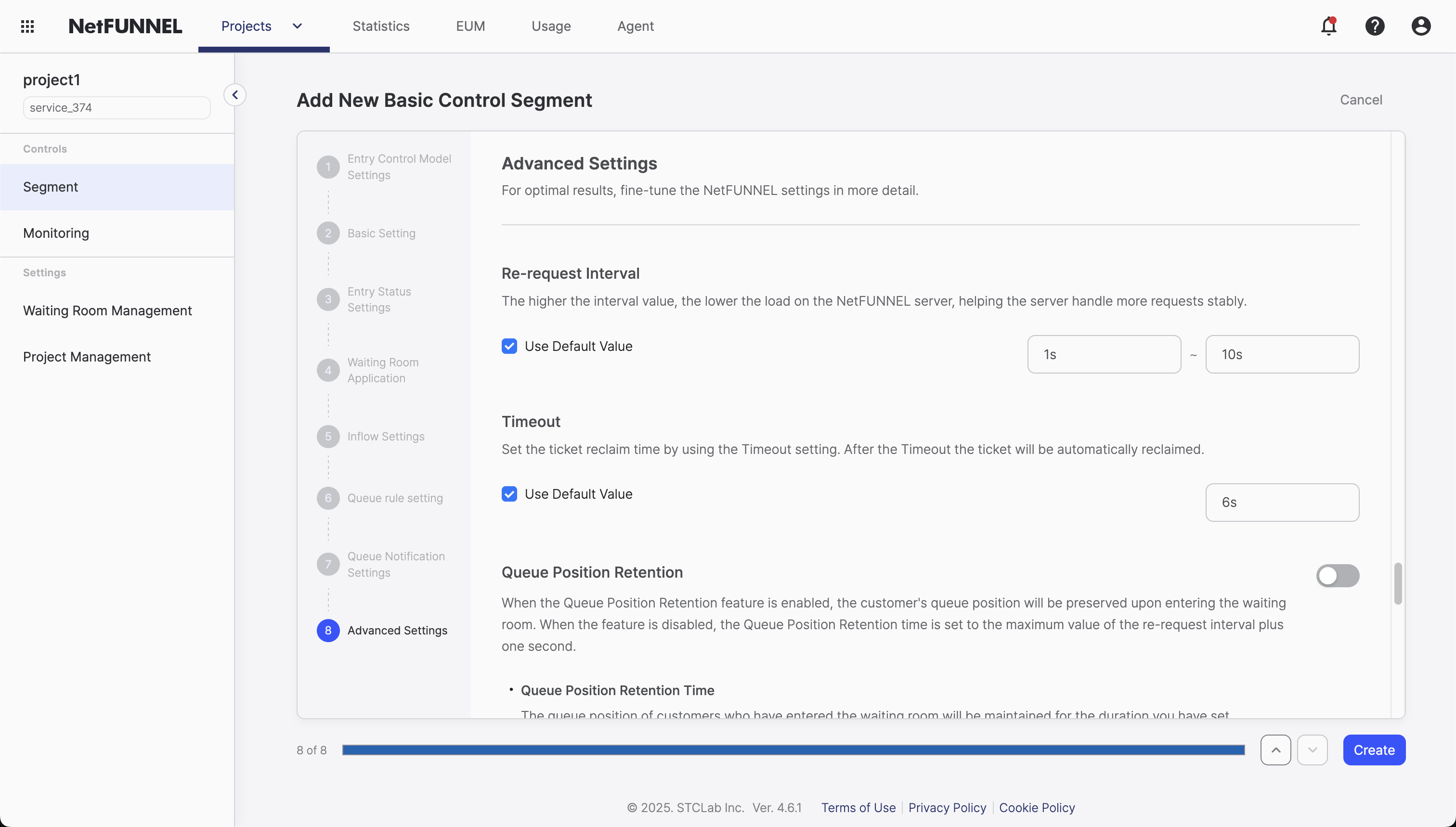
Overview
Advanced Timing settings control how your waiting room manages visitor requests and entry flow. These settings help balance between server performance and user experience by configuring when and how frequently the system processes waiting room status.
When visitors are waiting in your waiting room, their waiting room logic needs to periodically check if they can enter. The timing settings control these intervals - longer intervals reduce server load but increase response delay, while shorter intervals improve responsiveness but increase server strain. The ideal settings balance these concerns based on your traffic patterns and system capacity.
Re-request Interval
What it does: Controls the dynamic timing between requests that waiting visitors send to check entry availability. The system intelligently adjusts this interval based on each visitor's position in the queue.
How it works:
- Periodic status checks: Visitors' waiting room logic repeatedly contacts NetFUNNEL servers to check entry permission
- Server response: Each request receives either PASS (proceed to entry) or WAIT (continue waiting)
- TTL (Time To Live): WAIT responses include a TTL value that tells the client exactly how long to wait before the next check
- Dynamic calculation: TTL is calculated based on each visitor's queue position
Think of it like a restaurant: when your number is far down, you check every 5 minutes. As you approach the front (e.g., display shows #15, you have #17), you check every 30 seconds. NetFUNNEL applies the same principle—visitors at the back wait longer between checks, while those near the front check frequently.
Why configure a range, not a fixed value:
Different visitors need different check frequencies that change as they move through the queue. You configure a range (e.g., 1-10 seconds) rather than a single fixed interval.
- Visitors near front: Receive shorter TTL values → more frequent checks → faster entry when resources become available
- Visitors at back: Receive longer TTL values → less frequent checks → reduce unnecessary server requests
- As they progress: TTL values automatically shrink, ensuring priority-appropriate checking frequency throughout their wait
This balances server load (fewer unnecessary requests) with user experience (immediate entry when available).
Visual Example (Range: 1-10 seconds):
Queue Position     TTL Value    Check Frequency
─────────────────────────────────────────────────
    Front     →    1-2 sec    →  Very frequent
   Mid-high   →    3-5 sec    →  Moderate
    Mid-low   →    6-8 sec    →  Less frequent
      Back    →    9-10 sec   →  Least frequent

    Visitor 1  (Front of queue)
    ↓ More frequent checks as they approach entry
    ↓
    Visitor 100 (Mid-queue)
    ↓ Gradual TTL decrease as they progress
    ↓
    Visitor 500 (Back of queue)
This gradient ensures visitors at the front get rapid entry when resources become available, while those at the back don't overwhelm your server with unnecessary requests.
Default value: 1 second minimum, 10 seconds maximum
Configurable range: 1-60 seconds for both minimum and maximum values
How to configure:
- Navigate to your segment's Advanced Settings
- Set the minimum value (1 second is recommended)
- Set the maximum value (10 seconds is recommended)
- The system automatically adjusts each visitor's interval within this range based on their queue position
Recommendation: Use default values (1-10 seconds). These are optimized for NetFUNNEL server specifications. Changing them usually isn't necessary—the default balance already accounts for system capacity. Only adjust if you have specific requirements from performance monitoring.
Timeout
What it does: Automatically releases a visitor's entry slot if they don't properly complete their service session, ensuring resources remain available for others waiting in line.
When a visitor enters your service, NetFUNNEL tracks resource usage. After the visitor finishes (completing a purchase, viewing content, or any service interaction), NetFUNNEL expects a completion notification to free the slot for the next queued visitor.
Sometimes this doesn't happen: the visitor might close their browser, navigate away, or encounter an error. Without a timeout, the slot would remain occupied indefinitely, blocking all queued visitors.
The key return timeout (referred to as "timeout") waits 6-20 seconds for proper completion. If no notification arrives, NetFUNNEL automatically releases the slot, allowing the next visitor to enter.
How it works:
- Countdown starts: When a visitor enters your service, timeout countdown begins
- Completion detection: How completion is detected depends on your integration method:
- Code-Based Integration (CBI): Completion is signaled when your service calls the completion function (nfStop())
- URL-Triggered Integration (UTI): Completion is detected when the target page finishes loading
- Normal flow: If proper completion is received before timeout, the slot is released normally
- Timeout scenario: If timeout expires without completion (browser closed, navigation away, error, etc.), NetFUNNEL automatically releases the slot
Think of it like a reservation system: your service has limited capacity, and when someone enters, they "reserve" a spot. The timeout ensures that even if they disappear without proper notice, the spot doesn't stay reserved forever, allowing others to access your service.
The timeout countdown starts immediately when a visitor enters your service from the waiting room. In the diagram above, two scenarios are shown:
- Normal flow: Visitor properly completes their service and the system is notified, allowing the resource slot to be released for the next queued visitor
- Timeout scenario: No completion notification arrives within the timeout period, so NetFUNNEL automatically releases the slot and decreases resource usage, allowing the next queued visitor to enter
Default value: 6-20 seconds range (typically 20 seconds default)
Configurable range: 6-60 seconds for both minimum and maximum values
Why it's a range:
NetFUNNEL dynamically adjusts the timeout based on completion rate—the ratio of keys returned/collected versus keys issued for entry. A 100% completion rate means all keys are being properly returned, while a lower rate indicates keys are not being returned (requiring timeout-based auto-release).
- Low completion rate (keys not being returned properly) → Timeout shifts toward minimum (6s) to help release stalled resources faster
- High completion rate (keys being returned properly, close to 100%) → Timeout shifts toward maximum (20s) to give visitors adequate time to complete
Why 6-20 seconds:
The default range balances service integrity with preventing resource locks:
- Service operations: API responses (milliseconds), page loads (1-2 seconds typically)
- 20 seconds: Provides enough time for visitors to complete operations
- Too low (e.g., 1-2 seconds): Could cause premature release before services finish
NetFUNNEL measures how long visitors use your service to optimize Limited Inflow. When keys are auto-returned due to timeout (no proper completion signal), the end timepoint is unreliable, so these sessions are excluded from metrics.
If Entry Pass is configured, visitors can re-enter your service multiple times within the pass window without going through the waiting room again. The timeout mechanism still operates on the same timer for each entry session, but visitors can re-enter within the pass duration even after a timeout-based release.
Best Practices
Use default settings for both re-request intervals (1-10 seconds) and timeout (6-20 seconds). These values are calibrated to NetFUNNEL server specifications and balance system capacity, server load, and user experience.
Only adjust if you have specific requirements from performance monitoring—the defaults provide the best balance between responsiveness and efficiency for most scenarios.
For related configuration options, see Queue Position Retention and Entry Pass documentation.