Basic Settings
"Basic Settings" is the fundamental configuration section for Basic Control segments, covering segment creation, naming, and essential setup parameters. This guide covers segment creation process, segment naming best practices, and segment key configuration including immutability considerations.
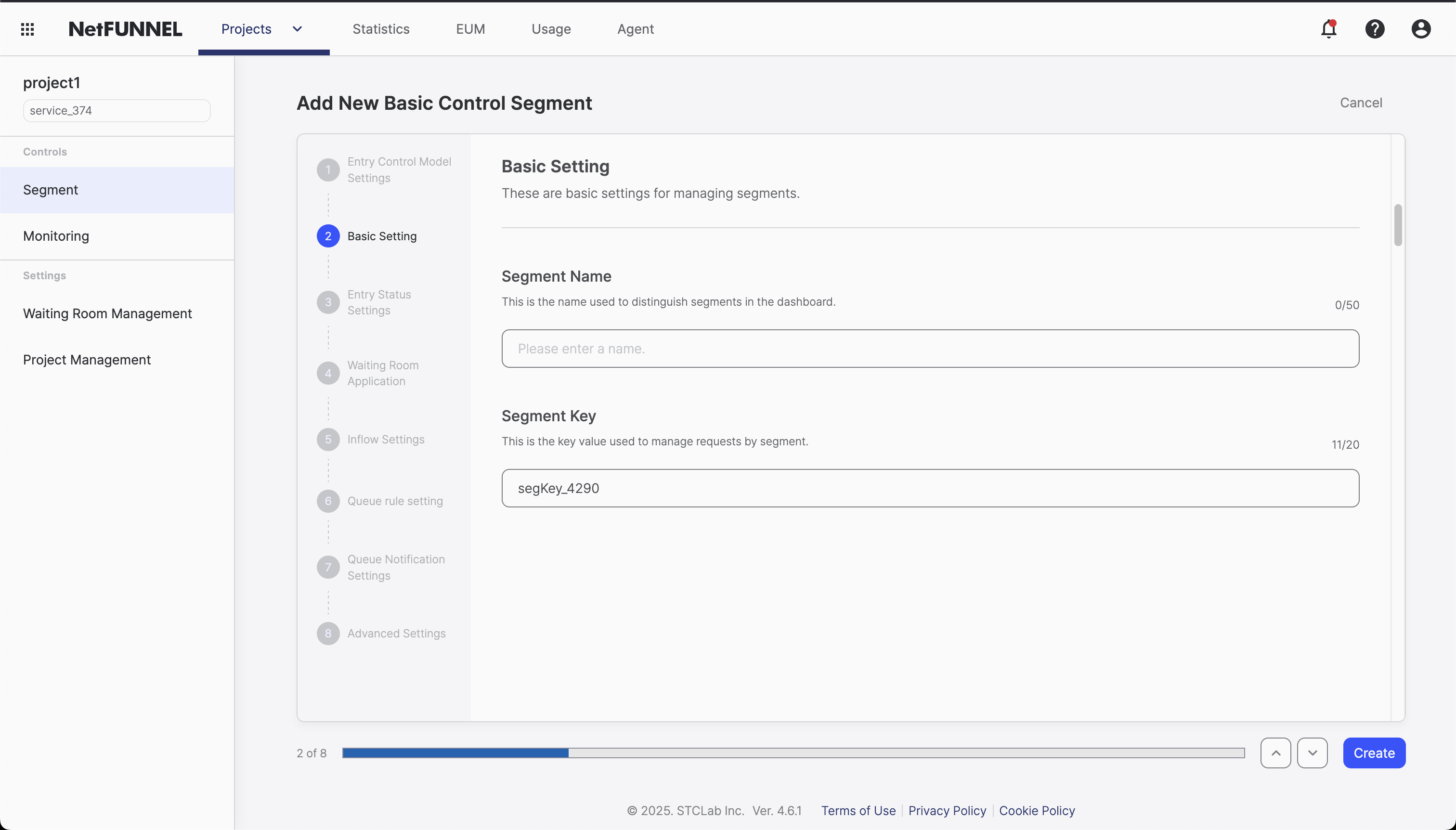
Overview
Basic Settings is where you create and configure your Basic Control segments. Think of it as setting up the foundation for your traffic control system. Here, you'll define the essential parameters that will identify and manage your segment throughout its lifecycle.
What You'll Configure
- Segment Name: A human-readable name for easy management
- Segment Key: A unique identifier used by NetFUNNEL agents
Segment Creation
Creating Your First Segment
To create a new Basic Control segment:
- Access Segment List: Navigate to the segment management section in your NetFUNNEL console
- Click Create Button: Click the '+' button in the top right of the segment list
- Select Control Type: Select 'Basic Control' in Control Type
- Proceed to Configuration: Continue to the next step for detailed configuration
Segment Creation Process
The segment creation process is straightforward and designed to guide you through the essential setup steps. Once you select Basic Control, you'll be taken to the configuration screen where you can define your segment's basic settings.
Configuration Process
Segment Name
Enter a name that is easy to distinguish in the list. This is purely for your management convenience.
Naming Best Practices
Good names that tell you what they do:
"E-commerce Checkout""Product Page Traffic Control""User Registration Queue""High-Traffic Event Control"
Avoid these confusing names:
"Segment 1","Test","New Segment"- Names that don't tell you what the segment actually controls
- Names that are too generic or temporary
Pro Tip: When you have multiple environments, include that in the name:
"E-commerce Checkout - Production""E-commerce Checkout - Staging"
Segment Key
The Segment Key is automatically assigned and can be modified until creation (cannot be modified after creation).
What is a Segment Key?
Think of a Segment Key as your segment's ID card. When your NetFUNNEL agent talks to the NetFUNNEL server, it uses this key to say "Hey, I want to use this specific segment for traffic control!"
How Segment Keys Work
Web/JavaScript Integration:
nfStart({
    projectKey: "your_project_key",
    segmentKey: "your_segment_key"    // This is your segment key
}, function(response) {
    // Handle the response
    if (response.status === 'Success') {
        // User can proceed
    }
});
Android Integration:
Netfunnel.nfStart(
    projectKey = "your_project_key",
    segmentKey = "your_segment_key",  // This is your segment key
    callback = yourCallback,
    activity = this
)
iOS Integration:
Netfunnel.shared.nfStart(
    projectKey: "your_project_key",
    segmentKey: "your_segment_key"  // This is your segment key
)
Segment Key Characteristics
- Unique Identifier: No duplicates allowed across all segments
- API Usage: Used for API calls (traffic control code)
- Immutable: Cannot be changed after segment creation
- Case Sensitive: Segment keys are case-sensitive
Default Key Format
When you create a new segment, NetFUNNEL automatically generates a key in the format:
segKey_XXXX
Where XXXX is a 4-digit random number (e.g., segKey_1234, segKey_5678).
Customizing Your Segment Key
You can customize the segment key during creation to make it more meaningful:
Good custom keys:
"checkout_main""product_pages""user_registration""event_traffic"
Avoid these problematic keys:
- Keys with spaces or special characters
- Keys that are too long or too short
- Keys that don't follow naming conventions
Why Segment Keys Can't Be Changed
Once a segment is created, its key cannot be modified. This is a deliberate design decision to prevent issues with existing integrations.
The Problem with Changing Keys: If segment keys could be changed after creation, it would create problems for existing integrations:
- Code Dependencies: Your application code references the segment key
- Integration Breakage: Changing the key would break existing integrations
- Unexpected Behavior: Agents might stop working or behave unexpectedly
What to Do If You Need a Different Key: If you need to change your segment key:
- Create a New Segment: Create a new segment with your desired key
- Update Your Code: Update your application code to use the new segment key
- Test Thoroughly: Ensure the new integration works correctly
- Delete Old Segment: Only delete the old segment after confirming the new one works
Always plan your segment keys carefully before creation. Consider your naming conventions and how they'll fit into your overall traffic control strategy.