Inflow Setting
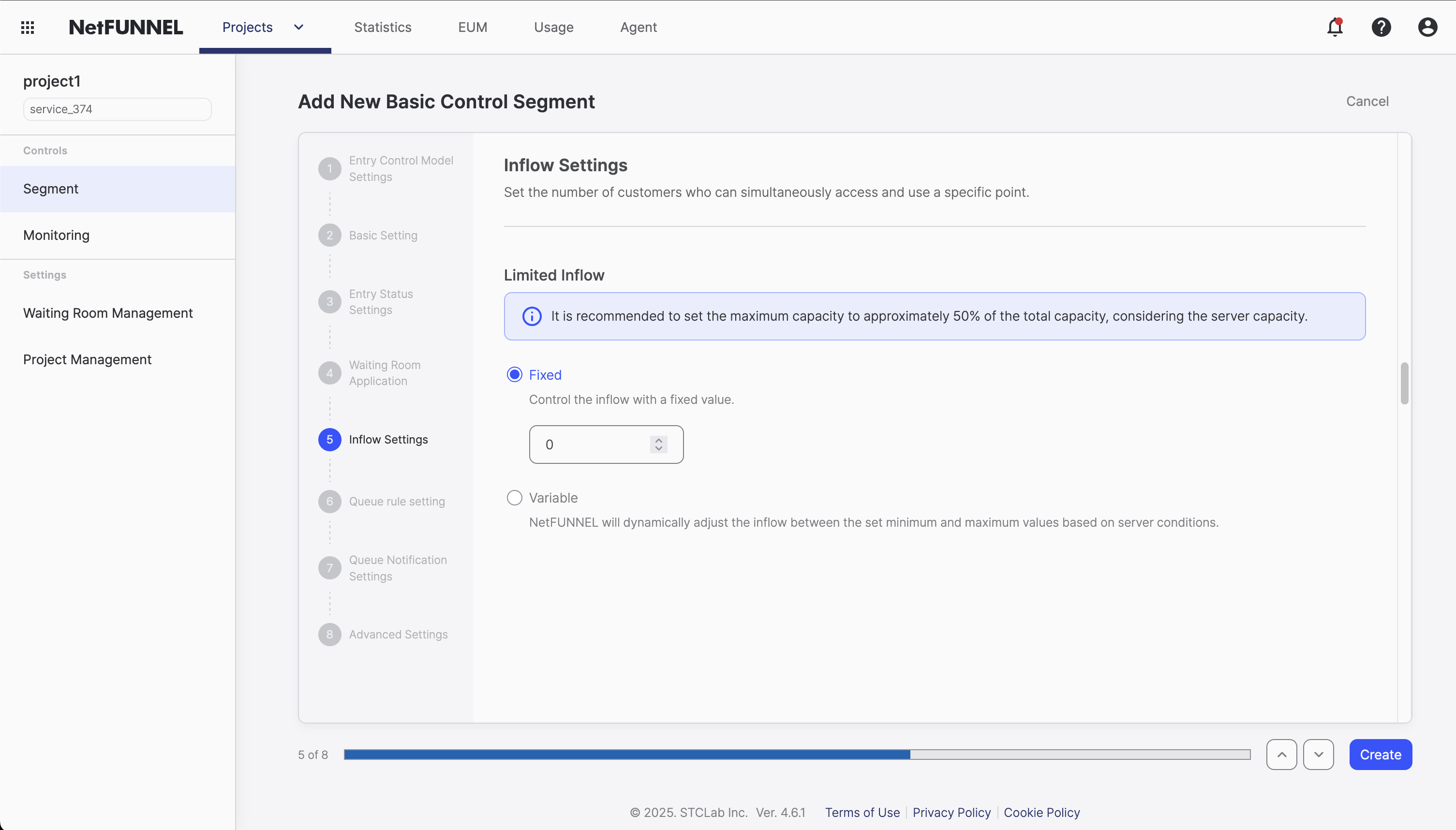
"Inflow Setting" is the core traffic control mechanism that determines how many users can access your service simultaneously, serving as the primary method for managing server capacity and user flow. This guide covers both fixed and variable Limited Inflow types for Basic Control segments.
Overview
Limited Inflow is NetFUNNEL's fundamental concept for controlling user access to your service. Think of it as setting a maximum capacity for how many users can actively use your service at the same time. This isn't about limiting total users who can visit your site, but rather controlling how many can simultaneously occupy your server resources during critical operations.
Core Concept
Imagine your server as a restaurant with a limited number of tables. Limited Inflow is like setting a maximum occupancy limit - you can only serve a certain number of customers simultaneously before the kitchen gets overwhelmed and service quality drops. NetFUNNEL acts as the host who manages this capacity, ensuring your "restaurant" never gets so crowded that it affects the experience for everyone.
The beauty of this approach is that it prevents server overload before it happens. Instead of waiting for your system to crash under heavy load, NetFUNNEL proactively controls the flow of users entering your service. This means you can maintain consistent performance even during traffic spikes, protecting both your infrastructure and your users' experience.
Key Behavior: Waiting Only Occurs When Limit is Exceeded
Users only experience waiting when you've already reached your capacity limit. If your Limited Inflow is set to 100 users and you currently have 50 active users, the next 50 users will proceed directly to your service without any waiting experience whatsoever.
It's only when user #101 tries to access your service that NetFUNNEL steps in and says, "Hold on, we're at capacity right now. Please wait a moment while we process the users ahead of you." This means Limited Inflow acts as a protective threshold - users within the limit enjoy immediate access, while users who would otherwise overwhelm your system get a professional waiting experience instead of crashes or timeouts.
Integration Approach Perspectives
How you interpret and apply Limited Inflow depends on your integration method:
URL-Triggered Integration (UTI)
In UTI, Limited Inflow controls page access rate from waiting room to target page completion.
What it means: You're limiting how many users per second can successfully transition from waiting room to fully loaded target pages. If you set Limited Inflow to 100, then 100 users can complete the page loading process per second.
Practical interpretation: This is about controlling page load velocity and managing traffic flow to specific pages, similar to RPS (Requests Per Second) limits.
Code-Based Integration (CBI)
In CBI, Limited Inflow controls concurrent session count between nfStart() and nfStop() calls.
What it means: You're limiting how many users can simultaneously execute specific business logic segments. For example, if you set Limited Inflow to 50, then only 50 users can be actively processing payment transactions at the same time.
Practical interpretation: This is about controlling concurrent execution of resource-intensive operations like API calls, database transactions, or authentication processes.
Inflow Types
NetFUNNEL offers two approaches to setting your capacity limits:
Fixed Type
A fixed Limited Inflow setting maintains a constant capacity limit throughout your service operation. Whether it's 2 AM or 2 PM, your system will allow the same maximum number of concurrent users.
This approach works best when you have predictable, steady traffic patterns. For example, if you run a business application that experiences consistent usage during work hours, a fixed limit ensures stable performance without the complexity of dynamic adjustments.
The simplicity of fixed limits makes them easier to monitor and troubleshoot. You can focus on optimizing your application's performance within a known capacity constraint rather than managing complex scheduling rules.
Variable Type
Variable Limited Inflow allows NetFUNNEL to automatically adjust your capacity limits based on real-time server performance. NetFUNNEL monitors your server's response times and dynamically increases or decreases the limit to maintain optimal performance.
How it works: NetFUNNEL continuously measures how long it takes to process requests (processing time). When your server responds quickly, it increases the limit to allow more users. When response times slow down, it reduces the limit to prevent overload.
Configuration requirements: Unlike Fixed Type where you just enter a number, Variable Type requires you to set two ranges:
- Processing time range: Define what response times are considered "good" vs "slow" (e.g., 1-3 seconds)
- Capacity range: Set minimum and maximum limits for automatic adjustment (e.g., 50-300 users)
We recommend starting with Fixed Type first. Monitor your service for several weeks to understand your traffic patterns and server behavior, then consider Variable Type once you have enough data to set appropriate ranges.
Configuration Process
Setting Up Limited Inflow
-
Access the Inflow Setting Console
- Navigate to your Basic Control Segment
- Go to the "Inflow Setting" section
-
Start with Fixed Type (Recommended)
- Enter a single number (positive integer) as your capacity limit
- This is the simplest approach and recommended for beginners
- Example: Enter "100" to allow 100 concurrent users
-
Configure Your Fixed Limit
- Use the calculation tips below to determine your starting value
- Enter your calculated Limited Inflow value
- Save your configuration
-
Test Your Settings
- Monitor the console for real-time user counts
- Verify that waiting occurs only when limits are exceeded
- Check that users within limits proceed normally
For testing purposes, you can set Limited Inflow to 0 to force all users into the waiting room or waiting screen. This is useful for:
- Verifying that your waiting room/screen displays correctly
- Testing the agent integration without allowing any actual access
- Ensuring the waiting mechanism works as expected before going live
- Consider Variable Type Later
- After monitoring Fixed Type for several weeks
- When you understand your traffic patterns and server behavior
- When you have data to set appropriate processing time and capacity ranges
Limited Inflow Calculation Tips
Calculating the right Limited Inflow value doesn't need to be overly complex. Here are practical approaches:
Method 1: Start Conservative and Adjust
Best for: Most situations, especially when you're unsure
- Begin with a low number: Start with 10-20 users
- Monitor for a week: Watch your server metrics and user experience
- Gradually increase: If everything looks stable, increase by 10-20% every few days
- Stop when you see issues: If response times increase or errors occur, reduce the limit
Method 2: Server Capacity-Based Estimation
Best for: When you have server monitoring data
- Check your current peak usage: Look at your server metrics during busy times
- Find your comfortable operating point: Where CPU/memory usage is around 60-70%
- Estimate concurrent users: How many users were active at that comfortable point?
- Set limit at 80% of that number: This gives you safety margin
Method 3: Business Logic-Based Approach
Best for: When you know your bottlenecks
- Identify your slowest operation: What takes the longest to process?
- Estimate processing time: How long does it typically take?
- Calculate rough capacity: If it takes 2 seconds and you want 1-second response, limit to half your theoretical max
- Apply safety factor: Reduce by another 20-30%
If you need to get started quickly, use these conservative defaults:
| Service Type | Suggested Starting Limit |
|---|---|
| Payment/Authentication | 10-20 users |
| Database Operations | 20-40 users |
| API Endpoints | 30-60 users |
| Content Pages | 50-100 users |
| E-commerce Checkout | 15-25 users |
Week 1-2: Monitor with conservative limits
- Watch server metrics (CPU, memory, response times)
- Track user waiting times
- Monitor error rates
Week 3+: Gradual optimization
- Increase limits if server resources are underutilized and waiting times are long
- Decrease limits if response times increase or errors occur
- Adjust by 10-20% increments, not drastic changes
- Server response time > 2x normal: Reduce limits immediately
- Error rate > 1%: Reduce limits by 50%
- CPU usage > 80%: Reduce limits by 30%
- Database connection pool exhaustion: Reduce limits significantly
Best Practices
Conservative Approach
- Start small: Begin with lower limits and increase gradually
- Monitor continuously: Watch server metrics and user experience
- Plan for spikes: Account for traffic surges and seasonal variations
Safety Guidelines
- Never exceed server capacity: Always maintain safety margins
- Test thoroughly: Validate limits under realistic load conditions
- Have rollback plans: Prepare for quick limit adjustments during incidents
Performance Optimization
- Optimize critical paths: Reduce processing time to increase effective capacity
- Cache frequently: Minimize resource-intensive operations
- Scale horizontally: Consider infrastructure improvements for sustained growth
For advanced configuration options and integration details, refer to the Basic Control Segment Overview and Basic Settings documentation.