How to Duplicate
This section explains how to quickly create new waiting rooms by duplicating existing ones.
Step 1: Click Duplicate Button
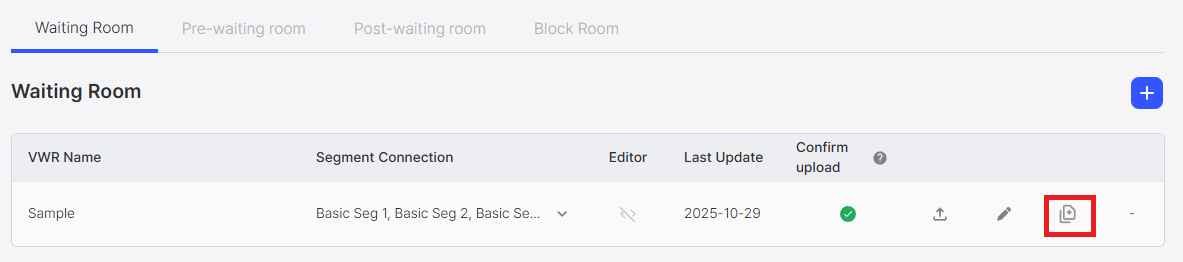
Click the Duplicate Button (document icon) for the waiting room you want to duplicate in the waiting room list.
Step 2: Select Target Type
Clicking the duplicate button displays a type selection dialog where you can select the target type for duplication.
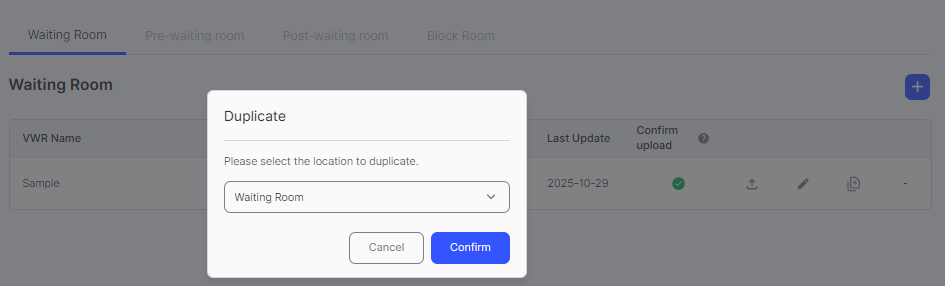
You can select from 4 types:
- Waiting Room
- Block Room
- Pre-waiting Room
- Post-waiting Room
If the original waiting room uses code editor mode, duplication is only possible to the same type as the original. You cannot duplicate to other waiting room types.
You can check if a waiting room uses code editor mode by looking at the Editor column in the waiting room list. Waiting rooms using code editor mode are highlighted in that column.
Step 3: Confirm Duplication
After selecting the desired type, click the Confirm button to complete the duplication.
How Duplication Works
When you click Confirm, the following happens:
- Common design settings (visual elements, typography, theme settings) are copied from the original waiting room
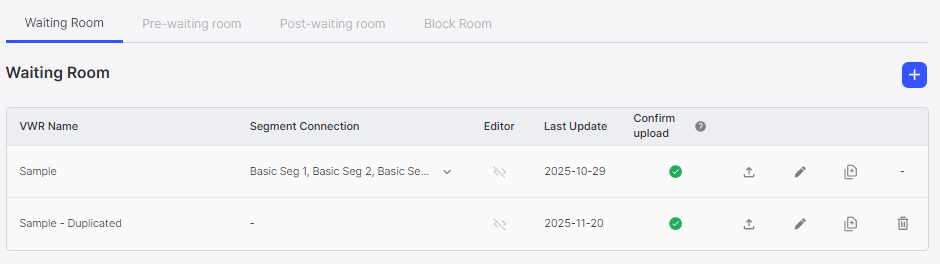
- The duplicated waiting room is created in the tab of the selected type
- The name is automatically set to
Duplicated - {{Original Name}}
Name Rules
When duplicating, waiting room names are automatically assigned by prepending Duplicated prefix to the original name:
- Original name:
{{Original Name}} - First duplicate:
Duplicated - {{Original Name}} - Second duplicate from same original:
Duplicated2 - {{Original Name}} - Duplicating from a duplicated waiting room:
Duplicated - Duplicated - {{Original Name}}
Examples:
- Original: "Sample"
- First duplicate: "Duplicated - Sample"
- Second duplicate: "Duplicated2 - Sample"
- Duplicating "Duplicated - Sample": "Duplicated - Duplicated - Sample"