How to Delete
This section explains how to delete waiting rooms.
Step 1: Click Delete Button
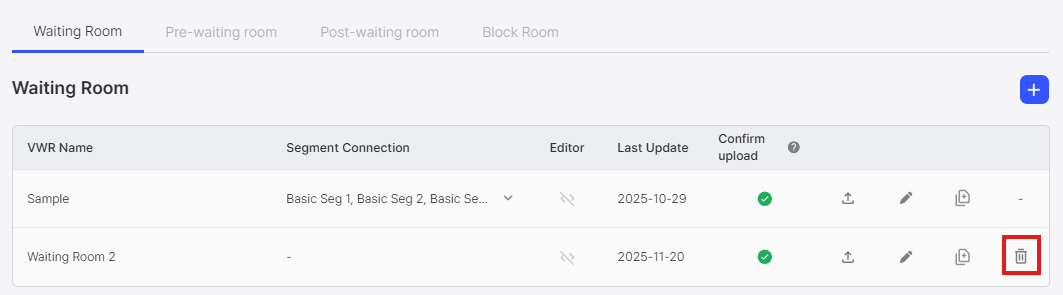
Click the Delete Button (trash icon) for the waiting room you want to delete in the waiting room list.
Step 2: Confirm Deletion
Clicking the delete button displays a confirmation popup to confirm the deletion.
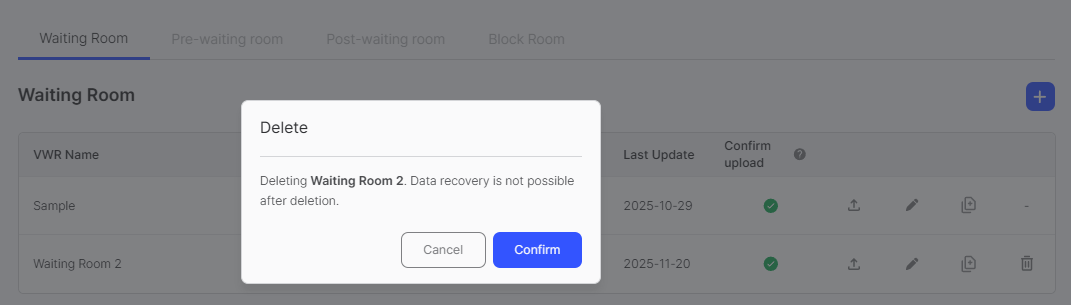
After confirming in the popup, the waiting room will be permanently deleted.
Deletion Rules
Sample Waiting Rooms
Sample waiting rooms (default system waiting rooms, one for each of the 4 types) do not support the deletion feature. The delete button is not displayed for these waiting rooms. You can modify their names, but deletion functionality is not available.
Segment Connection Handling
When deleting a waiting room that is linked to one or more segments, the system automatically changes the segment connections to the default sample waiting room of the same type.
Before deleting a waiting room, it is recommended to:
- Check which segments are currently using the waiting room (view the Segment Connection column in the list)
- Change the segment connections to another waiting room first
- Verify that no segments are connected to the waiting room
- Then proceed with deletion
This allows you to have better control over which waiting room replaces the deleted one for each segment.