Themes
Themes change the layout of main UI elements in your waiting room. All themes include the same UI elements, but each theme arranges them differently.
Themes are available for Waiting Room, Pre-waiting Room, Post-waiting Room, and Block Room types. The available themes may vary depending on the room type.
Available Themes
NetFUNNEL provides the following themes for waiting room customization:
Modal
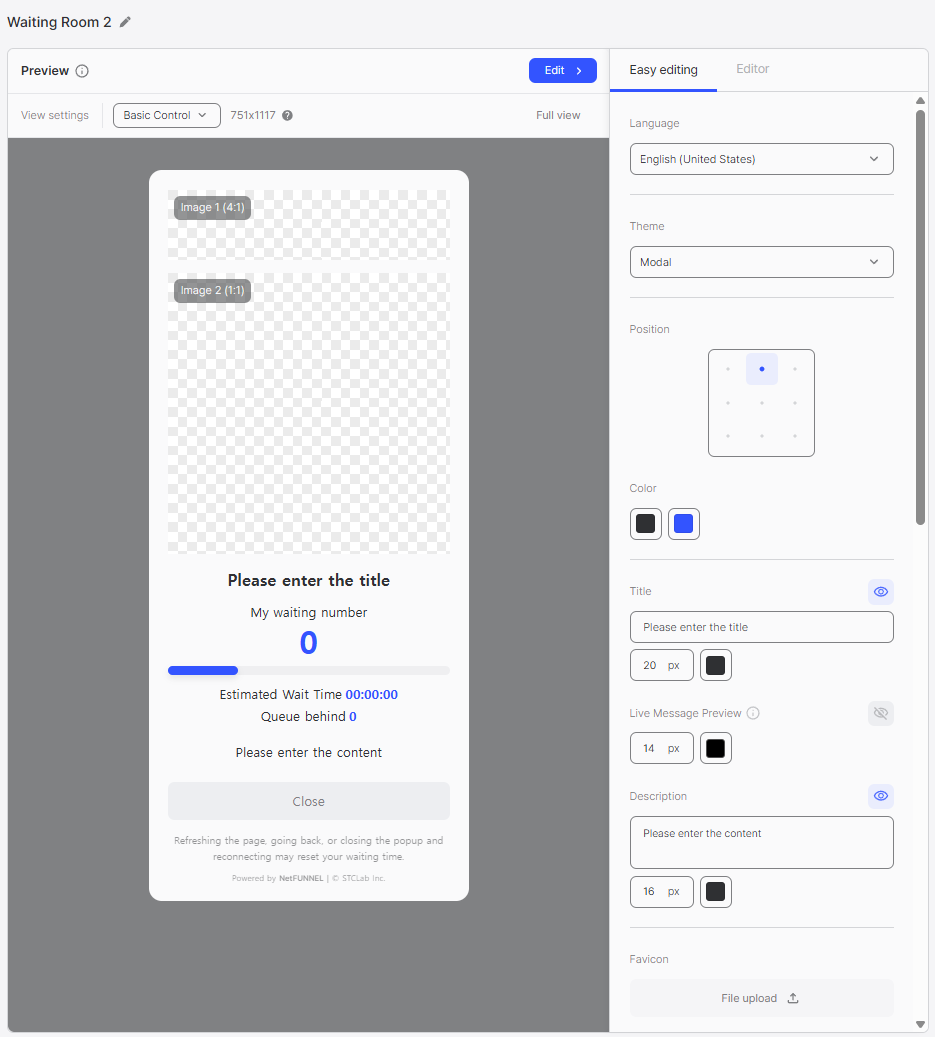
A classic and popular theme for waiting room composition. Consider different positions and image styles based on alignment to create a waiting room that matches your concept.
Module
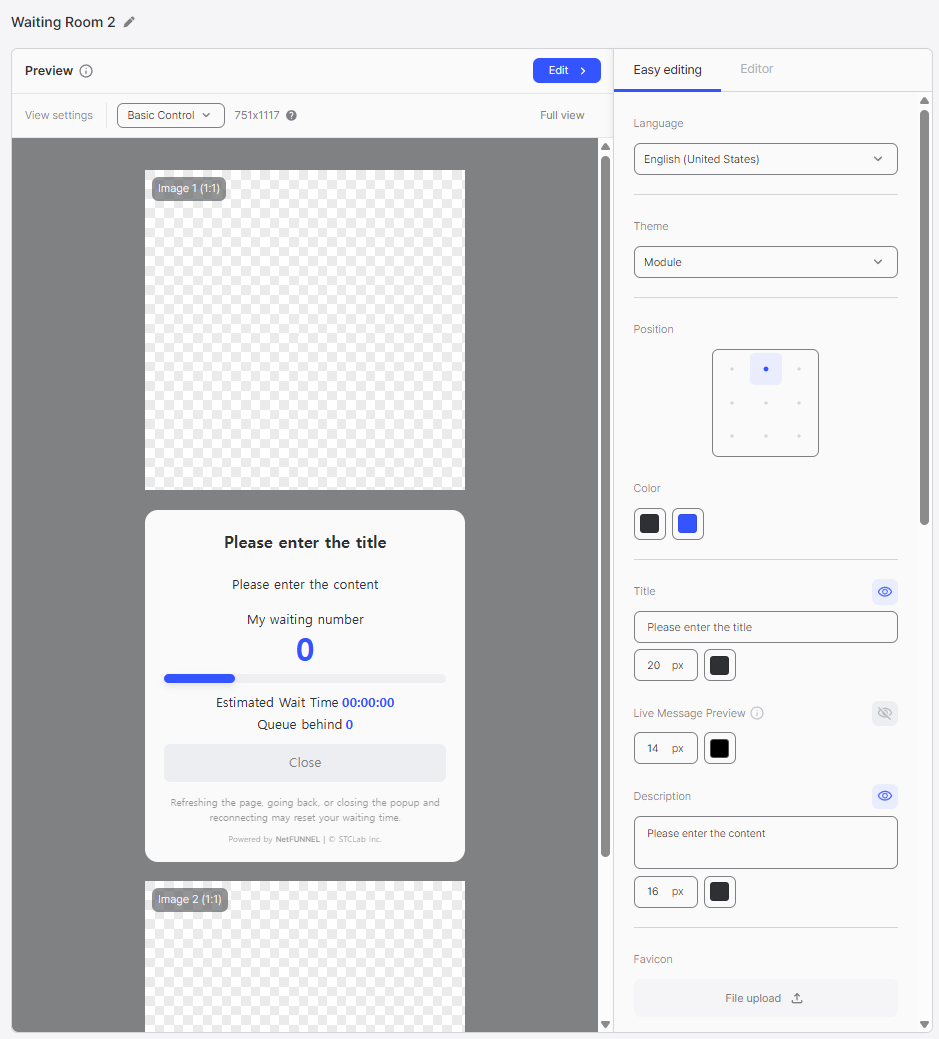
A more dynamic theme than Modal for creating waiting rooms. You can configure Image 1 and Image 2 with event-appropriate images (recommended for core content). The layout is responsive: on narrow mobile screens, Image 1 and Image 2 are arranged above and below the waiting UI, while on wider desktop screens, they are arranged on the left and right sides.
Banner
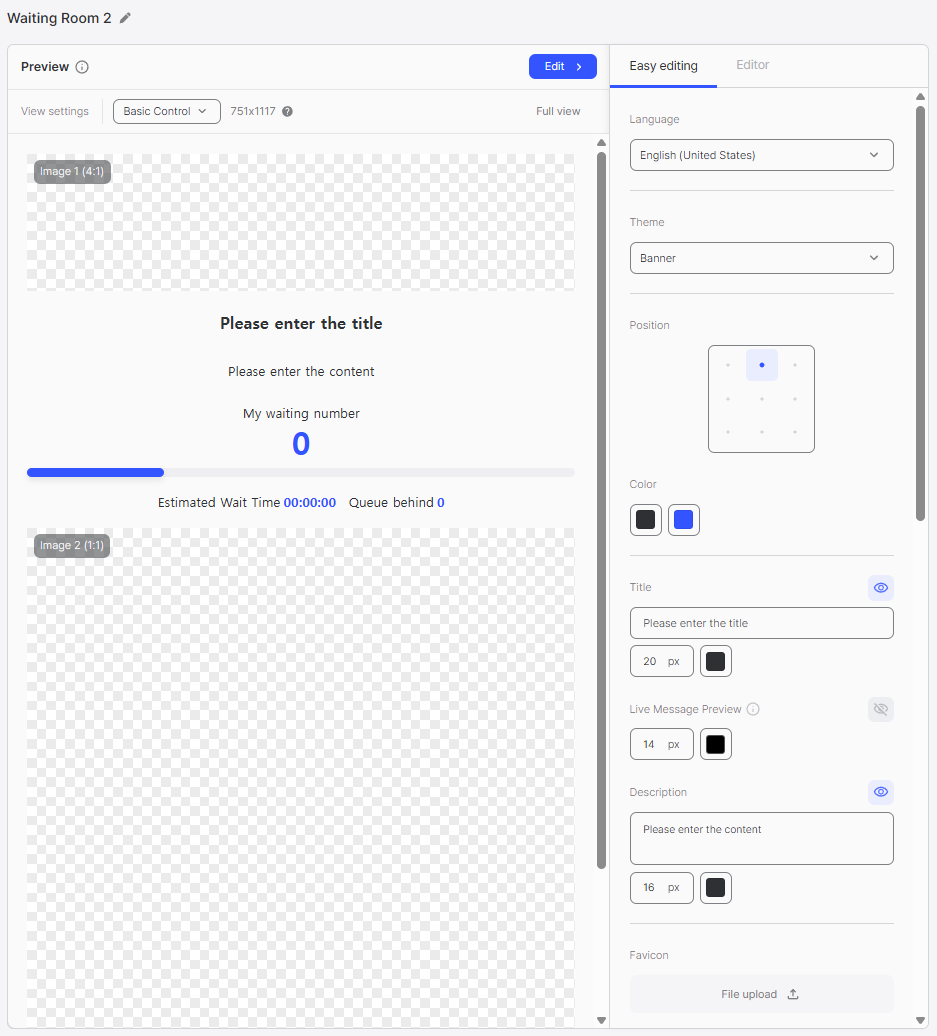
A theme designed to emphasize core content. You can style it like a promotion page, making it suitable for concerts, movie promotions, product promotions, and other targeted event compositions.
Notice Highlight
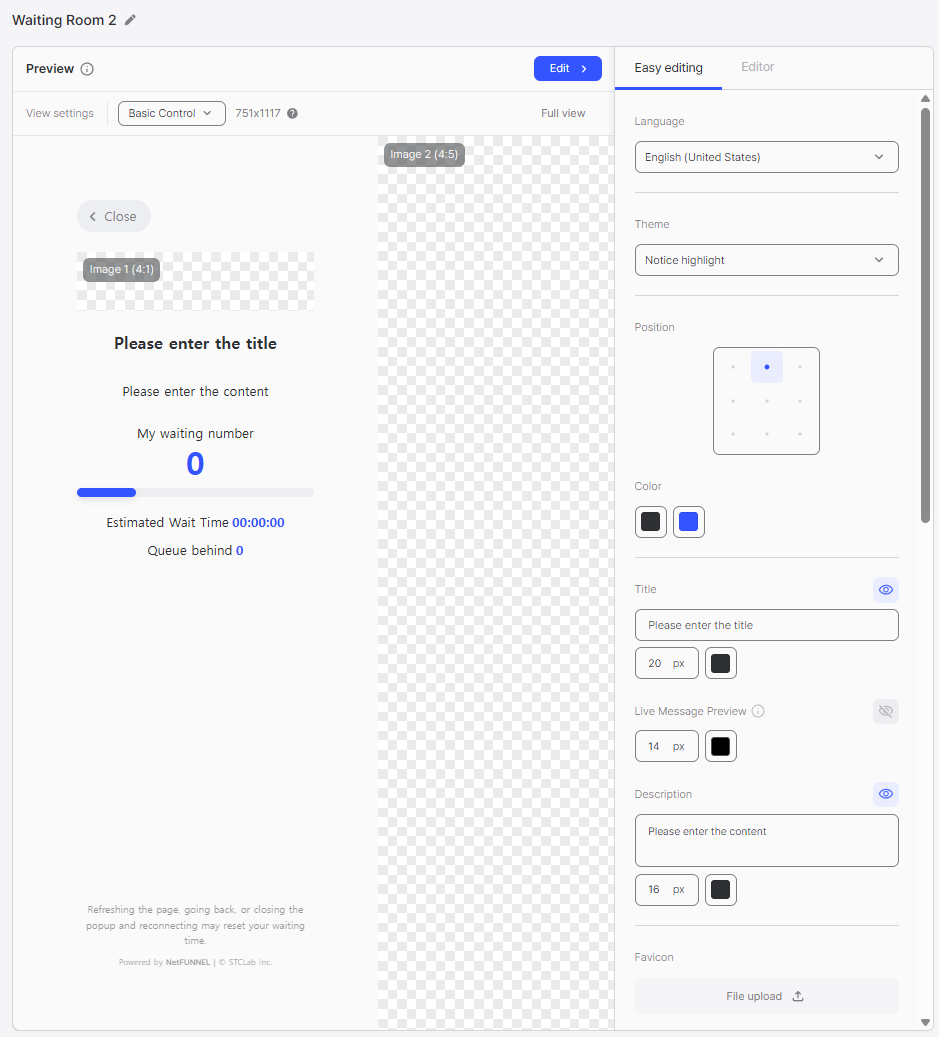
A theme that emphasizes notices by displaying content and waiting information in left-to-right order, making waiting information appear first. Useful when you need to prioritize important information such as ticket reservation status and key reservation details.
Image Highlight
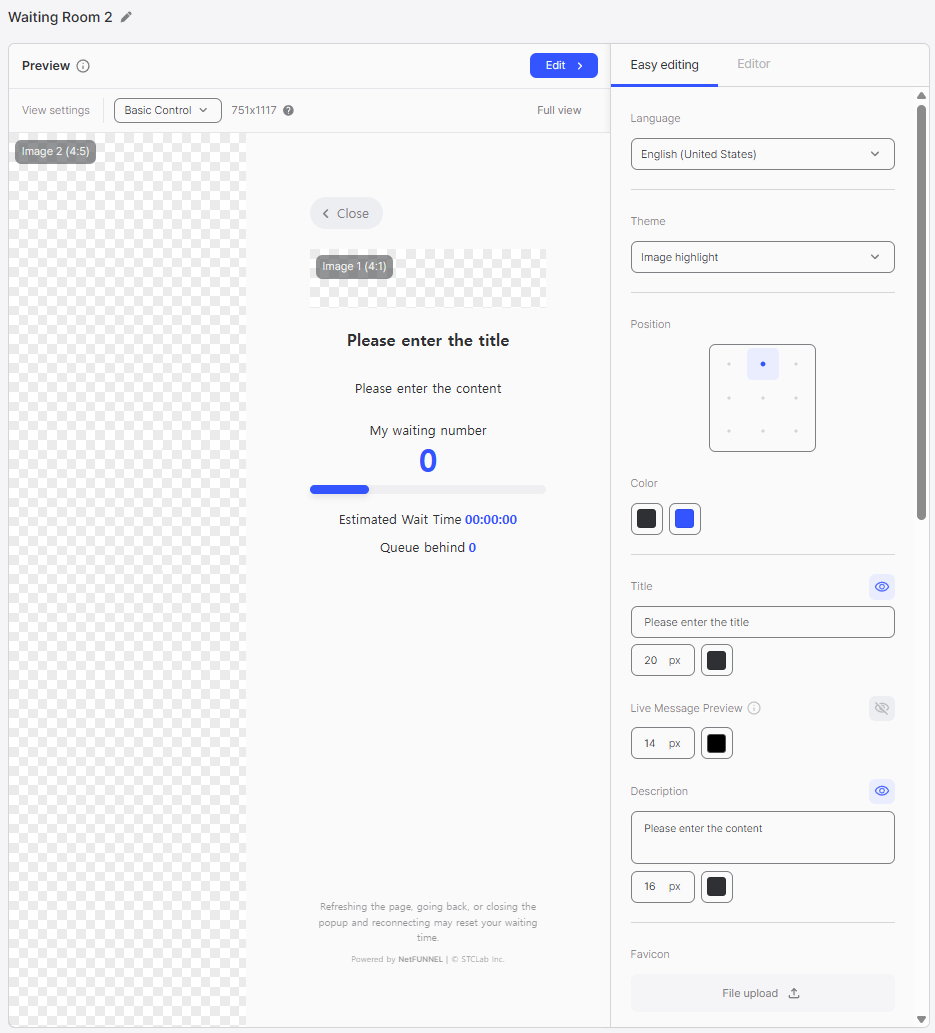
A theme that emphasizes images by placing them on the left side, opposite to Notice Highlight. Since images appear before information, you can write key event details within images to focus attention on them.
Theme Selection
Themes can be selected in the Easy Editing under the Theme Selection setting. Each theme provides a different layout for the same UI elements.
For detailed information about theme selection in Easy Editing, refer to the Easy Editing documentation for your specific room type:
- Waiting Room - Easy Editing
- Pre-waiting Room - Easy Editing
- Post-waiting Room - Easy Editing
- Block Room - Easy Editing
Alignment
All themes allow you to change the display format based on alignment. A total of 9 alignment options are provided, and they may appear differently depending on the theme. There are differences between PC and Mobile versions, so after completing your edits, use Full View to verify that your desired display format works correctly.
Images
Each theme positions Image 1, Image 2, Image 3, and Background images slightly differently. If no image is uploaded, you can specify a color instead. Images take priority over colors, so when an image is inserted, the color will not be displayed. You can use the eye icon to show or hide each image area, allowing you to create various waiting room designs.
- Consider your content type when selecting a theme: use Notice Highlight for information-heavy content, Image Highlight for visual content, and Banner for promotional content.
- Test your design in both PC and Mobile views using Full View mode to ensure proper display across devices.
- Use the eye icon to control image visibility and create different visual effects without removing images.