Preview Controls
The Preview Controls contains buttons and controls for managing the preview display itself. This document explains how to use these controls to adjust preview settings and view your waiting room design under different conditions.
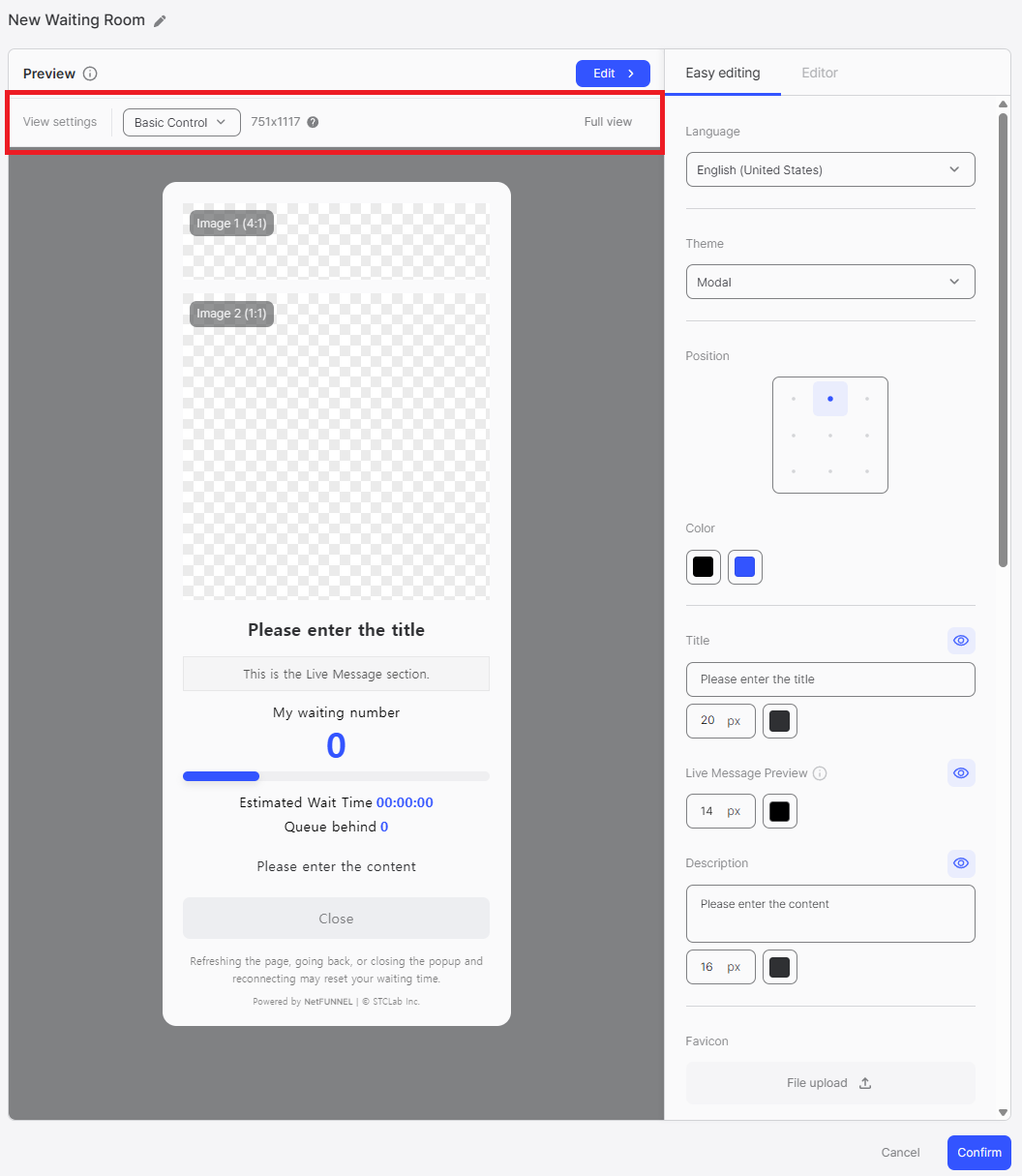
Overview
The Preview Controls provides tools to customize how the preview is displayed, allowing you to test your waiting room design at different resolutions, preview settings, and view modes. These controls help ensure your design works correctly across various scenarios.
Edit Button
The Edit button is a toggle that shows or hides the edit panels. Click the button to hide the edit panels and show only the preview panel. Click again to show the edit panels again.
Preview Settings
The Preview Settings feature allows you to preview how your waiting room design will appear under different conditions. You can toggle various settings to see how the waiting room adapts to different configurations. These settings can be modified in the segment configuration.
You can preview how the waiting room changes based on the selected environment. Settings can be modified in the segment.
Control Type
Toggle between Basic Control and Section Control to preview how your waiting room design appears in different segment types.
- Basic Control: All elements including Estimated wait time are displayed
- Section Control: Estimated wait time is not displayed (Section Control limitation)
The main difference is that Estimated wait time is not displayed in Section Control segments.
Entry Control Model
Toggle between Variable Entry Mode and Fixed Entry Mode to preview how entry processing affects the waiting room display.
- Variable Entry Mode: Entry processing is dynamically adjusted based on real-time request volume, so there may be some variability in waiting time and connection time. In the waiting room, estimated waiting time and connection time are provided as a range (minimum ~ maximum).
- Fixed Entry Mode: Entry processing occurs at fixed intervals.
Segment Status
Toggle between Segment Running and Segment Paused to preview the waiting room behavior.
- Running: Normal operation mode
- Paused: When traffic surge occurs, you can temporarily control customer entry who are waiting.
Customer Queue Notification
Toggle Popup Notification on or off to preview how the waiting room appears when customer queue notification is enabled.
- Popup Notification: When a customer's waiting is complete, a popup appears to confirm entry.
Full View Mode
Click the Full view button to expand only the preview area, allowing you to view your waiting room design in a larger, focused view.
Resolution Controls in Full View
In Full View mode, you can click the mobile and desktop icons to change the resolution and see how the preview adapts at different screen sizes. This allows you to test responsive design behavior while viewing the preview in an expanded format.