Code Editor
The Code Editor provides advanced editing capabilities for users who need complete control over the waiting room design. This document explains how code modifications in the Code Editor affect the preview and how changes are reflected in real-time.
Quick Reference
| Code Element | Easy Editing Setting | Customizable | Notes |
|---|---|---|---|
.nf-vwr-background | Background Image | ✅ Yes | Background color/image, padding |
.nf-vwr-image3 | Image 3 (Main UI background) | ✅ Yes | Background color/image, padding, border-radius |
.nf-vwr-image1 | Image 1 | ✅ Yes | Background image, size, position |
.nf-vwr-image2 | Image 2 | ✅ Yes | Background image, size, position |
.nf-vwr-title | Title | ✅ Yes | Text, color, font-size, visibility |
#nf-vwr-live-message | Live Message Preview | ✅ Yes | Font-size, color, visibility |
#nf-vwr-metrics-ahead-count-value | Users ahead (numeric value) | ⚠️ Limited | Color only (value is dynamic) |
.nf-vwr-metrics-progress | Progress bar | ⚠️ Limited | Color only (value is dynamic) |
#nf-vwr-metrics-progress-value | Progress Percentage | ⚠️ Limited | Visibility only (value is dynamic) |
#nf-vwr-metrics-process-status | Entry Processing Status | ⚠️ Limited | Visibility only (system-controlled) |
#nf-vwr-metrics-process-message | Status Message | ⚠️ Limited | Text placeholder, visibility (content is dynamic) |
#nf-vwr-metrics-wait-time-value | Estimated Wait Time (value) | ⚠️ Limited | Color only (value is dynamic) |
#nf-vwr-metrics-enter-time-value | Accessible Time (value) | ⚠️ Limited | Color only (value is dynamic) |
#nf-vwr-metrics-behind-count-value | Users Behind (value) | ⚠️ Limited | Color only (value is dynamic) |
#nf-vwr-marquee | Section Control Progress Bar | ⚠️ Limited | Visibility, color (system-controlled) |
.nf-vwr-description | Description | ✅ Yes | Text, color, font-size, visibility |
#nf-vwr-cancel | Waiting Room Exit Button | ✅ Yes | Text, colors, opacity, URL attribute |
Element IDs (e.g., nf-vwr-*) | - | ❌ DO NOT MODIFY | Required for system functionality |
Class names (e.g., nf-vwr-*) | - | ⚠️ CAUTION | Some classes are used by the system |
Overview
The Code Editor allows you to modify design properties directly in code format (HTML/CSS), providing maximum flexibility for customizations. All code changes are immediately reflected in the Preview Area, allowing you to see the results of your modifications in real-time.
Accessing Code Editor
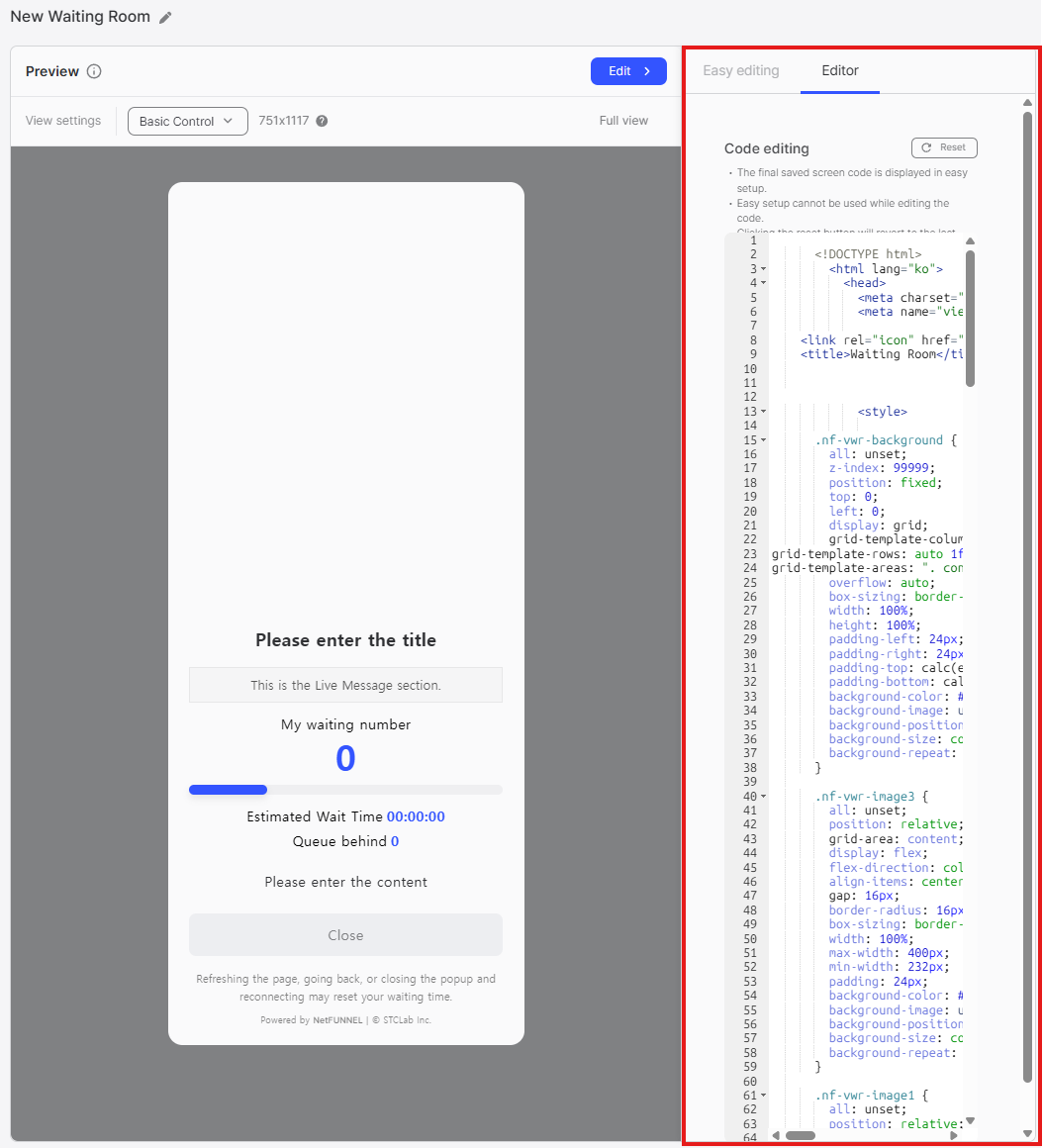
Switching to Editor Mode
To access the Code Editor:
- In Easy Editing, switch from Easy editing to Editor mode
- The Code Editor becomes available for code editing
- The code generated from Easy Editing settings is automatically loaded
Once you enter Editor Mode (Code Editor), Easy setup becomes disabled. You can return to Easy Editing mode from Editor mode by confirming the switch, but all custom code entered in Editor mode will be automatically reset and lost when you switch back to Easy Editing mode.
Code Structure Overview
The code editor loads HTML/CSS code that corresponds to the settings configured in Easy Editing. The code uses CSS custom properties (CSS variables) defined in :root to control various design properties. Understanding the code structure helps you make targeted modifications.
CSS Variables System
The code uses CSS custom properties (variables) in the :root selector to control design properties. These variables can be modified to customize the waiting room appearance:
- Layout variables: Grid positioning, alignment (
--nf-grid-template-areas,--nf-justify-content,--nf-align-items) - Typography variables: Font families, sizes, colors (
--nf-title-font-family,--nf-title-font-size,--nf-title-color) - Image variables: Display, background colors, URLs (
--nf-image1-display,--nf-image1-bg-color,--nf-image1-url) - Functional option variables: Display toggles for various features (
--nf-progress-value-display,--nf-wait-time-display,--nf-enter-time-display) - Color variables: Point colors, metric colors (
--nf-main-point-color,--nf-ahead-count-value-color)
HTML Structure Mapping
The HTML structure maps to Easy Editing settings as follows:
Background Layer
<div class="nf-vwr-background">
- Easy Editing Setting: Background Image
- Customizable: Background color (
background-color), background image (background-image), padding - Location: Entire screen background (outside main UI element)
Main UI Container
<div class="nf-vwr-image3">
- Easy Editing Setting: Image 3 (Main UI element background)
- Customizable: Background color/image, padding, border-radius, width, max-width
- Location: Main waiting room UI container
Images
<div class="nf-vwr-image1"></div>
<div class="nf-vwr-image2"></div>
- Easy Editing Setting: Image 1, Image 2
- Customizable: Background image URL, size, position, visibility (via
display: none) - Location: Inside main UI container
Title
<div class="nf-vwr-title">Please enter the title</div>
- Easy Editing Setting: Title
- Customizable: Text content, color, font-size, font-weight, visibility
- Location: Inside main UI container
Live Message
<div id="nf-vwr-live-message" class="nf-vwr-live-message"></div>
- Easy Editing Setting: Live Message Preview
- Customizable: Font-size, color, visibility (via
display: noneordisplay: flex) - ⚠️ Important: Content is dynamically populated - do not modify the ID
- Location: Inside main UI container
Metrics (Waiting Number, Progress Bar)
<div id="nf-vwr-metrics-essential" class="nf-vwr-metrics-essential">
  <p class="nf-vwr-metrics-key">내 앞의 대기</p>
  <p id="nf-vwr-metrics-ahead-count-value" class="nf-vwr-metrics-ahead-count-value"></p>
</div>
<div id="nf-vwr-metrics-progress-container-wrapper" class="nf-vwr-metrics-progress-container-wrapper">
  <div class="nf-vwr-metrics-progress-container">
    <progress id="nf-vwr-metrics-progress" class="nf-vwr-metrics-progress" max="100" value="0"></progress>
    <span id="nf-vwr-metrics-progress-value" class="nf-vwr-metrics-progress-value" data-nf-enable="false"></span>
  </div>
  <div id="nf-vwr-metrics-process-status" class="nf-vwr-metrics-process-status fast" data-nf-enable="false"></div>
</div>
- Easy Editing Setting: Users ahead, Progress bar, Progress Percentage, Entry Processing Status
- Customizable:
- Label text (
.nf-vwr-metrics-key) - Value color (
#nf-vwr-metrics-ahead-count-value- color only) - Progress bar color (via CSS variable
--nf-main-point-coloror.nf-vwr-metrics-progress::-webkit-progress-value) - Progress percentage display (via CSS variable
--nf-progress-value-display) - Entry processing status display (via CSS variable
--nf-progress-status-display)
- Label text (
- ⚠️ Important:
- Do not modify element IDs (
id="nf-vwr-metrics-*") - Do not modify
valueormaxattributes on progress bar (dynamically updated) - Do not modify
data-nf-enableattributes (system-controlled) - Value text is dynamically updated
- Do not modify element IDs (
Optional Metrics (Estimated Wait Time, Accessible Time, Users Behind)
<div id="nf-vwr-metrics-optional" class="nf-vwr-metrics-optional">
  <div id="nf-vwr-metrics-wait-time" class="nf-vwr-metrics-optional-box wait-time">
    <span class="nf-vwr-metrics-optional-title">예상 대기 시간</span>
    <span id="nf-vwr-metrics-wait-time-value" class="nf-vwr-metrics-value wait-time-value"></span>
  </div>
  <div id="nf-vwr-metrics-enter-time" class="nf-vwr-metrics-optional-box enter-time" data-nf-enable="true">
    <span class="nf-vwr-metrics-optional-title">접속 가능 시간</span>
    <span id="nf-vwr-metrics-enter-time-value" class="nf-vwr-metrics-value enter-time-value"></span>
  </div>
  <div id="nf-vwr-metrics-behind-count" class="nf-vwr-metrics-optional-box behind-count">
    <span class="nf-vwr-metrics-optional-title">내 뒤의 대기</span>
    <span id="nf-vwr-metrics-behind-count-value" class="nf-vwr-metrics-value behind-count-value"></span>
  </div>
</div>
- Easy Editing Setting: Estimated Wait Time, Accessible Time, Users Behind
- Customizable:
- Label text (
.nf-vwr-metrics-optional-title) - Value colors (via CSS variables or direct styling)
- Visibility (via CSS variables:
--nf-wait-time-display,--nf-enter-time-display,--nf-behind-count-display)
- Label text (
- ⚠️ Important:
- Do not modify element IDs
- Do not modify
data-nf-enableattributes (system-controlled) - Value text is dynamically updated
Status Message
<div id="nf-vwr-metrics-process-message" class="nf-vwr-metrics-process-message nf-vwr-pause-hidden" data-nf-enable="false">
  곧 사이트로 진입합니다.
</div>
- Easy Editing Setting: Status Message
- Customizable:
- Text content (placeholder text)
- Font family, size, color (via CSS variables)
- Visibility (via CSS variable
--nf-entering-message-display)
- ⚠️ Important:
- Do not modify element ID
- Content is dynamically updated by the system
- Do not modify
data-nf-enableattribute
Section Control Progress Bar (Marquee)
<div id="nf-vwr-marquee" class="nf-vwr-marquee-background">
  <div class="nf-vwr-marquee-object"></div>
</div>
- Easy Editing Setting: Section Control (when applicable)
- Customizable:
- Visibility (via CSS variable
--nf-marquee-display) - Color (via CSS variable
--nf-marquee-color)
- Visibility (via CSS variable
- ⚠️ Important:
- Do not modify element ID
- Do not modify the marquee animation structure
Description
<div class="nf-vwr-description nf-vwr-pause-hidden">내용을 입력해주세요.</div>
- Easy Editing Setting: Description
- Customizable: Text content, color, font-size, visibility (via CSS variable
--nf-desc-display) - Location: Inside main UI container
Waiting Room Exit Button
<button id="nf-vwr-cancel" class="nf-vwr-cancel" data-nf-cancel-url="">
  <span>닫기</span>
</button>
- Easy Editing Setting: Waiting Room Exit Button
- Customizable:
- Button text (inside
<span>tag) - Colors (via CSS variables:
--nf-close-bg-color,--nf-close-text-color,--nf-close-border-color) - Visibility (via CSS variable
--nf-close-display) - URL attribute (
data-nf-cancel-url="")
- Button text (inside
- ⚠️ Important:
- Do not modify element ID (
id="nf-vwr-cancel") - Do not remove
data-nf-cancel-urlattribute (required for redirect functionality)
- Do not modify element ID (
Footer Information
<div class="nf-vwr-info">Refreshing the page, going back, or closing the popup and reconnecting may reset your waiting time.</div>
<div class="nf-vwr-copyright">Powered by <strong>NetFUNNEL</strong> | © STCLab Inc.</div>
- Easy Editing Setting: Footer text (via Color Customization - First Color Picker)
- Customizable: Text content, color, font-size, visibility
- Location: Inside main UI container
Safe Customization Areas
✅ Safe to Modify
CSS Properties:
- Colors (
color,background-color) - Font properties (
font-size,font-weight,font-family) - Spacing (
padding,margin,gap) - Layout (
display,flex-direction,align-items,justify-content) - Sizing (
width,max-width,min-width,height) - Visual effects (
border-radius,opacity,box-shadow) - Background images (
background-image,background-size,background-position)
CSS Variables (Custom Properties):
- All CSS variables defined in
:rootcan be modified to customize design properties - Variables control display toggles, colors, fonts, and layout settings
- Example:
--nf-title-display,--nf-title-color,--nf-progress-value-display
HTML Content:
- Text content in elements without IDs (e.g.,
.nf-vwr-title,.nf-vwr-description) - Label text (e.g., "Users ahead", "Estimated Wait Time")
- Button text (e.g., "Close")
HTML Attributes:
data-nf-cancel-urlattribute value (for redirect URL)langattribute in<html>tag (for language)<title>tag content<link rel="icon">href attribute (for favicon)
⚠️ Modify with Caution
Element IDs:
- All elements with
id="nf-vwr-*"are used by the system - Modifying IDs will break functionality
- Rule: Never change or remove element IDs
Dynamic Content:
- Elements with IDs that display dynamic values:
#nf-vwr-metrics-ahead-count-value(waiting number)#nf-vwr-metrics-progress-value(progress percentage)#nf-vwr-metrics-wait-time-value(estimated time)#nf-vwr-metrics-enter-time-value(accessible time)#nf-vwr-metrics-behind-count-value(users behind)#nf-vwr-live-message(live message content)#nf-vwr-metrics-process-message(status message content)
- Rule: Only modify CSS styling (color, font-size, visibility via CSS variables) - do not modify the element structure or ID
System-Controlled Attributes:
data-nf-enableattributes on various elements are controlled by the system- Rule: Do not modify
data-nf-enableattributes
Progress Bar:
valueandmaxattributes are dynamically updated- Rule: Only modify CSS styling - do not modify HTML attributes
Class Names:
- Some classes may be referenced by the system
- Rule: If unsure, test changes in preview before saving
❌ Do Not Modify
Critical Element IDs:
id="nf-vwr-live-message"id="nf-vwr-metrics-essential"id="nf-vwr-metrics-ahead-count-value"id="nf-vwr-metrics-progress"id="nf-vwr-metrics-progress-value"id="nf-vwr-metrics-process-status"id="nf-vwr-metrics-process-message"id="nf-vwr-marquee"id="nf-vwr-metrics-optional"id="nf-vwr-metrics-wait-time"id="nf-vwr-metrics-wait-time-value"id="nf-vwr-metrics-enter-time"id="nf-vwr-metrics-enter-time-value"id="nf-vwr-metrics-behind-count"id="nf-vwr-metrics-behind-count-value"id="nf-vwr-cancel"id="nf-vwr-popup"id="nf-vwr-popup-confirm"
Critical Attributes:
data-nf-cancel-urlattribute name (required for button functionality)data-nf-enableattributes (system-controlled, do not modify)maxandvalueattributes on<progress>element- Element structure of dynamic content containers
Common Customization Examples
Changing Title Text and Style
.nf-vwr-title {
  color: #ff0000;           /* Change title color */
  font-size: 28px;          /* Increase font size */
  font-weight: 700;         /* Make bolder */
}
<div class="nf-vwr-title">Welcome to Our Service</div>
Hiding Elements
Method 1: CSS Display
.nf-vwr-description {
  display: none;            /* Hide description */
}
Method 2: HTML Comment
<!-- <div class="nf-vwr-description">Please enter the content</div> -->
Changing Colors
Background Color:
.nf-vwr-background {
  background-color: #1a1a1a;  /* Dark background */
}
Main UI Background:
.nf-vwr-image3 {
  background-color: #ffffff;  /* White background */
}
Text Colors:
.nf-vwr-title {
  color: #3354ff;            /* Blue title */
}

.nf-vwr-description {
  color: #666666;            /* Gray description */
}
Dynamic Value Colors:
#nf-vwr-metrics-ahead-count-value {
  color: #ff0000;            /* Red waiting number */
}

#nf-vwr-metrics-wait-time-value {
  color: #00ff00;            /* Green estimated time */
}

#nf-vwr-metrics-enter-time-value {
  color: #0000ff;            /* Blue accessible time */
}

#nf-vwr-metrics-behind-count-value {
  color: #ff00ff;            /* Magenta users behind */
}
Using CSS Variables:
:root {
  --nf-ahead-count-value-color: #ff0000;  /* Waiting number color */
  --nf-wait-time-value-color: #00ff00;    /* Estimated time color */
  --nf-enter-time-value-color: #0000ff;   /* Accessible time color */
  --nf-behind-count-value-color: #ff00ff; /* Users behind color */
}
Modifying Button
Button Text:
<button id="nf-vwr-cancel" class="nf-vwr-cancel" data-nf-cancel-url="https://example.com">
  <span>Leave Queue</span>
</button>
Button Styling (Direct CSS):
.nf-vwr-cancel {
  background-color: #ff0000;  /* Red background */
  color: #ffffff;              /* White text */
  border: 1px solid #cc0000;   /* Border color */
  border-radius: 12px;         /* More rounded */
}
Button Styling (CSS Variables):
:root {
  --nf-close-display: flex;           /* Show button */
  --nf-close-bg-color: #ff0000ff;     /* Red background */
  --nf-close-text-color: #ffffffff;   /* White text */
  --nf-close-border-color: #cc0000ff; /* Border color */
}
Button URL:
<button id="nf-vwr-cancel" class="nf-vwr-cancel" data-nf-cancel-url="https://yoursite.com/home">Close</button>
Adding Background Images
Background Image:
.nf-vwr-background {
  background-image: url('https://example.com/background.jpg');
  background-size: cover;
  background-position: center;
}
Image 1:
.nf-vwr-image1 {
  background-image: url('https://example.com/image1.png');
  background-size: contain;
}
Advanced Programming Cases
Case 1: Dynamic Language Switching
Scenario: Display waiting room in different languages based on user locale.
Implementation:
- Detect user locale (browser language, URL parameter, etc.)
- Modify text content dynamically using JavaScript
- Update CSS for language-specific fonts if needed
Example:
// Detect locale and update text
const locale = navigator.language || 'en';
const translations = {
  'en': { title: 'Please Wait', description: 'You are in queue' },
  'ko': { title: '대기 중', description: '대기열에 있습니다' },
  'ja': { title: 'お待ちください', description: 'キューに入っています' }
};

const title = document.querySelector('.nf-vwr-title');
const description = document.querySelector('.nf-vwr-description');
title.textContent = translations[locale]?.title || translations['en'].title;
description.textContent = translations[locale]?.description || translations['en'].description;
Rules:
- ✅ Safe to modify text content of elements without IDs
- ✅ Safe to add JavaScript for dynamic content
- ❌ Do not modify element IDs
- ⚠️ Test thoroughly across different locales
Case 2: Adding Custom Assets
Scenario: Load custom fonts, images, or other assets.
Implementation:
- Add
<link>tags in<head>for external resources - Use
url()in CSS for images - Ensure assets are accessible (CORS, HTTPS)
Example - Custom Font:
<head>
  <link rel="preconnect" href="https://fonts.googleapis.com">
  <link href="https://fonts.googleapis.com/css2?family=Roboto:wght@400;700&display=swap" rel="stylesheet">
</head>
.nf-vwr-title {
  font-family: 'Roboto', sans-serif;
}
Example - Custom Image:
.nf-vwr-image1 {
  background-image: url('https://cdn.example.com/custom-image.png');
}
Rules:
- ✅ Safe to add
<link>tags in<head> - ✅ Safe to use external URLs in CSS
url() - ⚠️ Ensure assets are accessible (CORS enabled, HTTPS)
- ⚠️ Consider loading performance
Case 3: Adding Custom Logic
Scenario: Add custom JavaScript for enhanced functionality.
Implementation:
- Add
<script>tag before closing</body>tag - Use existing element IDs to interact with waiting room elements
- Do not override NetFUNNEL's core functionality
Example - Custom Analytics:
<body>
  <!-- ... existing code ... -->

  <script>
    // Custom analytics tracking
    document.getElementById('nf-vwr-cancel').addEventListener('click', function() {
      // Track cancel button click
      console.log('Cancel button clicked');
      // Send to analytics service
    });
  </script>
</body>
Rules:
- ✅ Safe to add custom
<script>tags - ✅ Safe to add event listeners to existing elements
- ❌ Do not remove or modify required element IDs
- ⚠️ Test thoroughly to ensure compatibility
Case 4: Conditional Styling
Scenario: Apply different styles based on conditions (time of day, user type, etc.).
Implementation:
- Use JavaScript to detect conditions
- Add/remove CSS classes or modify inline styles
- Use CSS classes for styling, not direct style modifications
Example - Time-based Styling:
<script>
  const hour = new Date().getHours();
  const background = document.querySelector('.nf-vwr-background');

  if (hour >= 6 && hour < 18) {
    background.style.backgroundColor = '#f0f0f0'; // Light mode
  } else {
    background.style.backgroundColor = '#1a1a1a'; // Dark mode
  }
</script>
Rules:
- ✅ Safe to modify CSS classes and inline styles via JavaScript
- ✅ Safe to add conditional logic
- ⚠️ Ensure changes don't break core functionality
- ⚠️ Test across different conditions
Case 5: Custom Animations
Scenario: Add custom animations or transitions.
Implementation:
- Define
@keyframesin CSS - Apply animations to elements
- Ensure animations don't interfere with existing animations
Example:
@keyframes fadeIn {
  from { opacity: 0; }
  to { opacity: 1; }
}

.nf-vwr-title {
  animation: fadeIn 1s ease-in;
}
Rules:
- ✅ Safe to add custom
@keyframes - ✅ Safe to add CSS animations
- ⚠️ Do not modify existing
@keyframes(marquee, entering) - ⚠️ Test animation performance
Programming Rules Summary
✅ Allowed Operations
- CSS Modifications: All CSS properties can be modified (colors, fonts, spacing, layout, etc.)
- HTML Content: Text content in non-ID elements can be modified
- HTML Attributes: Safe attributes can be modified (
data-nf-cancel-url,lang,title,href) - Adding Resources: Can add
<link>tags for fonts, stylesheets, etc. - Adding Scripts: Can add custom
<script>tags for additional functionality - Adding Elements: Can add new HTML elements (with caution - may affect layout)
⚠️ Restricted Operations
- Element IDs: Never modify or remove IDs starting with
nf-vwr-* - Dynamic Attributes: Do not modify
valueormaxon<progress>element - Required Attributes: Do not remove
data-nf-cancel-urlattribute name - Core Animations: Do not modify existing
@keyframes(marquee, entering) - Element Structure: Be cautious when modifying structure of dynamic content containers
❌ Prohibited Operations
- Removing Required Elements: Do not remove elements with IDs
- Breaking Functionality: Do not make changes that break waiting room functionality
- Security Risks: Do not add scripts that pose security risks
Best Practices
Code Organization
- Use Comments: Add comments to identify custom sections
- Maintain Structure: Keep code organized and readable
- Test Incrementally: Make small changes and test frequently
Preview Monitoring
- Check After Each Change: Verify changes in preview after each modification
- Test Different Scenarios: Use Preview Controls to test at different resolutions
- Validate Functionality: Ensure all interactive elements work correctly
Safety Guidelines
- Backup Code: Save code backups before major changes
- Test Thoroughly: Test all functionality after modifications
- Document Changes: Keep notes on what was modified and why
Always backup your code before making major changes. Code changes cannot be recovered after resetting to Easy Editing mode.
For dynamic language switching based on user locale, implement locale detection and content updates using JavaScript. See the examples in Advanced Programming Cases for implementation details.