Project Interface Guide
This guide shows you how to work with projects in the NetFUNNEL console. Learn how to view projects, find project keys, change settings, and manage your projects effectively.
What You Can Do
- View all your projects at a glance
- Select a project to work with
- Find and copy project keys for integration
- Change project names for better organization
- Activate or deactivate projects when needed
Once created, projects cannot be deleted. If you no longer need a project, refer to the Project Deactivation Guide.
Viewing Your Projects
When you log into NetFUNNEL console, you'll see the main dashboard with all your projects listed.
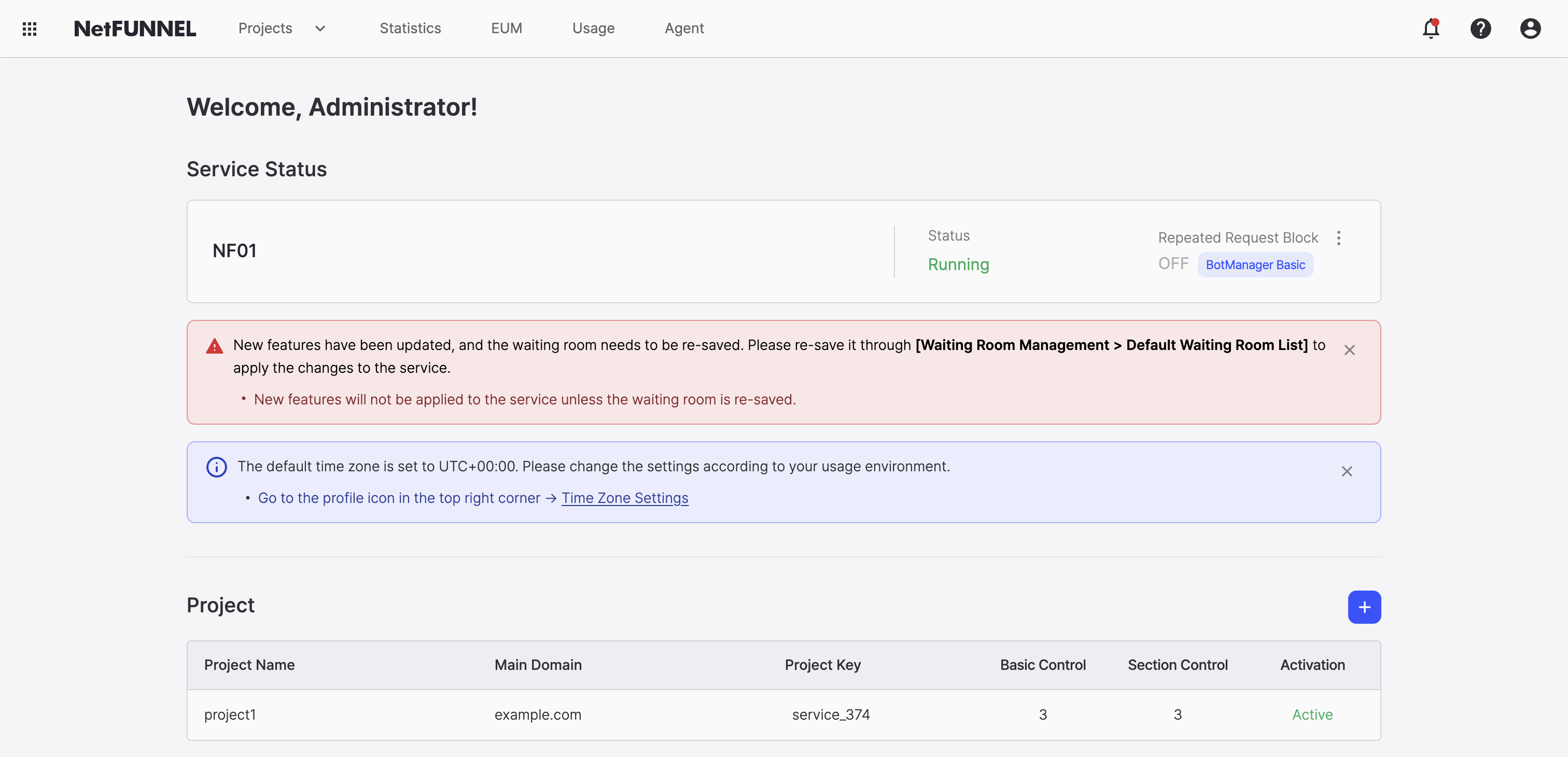
What Information is Shown?
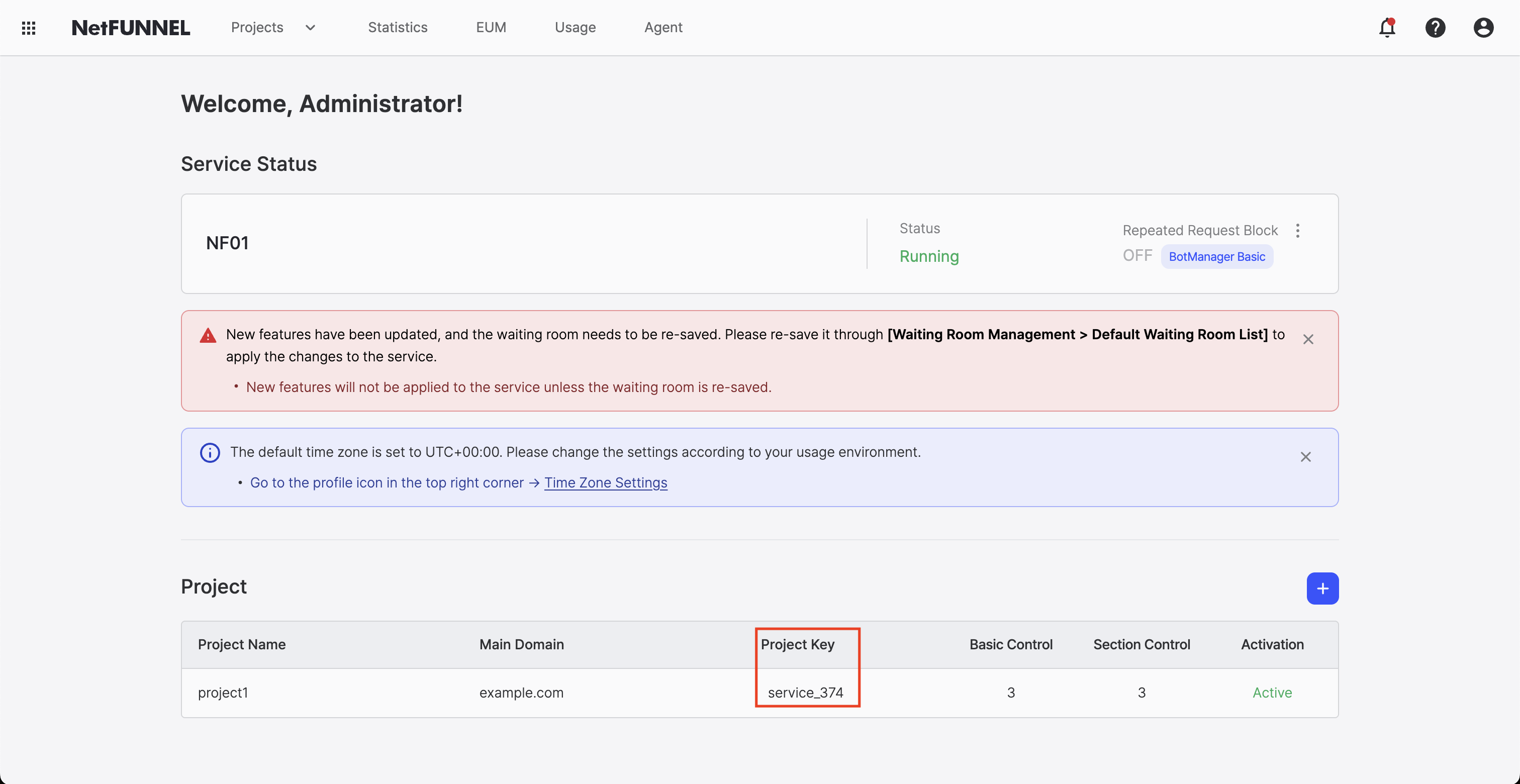
Each project in the list displays:
| Property | Description | Can Change? |
|---|---|---|
| Project Name | The name of your project | ✅ Yes |
| Main Domain | Primary domain associated with the project | ✅ Yes |
| Project Key | Your project's unique identifier | ❌ No |
| Basic Control | Number of Basic Control segments | ✅ Yes |
| Section Control | Number of Section Control segments | ✅ Yes |
| Activation | Project status (Active or Inactive) | ✅ Yes |
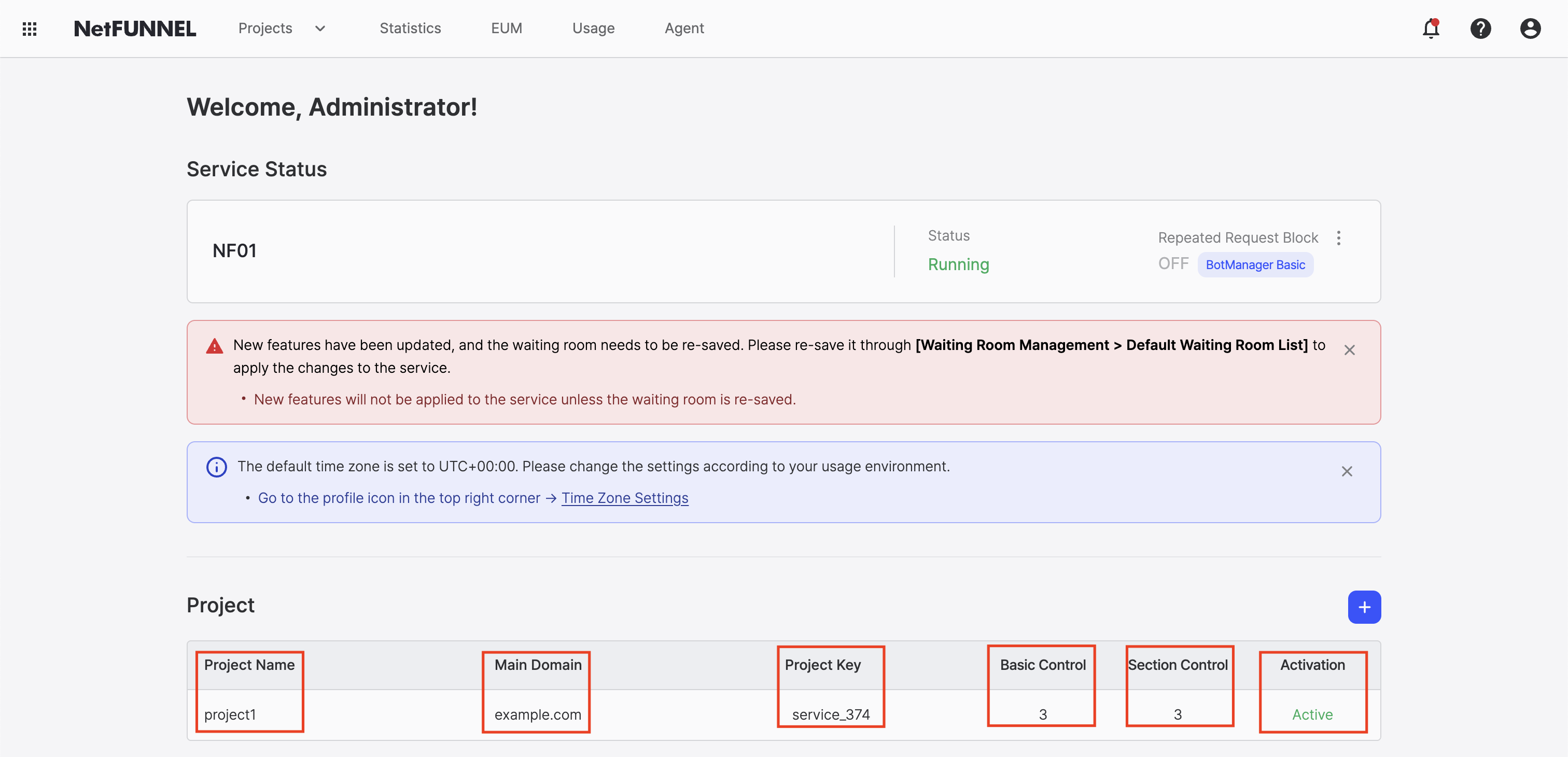
- Project Key: Automatically generated and cannot be modified
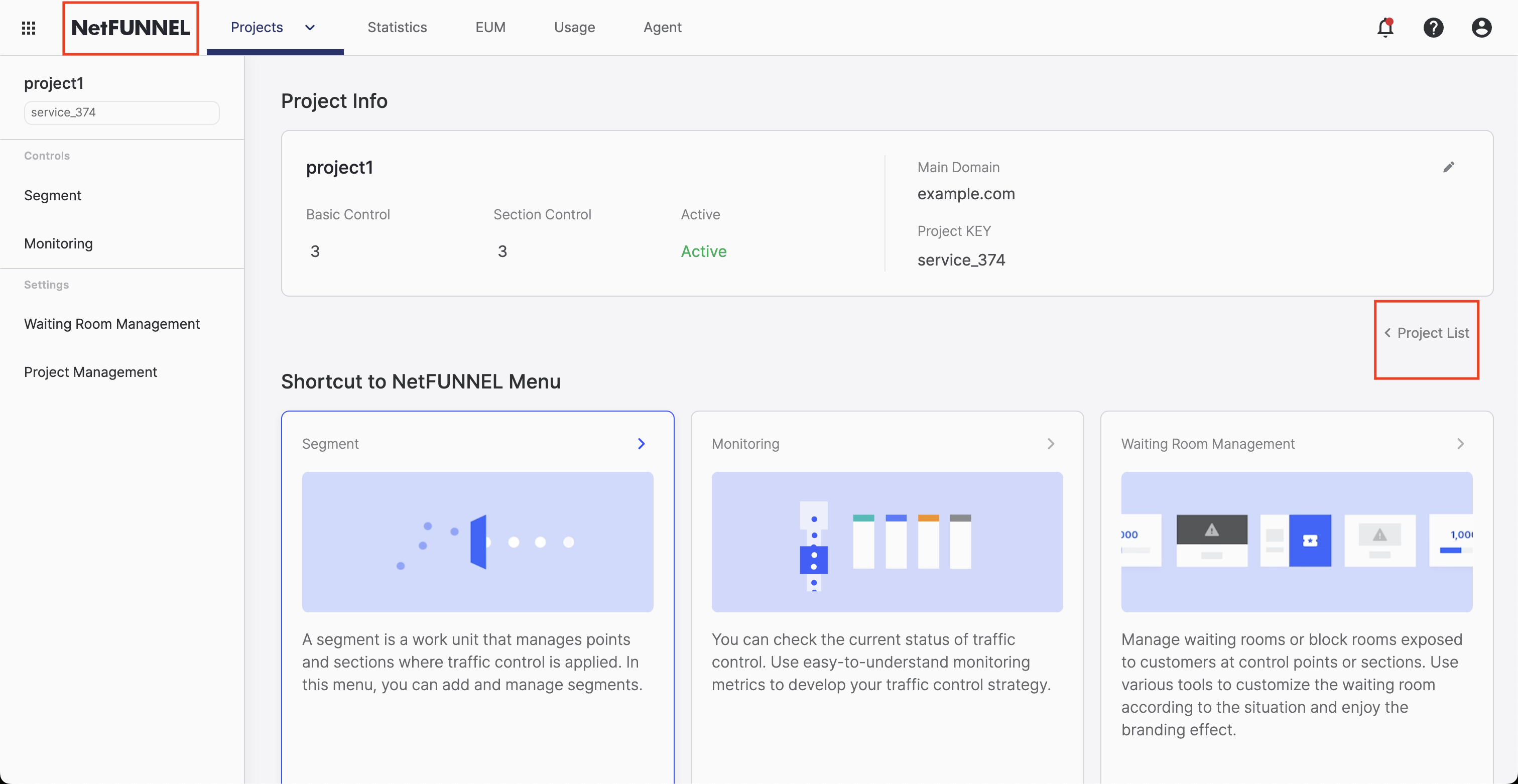
Going Back to the Project List
If you're on a different page and want to return to the project list:
- Click the NetFUNNEL logo at the top of the page, or
- Click "Project List" button from any project detail page
Selecting a Project
To work with a specific project, you need to select it first.
How to select a project:
- Click on any project from the project list on the main page, or
- Click "Projects" in the top menu and select a project from the dropdown list
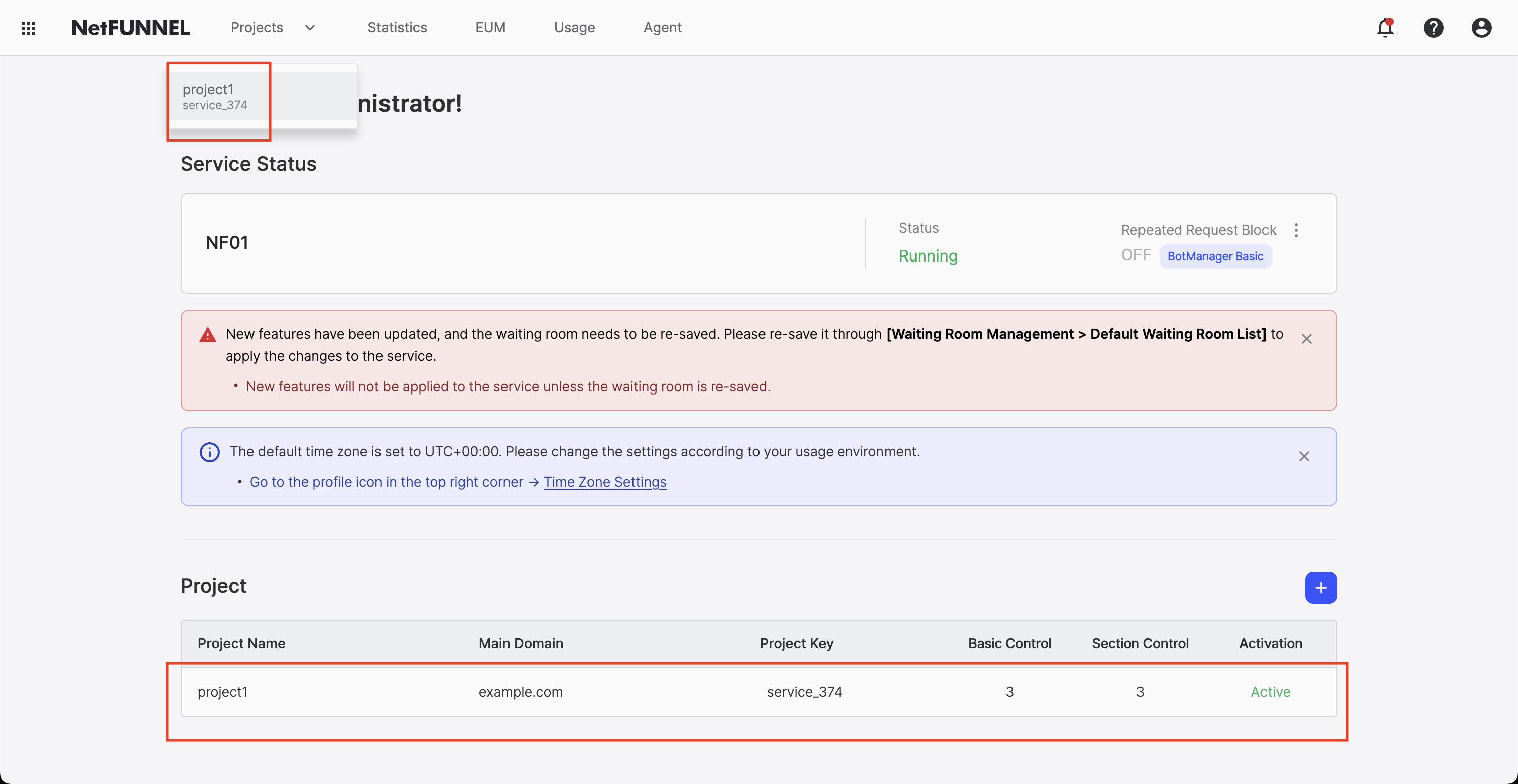
Once you select a project, you'll see the project detail page where you can manage all aspects of that project.
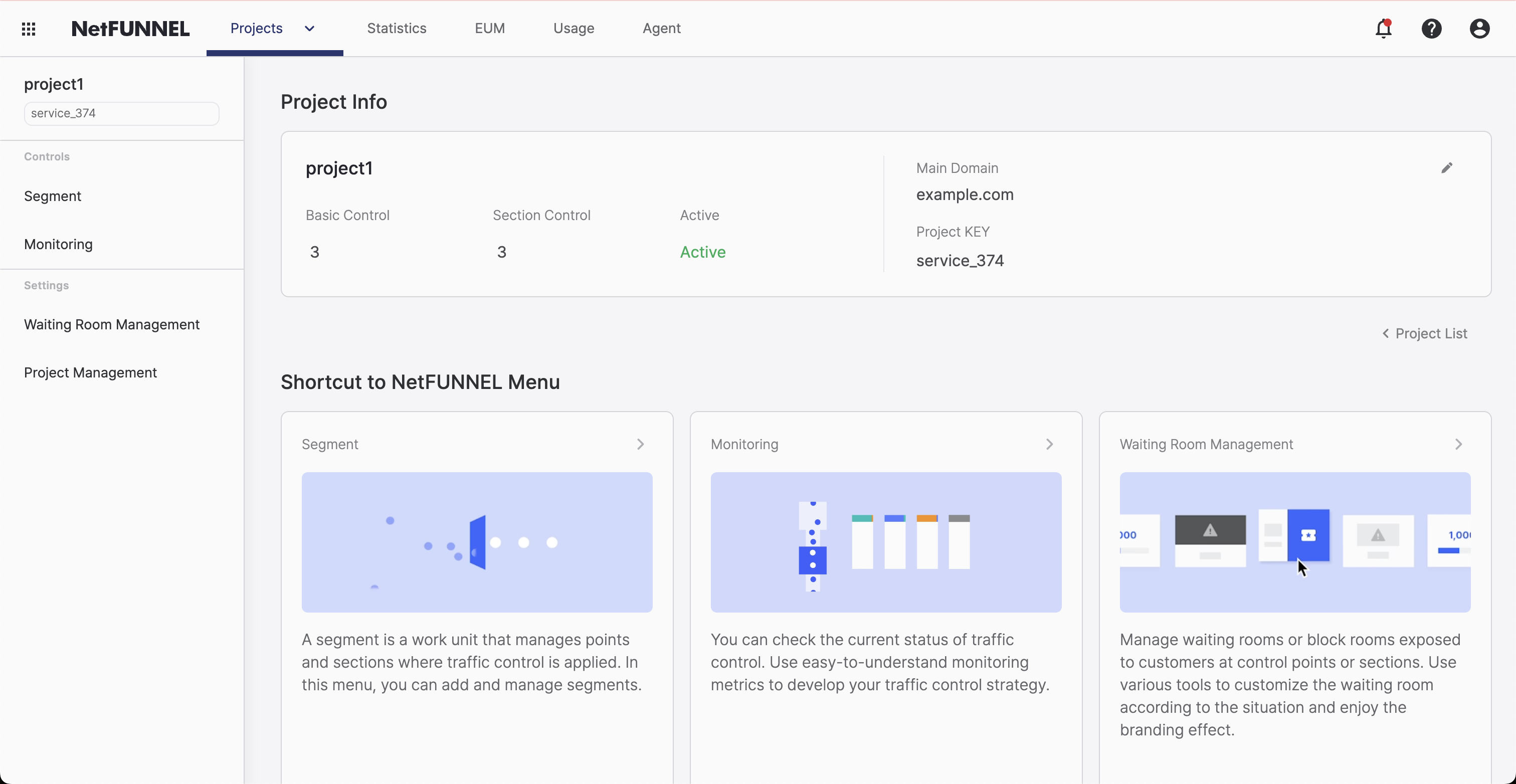
Understanding the Project Page Layout
When you're inside a project, you'll see:
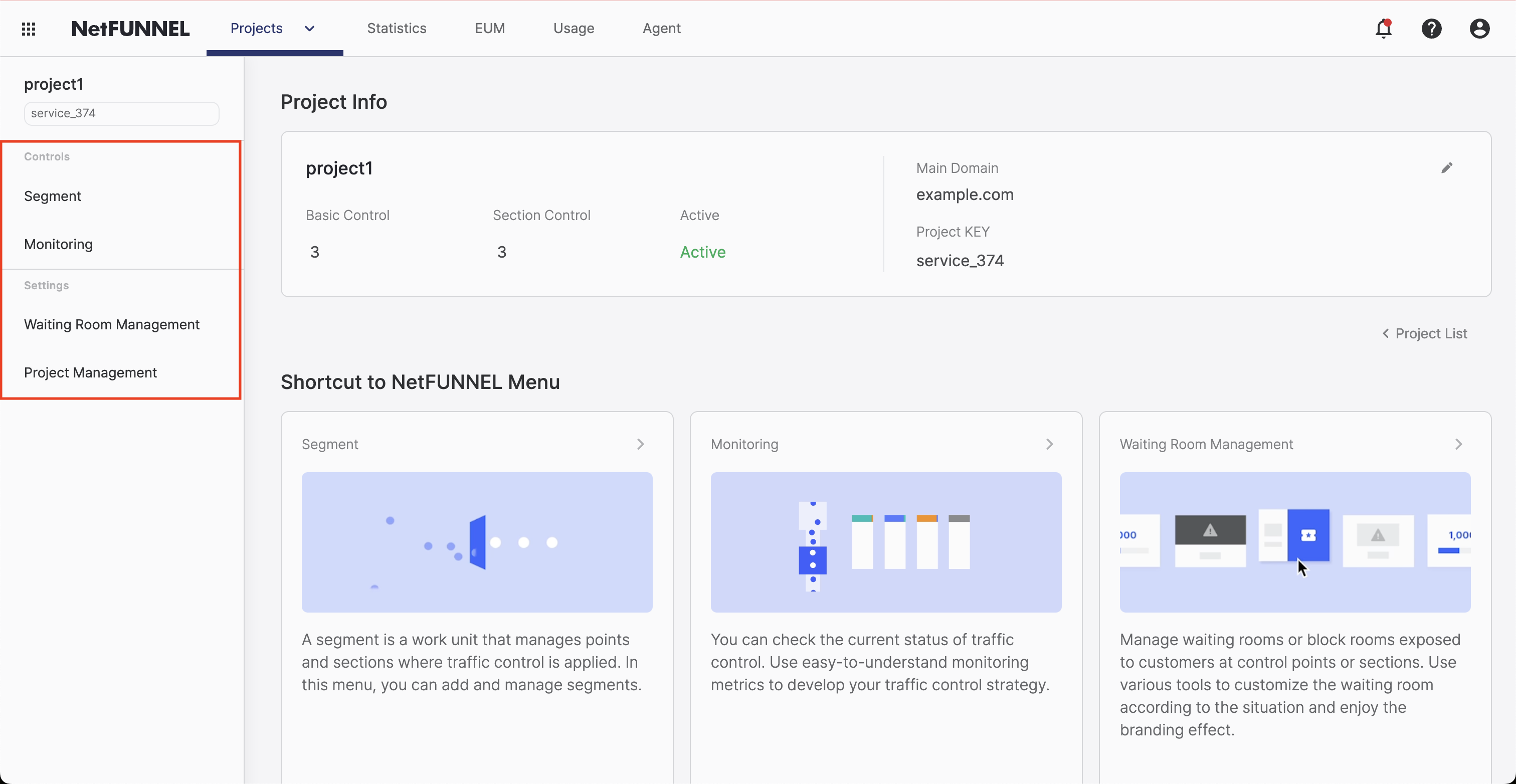
Main areas:
-
Project Information Panel (at the top)
- Shows project name, domain, project key, segment counts, and activation status
-
Left Sidebar Navigation
- Segments: View and manage segments
- Monitoring: Real-time traffic monitoring
- Waiting Room Management: Customize waiting room UIs
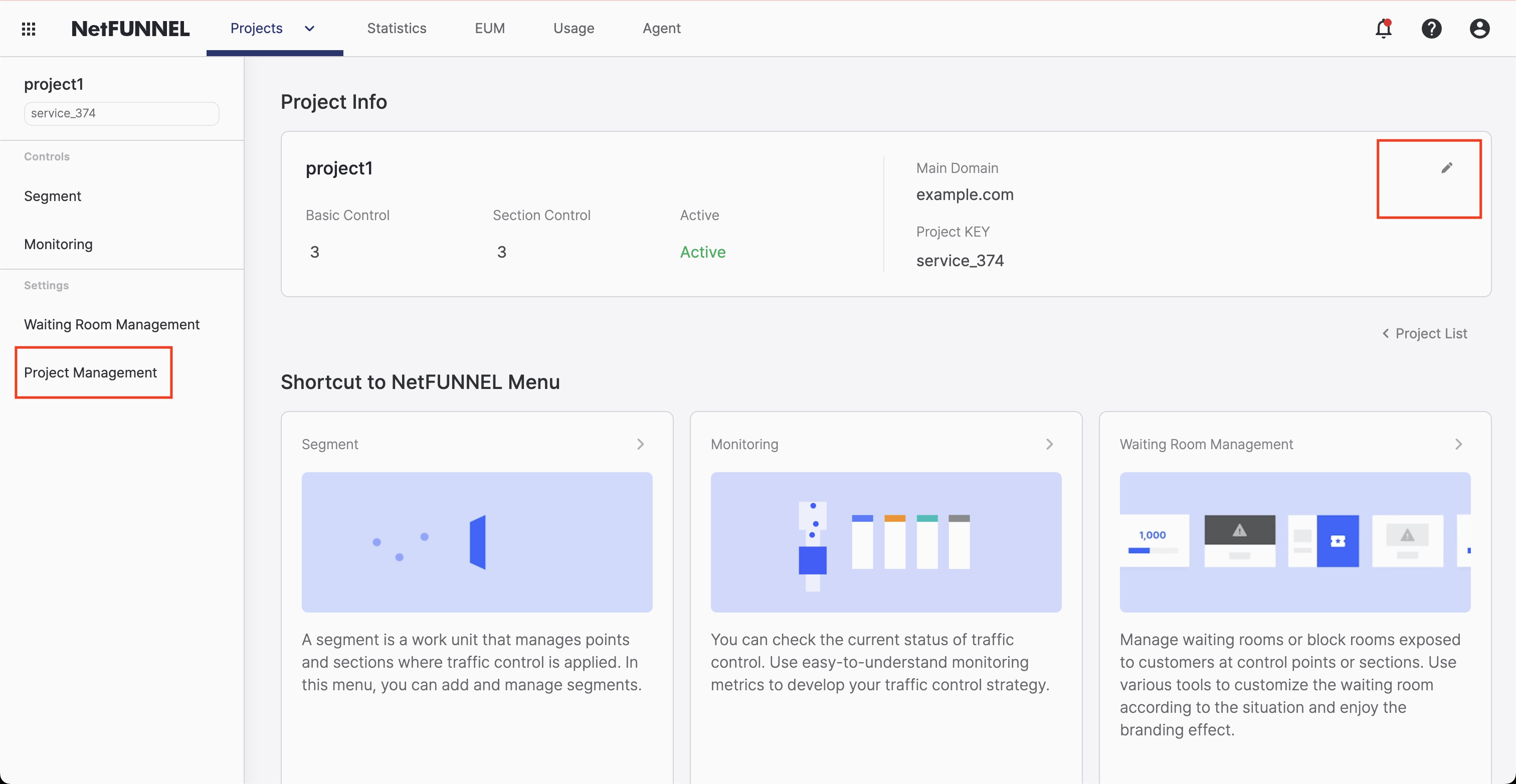
- Project Management: Change project name and activation status
-
Main Content Area
- Shows different content based on what you select from the sidebar
-
Project Key Display
- Always visible for easy access
Finding Your Project Key
You need your project key when integrating NetFUNNEL into your application. Here's where to find it.
From the Project Detail Page
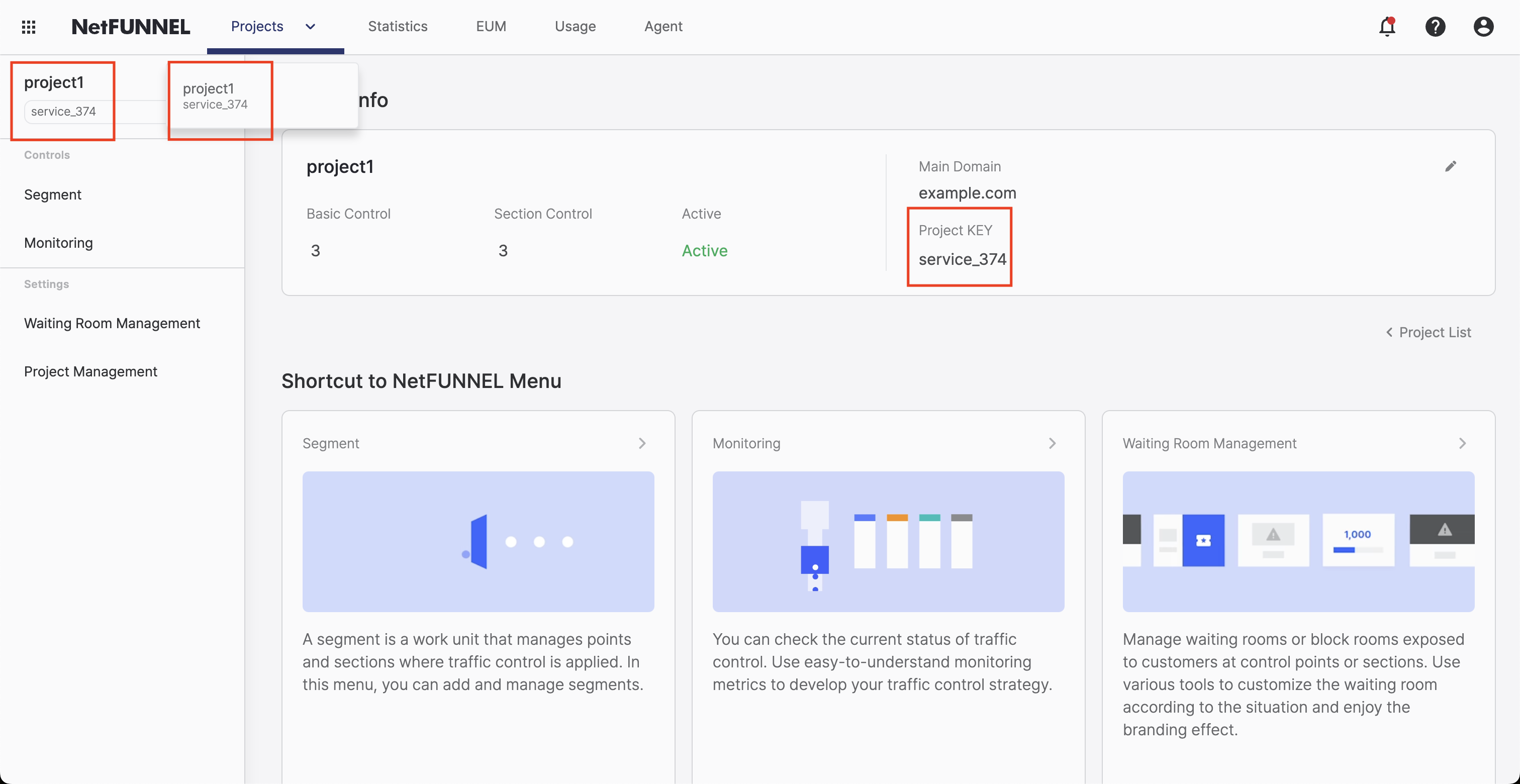
When you're inside a project, the project key is shown in two places:
- Project Information Panel at the top of the page
- Left Sidebar for quick access
From the Main Dashboard
You can also find your project key directly from the main dashboard without entering a project.
Copying Your Project Key
When you need to use your project key in code or configuration, you can copy it easily.
How to copy:
- Find your project key (see Finding Your Project Key)
- Click on the project key in either location
- The project key is automatically copied to your clipboard
- Paste it wherever you need it
Project keys are clickable - just click once to copy. No need to select and copy manually!
Changing Your Project Name
If you want to rename your project for better organization, you can change the project name anytime.
How to change the project name:
- Select the project you want to rename
- Go to Project Management in the left sidebar (or click "Settings")
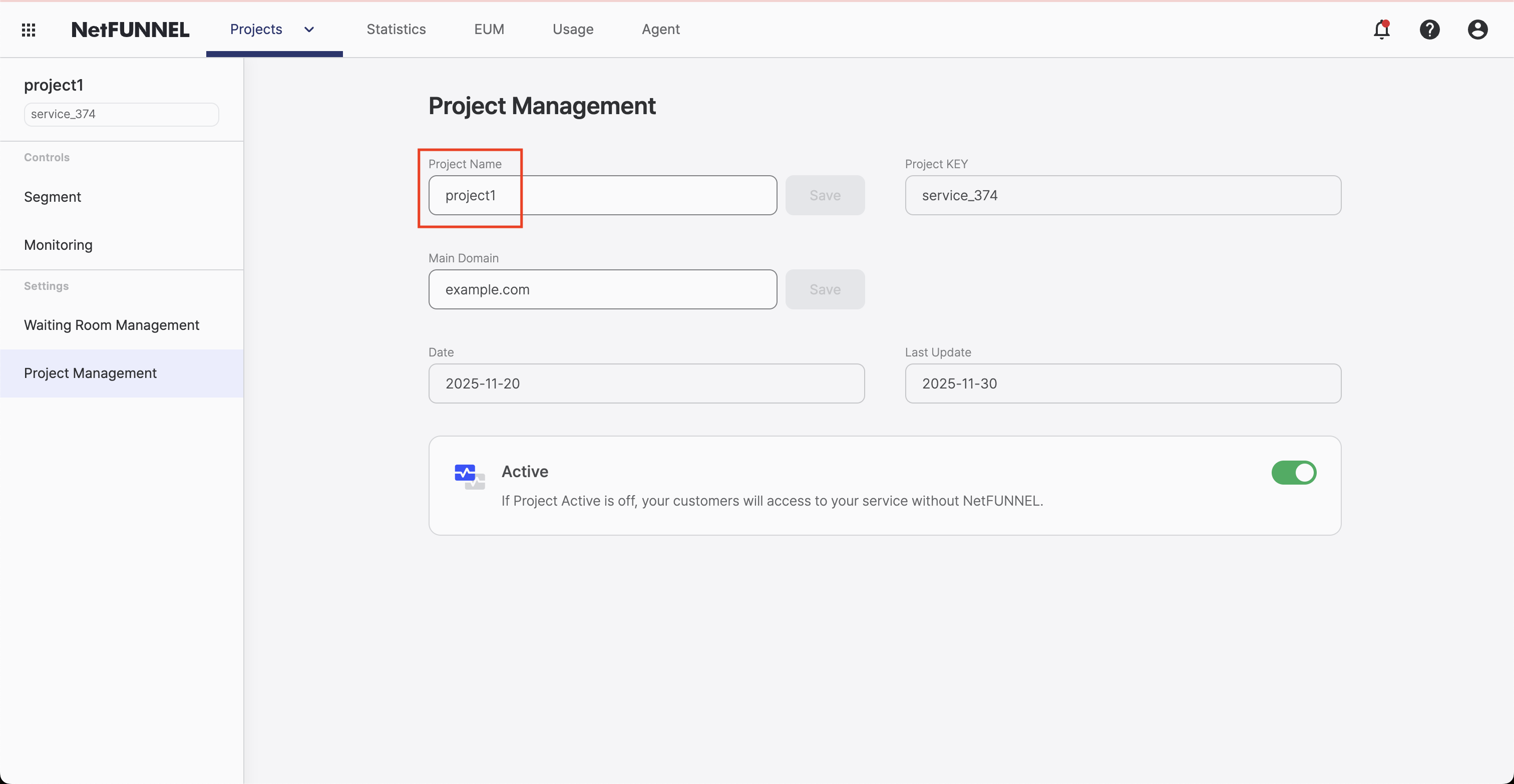
- Click the edit button next to the project name field
- Enter the new project name
- Click "Save" to apply the change
Use descriptive names that help you identify projects quickly. For example: "E-commerce Main Site" or "Customer Support Portal".
Activating or Deactivating Projects
You can temporarily disable all traffic control for a project by deactivating it. This is useful when you need to quickly stop traffic control without changing individual segment settings.
How to activate or deactivate:
- Select the project
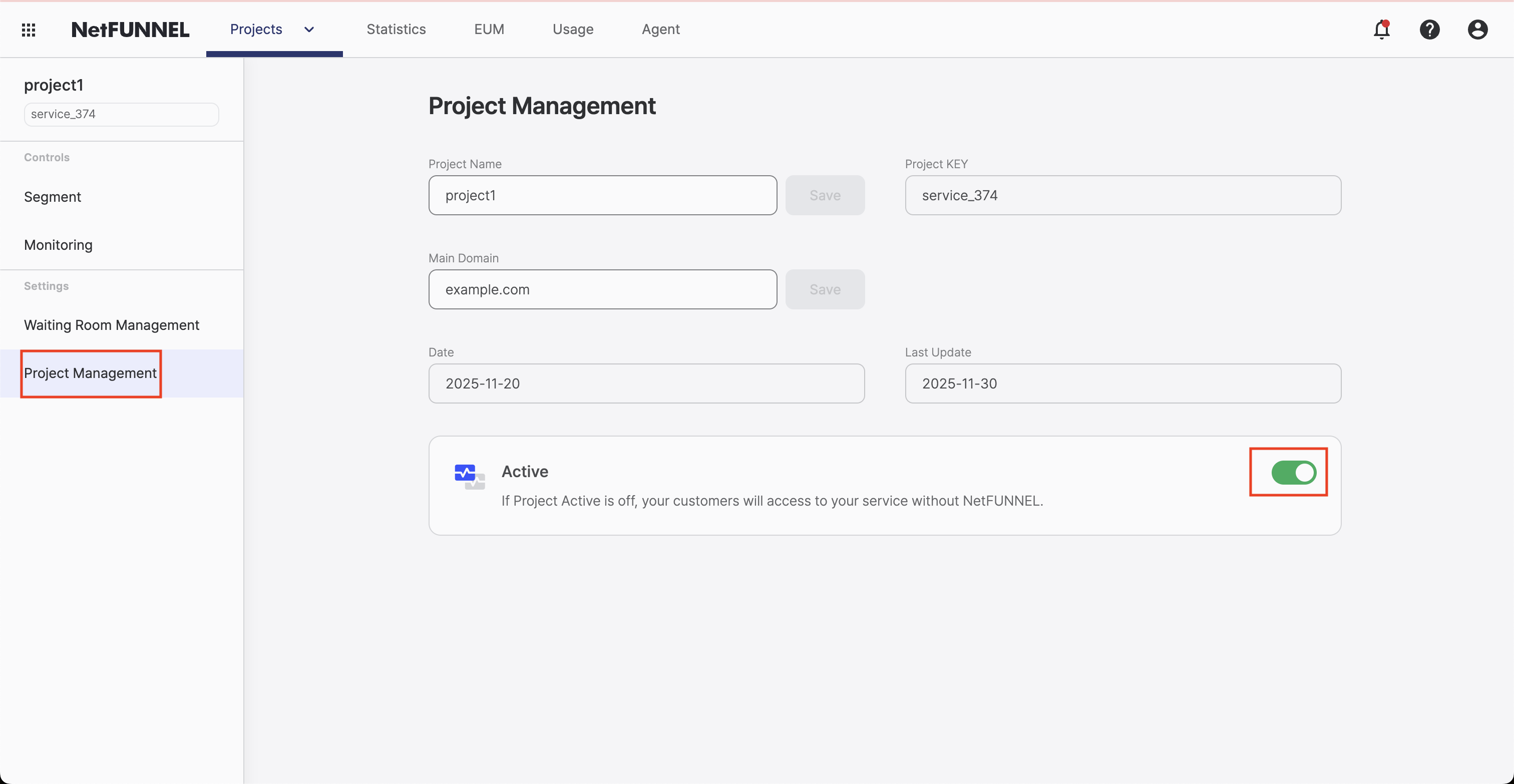
- Go to Project Management in the left sidebar
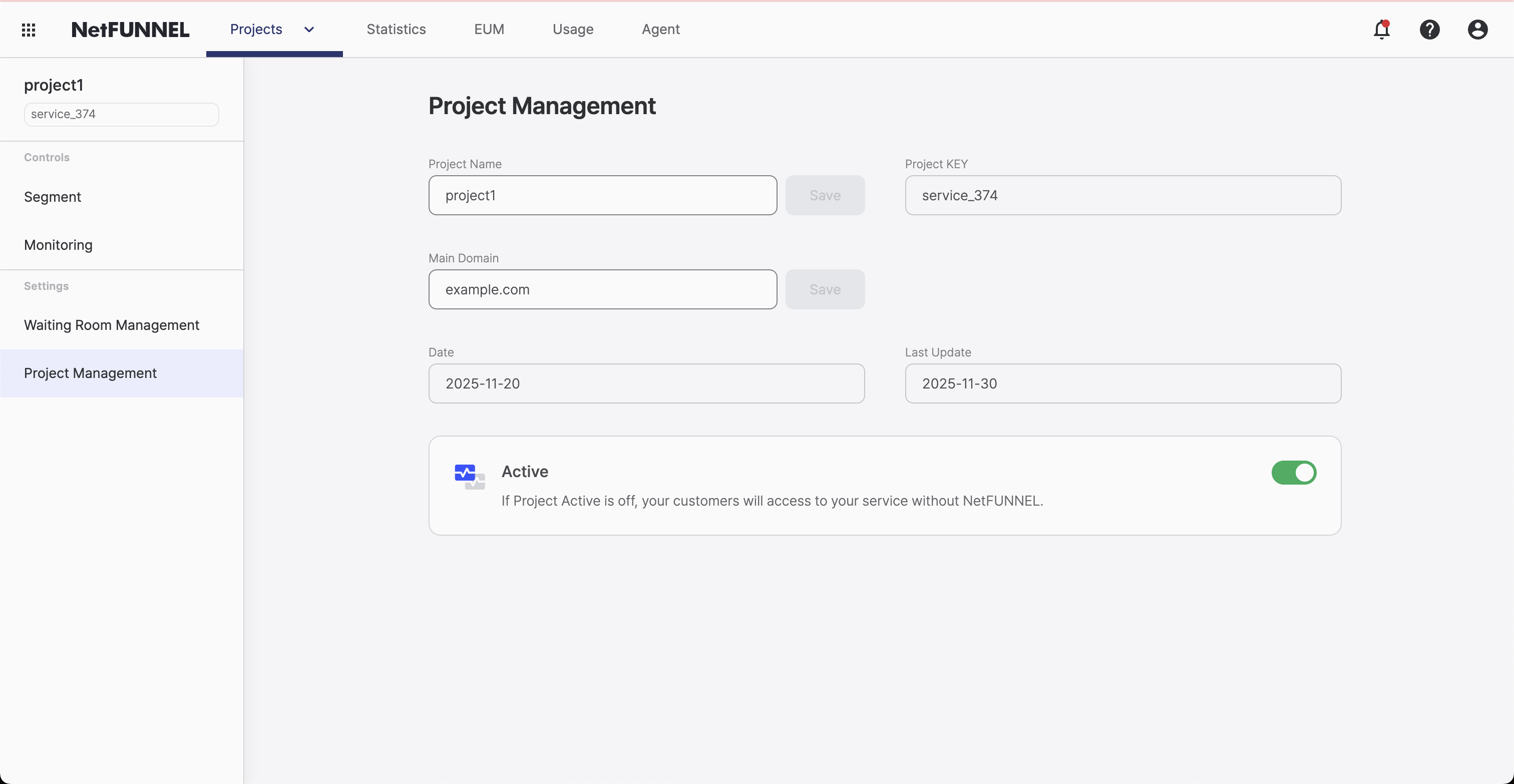
- Use the activation toggle button to turn the project on or off
What Happens When You Deactivate?
When you deactivate a project:
- All traffic control rules in that project's segments are bypassed
- NetFUNNEL traffic control is disabled for the entire project
- Users can access your service without any restrictions
- The agent detects the deactivation and skips all traffic control
When Should You Deactivate?
Deactivation is useful in these situations:
- Immediate customer relief: When waiting rooms are causing problems and you need to fix it right away
- Scheduled maintenance: During server upgrades or patches when you want to temporarily disable traffic control
- Emergency situations: When you need to quickly stop all traffic control for a specific project
Instead of deactivating each segment individually, project-level deactivation lets you disable all controls at once. Much faster!