Section Control Integration
Complete guide for implementing Section Control with NetFUNNEL iOS Agent using code-based integration.
This is one of two integration methods available. See the Integration Methods Overview to compare with Basic Control and choose the best approach for your use case.
How It Works
User Experience:
- User clicks button or triggers action
- Waiting room appears on current screen
- When entry allowed, waiting room closes and user enters active section
- User can navigate through multiple screens within the section
- When user completes the process, key is returned and next user can enter
Best For:
- Multi-step processes (checkout, registration, booking)
- Maintaining fixed concurrent users in specific areas
- User session management
- Resource-intensive workflows requiring controlled capacity
Key Difference from Basic Control:
- Basic Control: Controls entry speed (key returned quickly)
- Section Control: Maintains fixed capacity (key held until section exit)
Prerequisites
- Installation & Initialization completed
- NetFUNNEL console access
- iOS development environment
This guide uses a sample application to demonstrate Section Control integration patterns. Your actual application code will differ from the examples shown. Focus on understanding the integration concepts and adapt the patterns to your specific codebase, function names, and business logic.
💡 Practice Template: Check out our Sample Projects for an iOS Application (Single ViewController) template ready for NetFUNNEL SDK integration practice.
Step 1: Create a Segment
Code-based Integration supports both Basic Control and Section Control. This guide uses Section Control.
1.1 Create New Segment
- Go to NetFUNNEL console →
Projects→Segment - Click the
+button to create a new segment
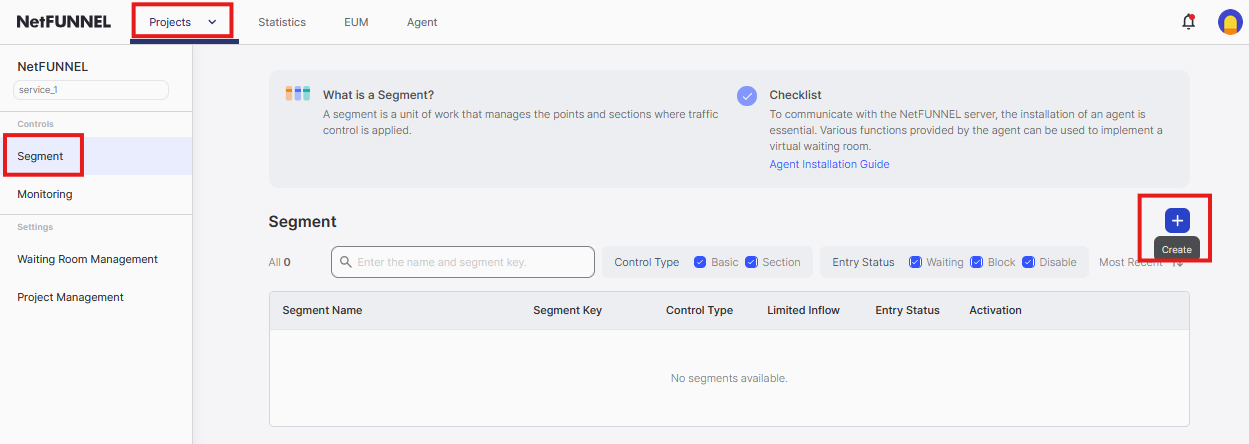
1.2 Select Control Type
Choose Section Control and click Next
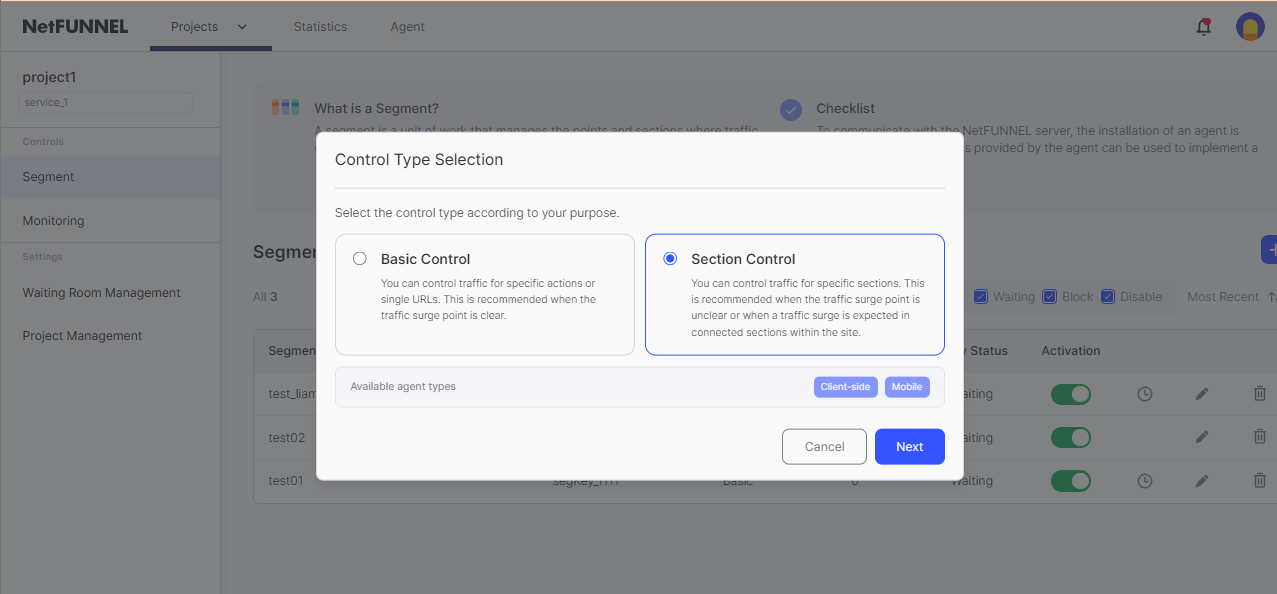
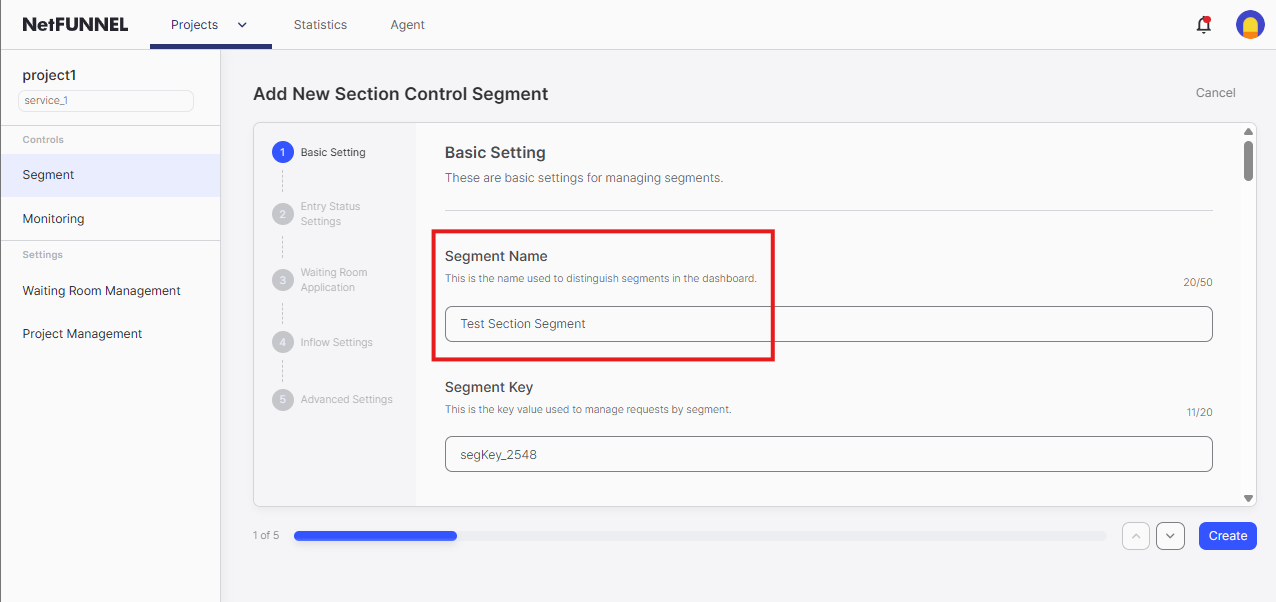
1.3 Configure Segment
Segment Name: Enter a descriptive name (e.g., "Checkout Process", "Registration Flow", "Booking Section")
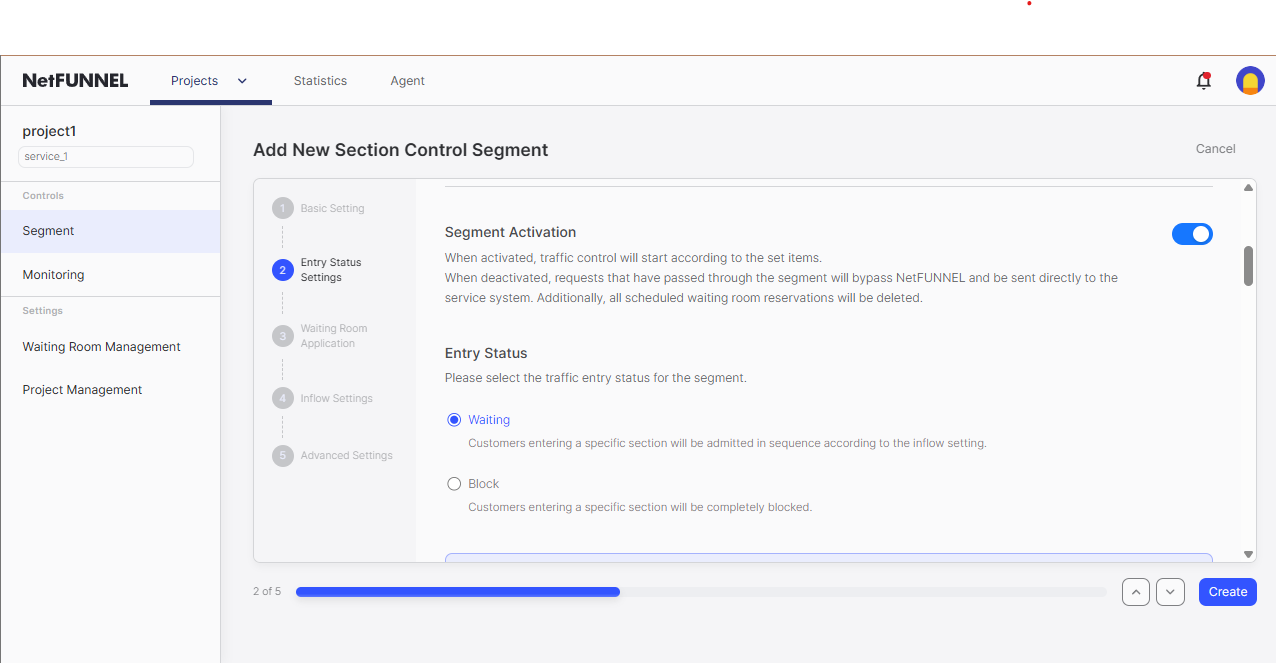
Entry Status:
- ✅ Segment Activation enabled
- Entry Status:
Waiting(sends users to waiting room)
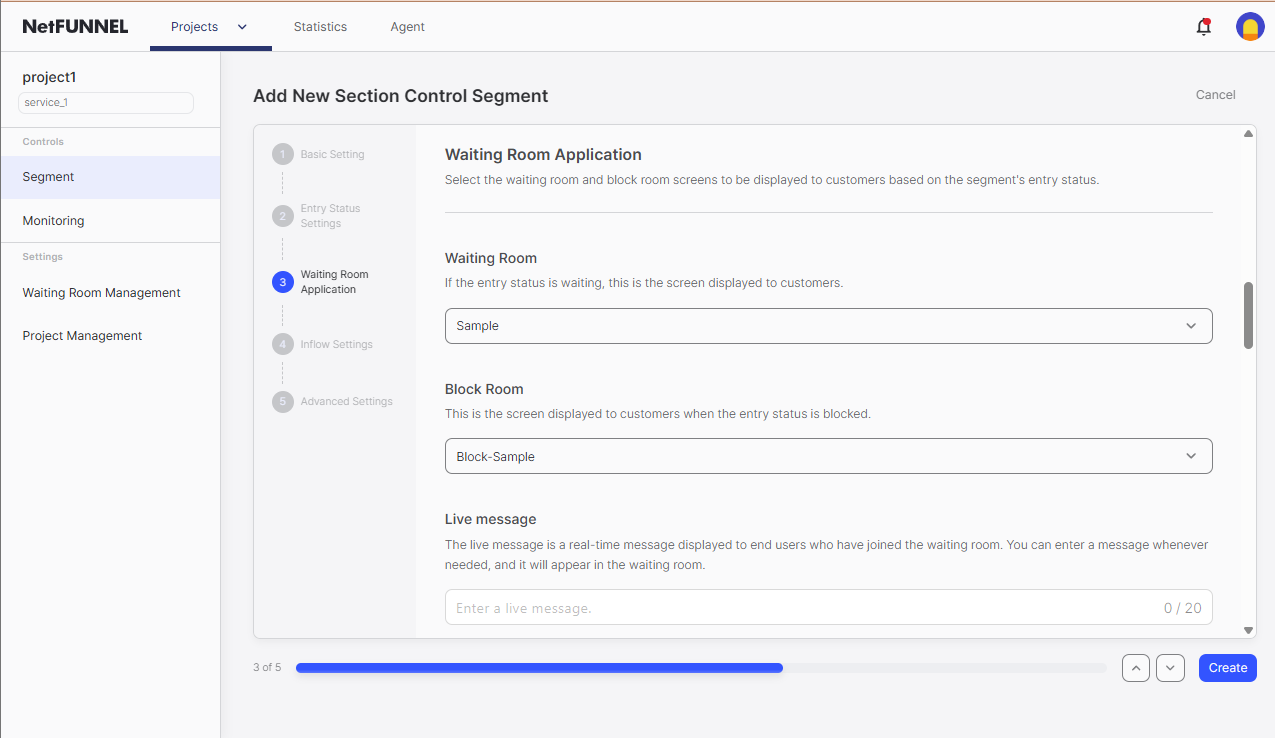
Waiting Room Application:
- Use default settings for testing
- Leave Live Message blank
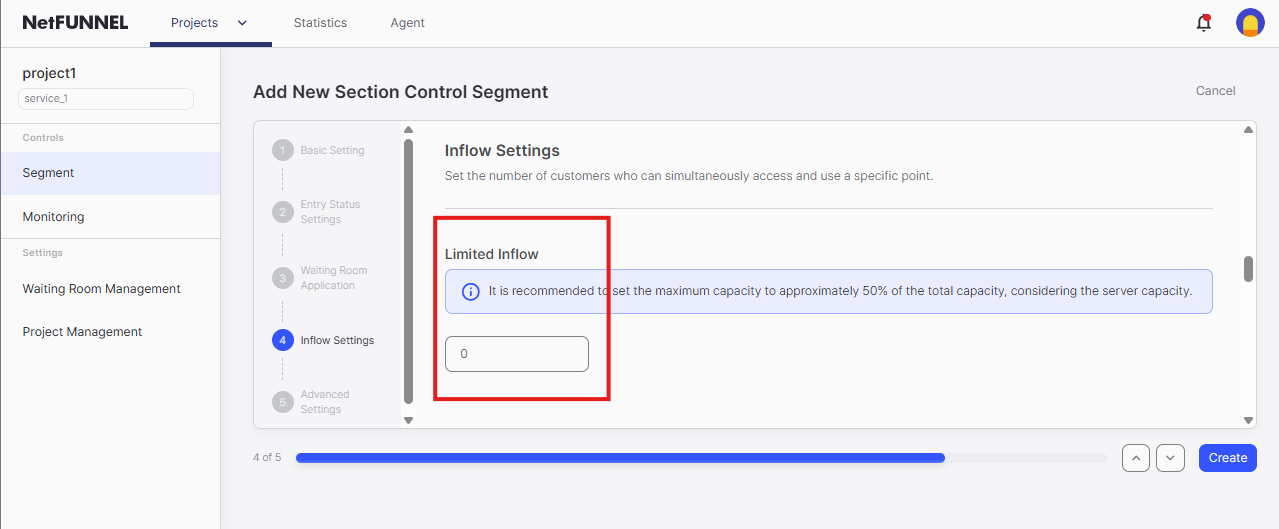
Limited Inflow:
- Set to
0for testing (no one admitted, waiting room always appears) - This controls section capacity - how many users can be active in the section simultaneously
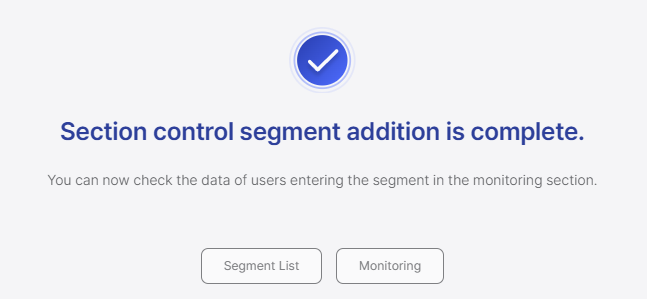
1.4 Create Segment
Click Create to finalize the segment
Step 2: Identify Key Issuance Integration Point (nfStartSection)
The following examples use a sample application for demonstration purposes. Your actual application code will naturally differ from what is shown here. Adapt the integration patterns to match your specific code structure, button IDs, function names, and business logic.
💡 Need a practice project? Check out our Sample Projects for an iOS Application (Single ViewController) template ready for NetFUNNEL SDK integration practice.
Understanding Our Sample Application:
Let's examine our sample application to understand where NetFUNNEL protection should be applied:
2.1 Identify the Target Button in Layout
// MainView.swift
struct MainView: View {
    @StateObject private var navigationManager = NavigationManager.shared

    var body: some View {
        ScrollView {
            VStack(spacing: 0) {
                // Hero Section (omitted for brevity)
                // ... existing UI structure ...

                // Cards Section
                VStack(spacing: 20) {
                    // Other button - not our target
                    Button(action: {
                        navigationManager.navigateWithDelay(to: .basicControl)
                    }) {
                        ModernCard(
                            icon: "arrow.right.circle.fill",
                            title: "Basic Control",
                            subtitle: "Code-based Integration",
                            description: "Simple linear navigation flow",
                            accentColor: MaterialColors.lightPrimary
                        )
                    }
                    .buttonStyle(ModernCardButtonStyle())

                    // 🎯 TARGET BUTTON: Section Control Function Card
                    // This is the button we want to protect with NetFUNNEL
                    Button(action: {
                        navigationManager.navigateWithDelay(to: .sectionControlSection1)
                    }) {
                        ModernCard(
                            icon: "list.bullet.circle.fill",
                            title: "Section Control",
                            subtitle: "Code-based Integration",
                            description: "Multi-step navigation flow",
                            accentColor: MaterialColors.lightSecondary
                        )
                    }
                    .buttonStyle(ModernCardButtonStyle())
                }
                .padding(.horizontal, 20)

                Spacer(minLength: 40)
            }
        }
        // Additional UI modifiers omitted for brevity
        // ... background, frame, navigationBarHidden, etc. ...
    }
}
Our Assumptions for This Sample:
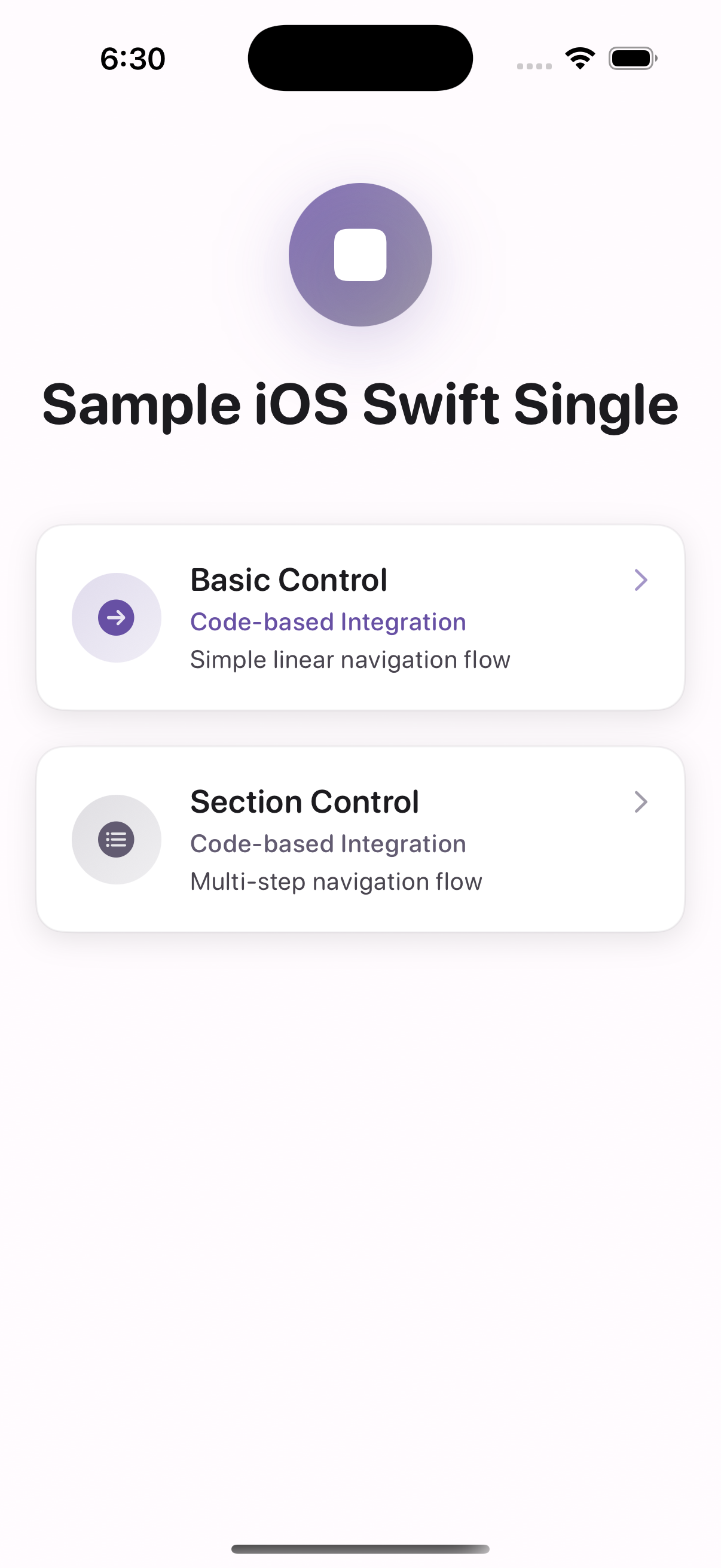
- The "Section Control" button represents a multi-step process
- This could be: checkout flow, registration process, booking workflow, or multi-stage form
- Users will navigate through multiple SwiftUI Views: Section1 → Section2 → End
- We need to control how many users can be in this entire flow simultaneously
2.2 Find the Click Listener for This Button
What is a Click Listener?
A click listener (also called an action handler or event handler) is the code that executes when a user interacts with a UI element. In SwiftUI, this is typically defined using the Button(action:) closure syntax.
Understanding SwiftUI Button Structure:
Button(action: {
    // 🎯 THIS IS THE CLICK LISTENER
    // Code here runs when user taps the button
}) {
    // THIS IS THE BUTTON'S VISUAL APPEARANCE
    // Defines what the button looks like
}
In Our Sample Application:
// MainView.swift
struct MainView: View {
    @StateObject private var navigationManager = NavigationManager.shared

    var body: some View {
        ScrollView {
            VStack(spacing: 0) {
                // Hero Section (omitted for brevity)
                // ... existing UI structure ...

                // Cards Section
                VStack(spacing: 20) {
                    // Other button - not our target (no NetFUNNEL protection needed)
                    Button(action: {
                        // This button doesn't need NetFUNNEL protection
                        navigationManager.navigateWithDelay(to: .basicControl)
                    }) {
                        ModernCard(
                            icon: "arrow.right.circle.fill",
                            title: "Basic Control",
                            subtitle: "Code-based Integration",
                            description: "Simple linear navigation flow",
                            accentColor: MaterialColors.lightPrimary
                        )
                    }
                    .buttonStyle(ModernCardButtonStyle())

                    // 🎯 TARGET BUTTON: Section Control Function Card
                    Button(action: {
                        // 🎯 CLICK LISTENER: This is where the button action is defined
                        // This is the code that runs when user clicks the button
                        // Currently: navigationManager.navigateWithDelay(to: .sectionControlSection1)
                        // We will wrap this with NetFUNNEL protection
                        navigationManager.navigateWithDelay(to: .sectionControlSection1)
                    }) {
                        // 🎨 BUTTON APPEARANCE: This defines what the button looks like
                        ModernCard(
                            icon: "list.bullet.circle.fill",
                            title: "Section Control",
                            subtitle: "Code-based Integration",
                            description: "Multi-step navigation flow",
                            accentColor: MaterialColors.lightSecondary
                        )
                    }
                    .buttonStyle(ModernCardButtonStyle())
                }
                .padding(.horizontal, 20)

                Spacer(minLength: 40)
            }
        }
        // Additional UI modifiers omitted for brevity
        // ... background, frame, navigationBarHidden, etc. ...
    }
}
Key Points:
- Click Listener Location: Inside the
Button(action:)closure - Current Action:
navigationManager.navigateWithDelay(to: .sectionControlSection1)executes immediately - Integration Target: This is where we'll add NetFUNNEL protection
2.3 Examine What Happens Inside the Click Listener
What the function does:
// NavigationManager.swift
func navigateWithDelay(to destination: NavigationDestination, customDelay: TimeInterval? = nil) {
    let delay = customDelay ?? appPreferences.getNavigationDelay()

    loadingDialogManager.showLoading()  // ← Shows loading indicator

    DispatchQueue.main.asyncAfter(deadline: .now() + delay) {
        self.loadingDialogManager.hideLoading()  // ← Hides loading indicator
        self.navigate(to destination)  // ← Navigates to target screen
    }
}
Summary: Shows loading → Waits → Hides loading → Navigates. This simulates server processing and needs NetFUNNEL protection.
2.4 Identify the Integration Point
- Target Button: "Section Control" button in
MainView(the multi-step process one) - Click Listener:
Button(action:)closure sets up the click handler - Integration Location: Right before
navigationManager.navigateWithDelay()is called - Why Here: This is the exact moment before section entry begins
- Protection Strategy: Add NetFUNNEL section queue before the section entry
Complete Flow Analysis:
- View Creation:
MainViewbody creates the button - Button Setup:
Button(action:)sets up click handler for the button - User Action: User clicks "Section Control" button
- Current Behavior:
navigationManager.navigateWithDelay()executes immediately - Section Load: This triggers entry into the multi-step section process
The Logic:
- Without NetFUNNEL: Button click → Immediate section entry → Potential section capacity overflow
- With NetFUNNEL: Button click → Queue check → Controlled section entry → Section capacity maintained
Step 3: Implement Key Issuance Function (nfStartSection)
The example below shows how to integrate NetFUNNEL into the sample application's button handler. Adapt this pattern to your actual code structure - you may have different function names, event handlers, or business logic that needs protection.
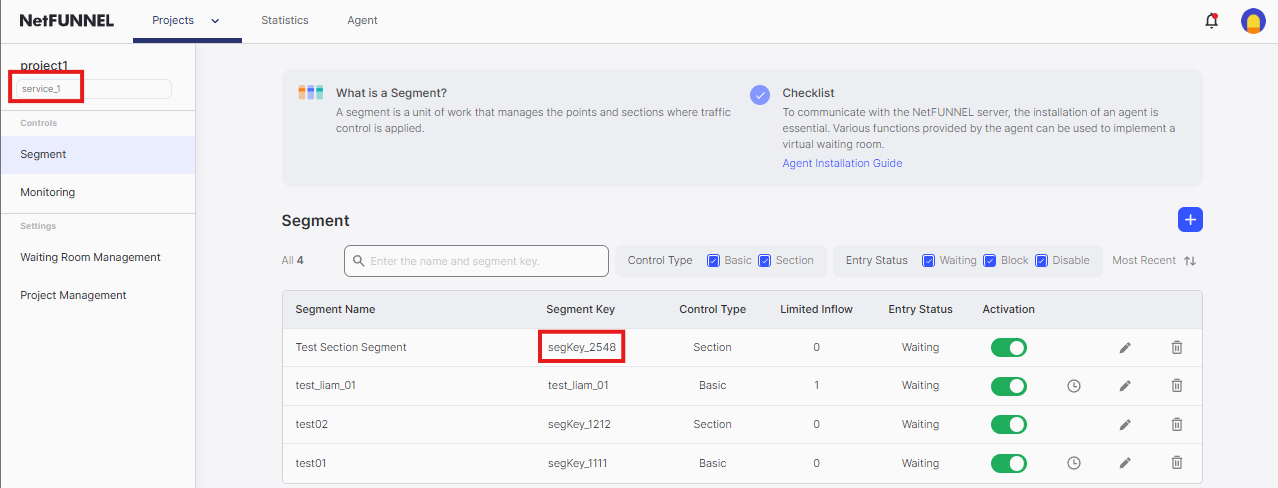
3.1 Get Your Keys
First, find your Project Key and Segment Key in the console:
- Go to NetFUNNEL console →
Projects→Segment - Click on your segment
- Copy the Project Key and Segment Key
3.2 Understand the nfStartSection Function
The nfStartSection function has this basic structure:
- Swift
- Objective-C
Netfunnel.shared.nfStartSection(
    projectKey: "your_project_key",    // From console
    segmentKey: "your_segment_key"    // From console
)
[[Netfunnel shared] nfStartSectionWithProjectKey:@"your_project_key"
                                     segmentKey:@"your_segment_key"];
For complete details about nfStartSection parameters, delegate handling, and response formats, see the API Reference.
3.3 Start with Your Current Code
Current Implementation:
// MainView.swift
Button(action: {
    navigationManager.navigateWithDelay(to: .sectionControlSection1)
}) {
    ModernCard(
        icon: "list.bullet.circle.fill",
        title: "Section Control",
        subtitle: "Code-based Integration",
        description: "Multi-step navigation flow",
        accentColor: MaterialColors.lightSecondary
    )
}
.buttonStyle(ModernCardButtonStyle())
The Core Concept:
- Business Logic:
navigationManager.navigateWithDelay(to: .sectionControlSection1)represents entry into a multi-step section - Integration Point: We need to wrap this section entry with NetFUNNEL protection
- Wrapping Strategy: Use
nfStartSection()to control section capacity before the multi-step process begins
Why Wrap Here:
- This is the exact moment before section entry begins
- Wrapping here protects the entire multi-step section from section capacity overflow
- The business logic remains unchanged - we just add a section capacity control layer
3.4 Add Required Imports
Before implementing NetFUNNEL, add the necessary imports to your SwiftUI View:
- Swift
- Objective-C
// MainView.swift
import Netfunnel_iOS
// MainViewController.m
#import <Netfunnel_iOS/Netfunnel_iOS.h>
Key Imports:
Netfunnel_iOS- Main NetFUNNEL framework
3.5 Add Basic NetFUNNEL Protection (Success Only)
You should already have NetfunnelHandler.swift from the Installation & Initialization step. If you haven't completed that step yet, please go back and complete it first.
Wrap the Business Logic:
// MainView.swift
import SwiftUI
import Netfunnel_iOS

struct MainView: View {
    @StateObject private var navigationManager = NavigationManager.shared

    var body: some View {
        ScrollView {
            VStack(spacing: 0) {
                // Hero Section omitted for brevity
                // ... existing UI structure ...

                // Cards Section
                VStack(spacing: 20) {
                    // Basic Control Function Card
                    Button(action: {
                        navigationManager.navigateWithDelay(to: .basicControl)
                    }) {
                        ModernCard(
                            icon: "arrow.right.circle.fill",
                            title: "Basic Control",
                            subtitle: "Code-based Integration",
                            description: "Simple linear navigation flow",
                            accentColor: MaterialColors.lightPrimary
                        )
                    }
                    .buttonStyle(ModernCardButtonStyle())

                    // Section Control Function Card - Protected with NetFUNNEL
                    Button(action: {
                        startSectionControl() // Call NetFUNNEL-protected function
                    }) {
                        ModernCard(
                            icon: "list.bullet.circle.fill",
                            title: "Section Control",
                            subtitle: "Code-based Integration",
                            description: "Multi-step navigation flow",
                            accentColor: MaterialColors.lightSecondary
                        )
                    }
                    .buttonStyle(ModernCardButtonStyle())
                }
                .padding(.horizontal, 20)

                Spacer(minLength: 40)
            }
        }
        // Additional UI modifiers omitted for brevity
        // ... background, frame, navigationBarHidden, etc. ...
        .onAppear {
            setupCallbacks()
        }
    }

    private func setupCallbacks() {
        // Set up callback closures for NetFUNNEL responses
        NetfunnelHandler.shared.onSuccess = { projectKey, segmentKey, statusCode, message in
            NSLog("onSuccess \(statusCode) \(message)")
            // Execute original business logic when NetFUNNEL allows entry
            navigationManager.navigateWithDelay(to: .sectionControlSection1)
        }

        NetfunnelHandler.shared.onError = { projectKey, segmentKey, statusCode, message in
            NSLog("onError \(statusCode) \(message)")
        }

        NetfunnelHandler.shared.onNetworkError = { projectKey, segmentKey, statusCode, message in
            NSLog("onNetworkError \(statusCode) \(message)")
        }

        NetfunnelHandler.shared.onBlock = { projectKey, segmentKey, statusCode, message in
            NSLog("onBlock \(statusCode) \(message)")
        }

        NetfunnelHandler.shared.onClose = { projectKey, segmentKey, statusCode, message in
            NSLog("onClose \(statusCode) \(message)")
        }

        NetfunnelHandler.shared.onContinue = { projectKey, segmentKey, statusCode, message, aheadWait, behindWait, waitTime, progressRate in
            NSLog("onContinue \(statusCode) \(message)")
        }
    }

    private func startSectionControl() {
        // Start NetFUNNEL section queue protection
        Netfunnel.shared.nfStartSection(
            projectKey: "your_project_key",
            segmentKey: "your_segment_key"
        )
    }

    // Color calculation properties omitted for brevity
    // private var backgroundColor: Color { ... }
}
What Changed:
- Wrapped:
navigationManager.navigateWithDelay()is now inside theonSuccesscallback - Conditional: Only the specific button gets NetFUNNEL protection
- Success-Only: Business logic runs only when NetFUNNEL allows entry
- Complete Interface: All required delegate methods are implemented with proper logging
In iOS, NetfunnelDelegate requires implementing ALL methods. You cannot implement only onSuccess - you must provide implementations for all delegate methods. This implementation provides complete delegate handling with proper logging for all response types.
Now let's test your implementation to make sure everything is working correctly.
Run your app and click the "Section Control (Code-based Integration)" button. You should see a waiting room WebView appear on your screen. To verify everything is working properly, check the Xcode console for NetFUNNEL logs.
If you don't see the waiting room, make sure you set Limited Inflow to 0 in the Configure Segment step. This setting controls whether users are sent to the waiting room or allowed to proceed directly.
Enable NetFUNNEL Logging for Better Debugging:
Enable debug logging by setting printLog = true in your AppDelegate initialization, then check the Xcode console. For detailed setup instructions, see the Test NetFUNNEL Initialization) section.
What to Look For:
When you click the Section Control button with Limited Inflow = 0, you should see logs like this:
[NF4] [2025-09-19 16:56:42.832] Initialization successful. NetFUNNEL Version: 4.3.2-onprem
[NF4] [2025-09-19 16:56:58.500] Sending initialEntry request: https://nf4-onprem-demo-4525.stclab.com/ts.wseq?opcode=5101&sid=service_1&aid=segKey_2548
[NF4] [2025-09-19 16:56:58.651] Received initialEntry response: Response(timestamp: Optional(1758268618669), code: 201, key: Optional("A5E68F1AB764D05967A41DB8161C611D0952823AE901BA73FA347E320385E354A8FC7C43E5D15069EEB8F9252A1DFC79BCFD08B8F833299D4D743DBF3C84B6D4E168B227EF3E2A74958D7ED95766B706CFFE9F9934671086EDABAE8FEDFA67722C312C302C302C302C302C30"), nwait: Optional(0), nnext: Optional(0), tps: Optional(0.0), ttl: Optional(1), ip: Optional("nf4-onprem-demo-4525.stclab.com"), port: Optional(443), preBeginTs: nil, preEndTs: nil, postBeginTs: nil, postEndTs: nil, sticky: Optional("nf1"), vwrHtml: Optional("https://nf4-onprem-demo-4525.stclab.com/content/netfunnel-statics/assets/vwr-page/page/1/1/1/index.html"), liveMessage: nil, chkEnterCnt: Optional(0), waitOrderYn: Optional(0), msg: nil, vwrType: Optional("wait"))
[NF4] [2025-09-19 16:56:59.282] Fetching HTML content from following URL. https://nf4-onprem-demo-4525.stclab.com/content/netfunnel-statics/assets/vwr-page/page/1/1/1/index.html
[NF4] [2025-09-19 16:56:59.512] Sending reentry request: https://nf4-onprem-demo-4525.stclab.com:443/ts.wseq?opcode=5002&key=A5E68F1AB764D05967A41DB8161C611D0952823AE901BA73FA347E320385E354A8FC7C43E5D15069EEB8F9252A1DFC79BCFD08B8F833299D4D743DBF3C84B6D4E168B227EF3E2A74958D7ED95766B706CFFE9F9934671086EDABAE8FEDFA67722C312C302C302C302C302C30&sticky=nf1
[NF4] [2025-09-19 16:56:59.563] Received reentry response: Response(timestamp: Optional(1758268619604), code: 201, key: Optional("A5E68F1AB764D05967A41DB8161C611D462C3B2234ABB4D5F3283A4F82C0952F7F82C9A3B775DE797F13B051D1E06451BCFD08B8F833299D4D743DBF3C84B6D4E168B227EF3E2A74958D7ED95766B70694D7C8E4BEA05A019FF78476D2CEAF2F2C312C302C302C302C302C30"), nwait: Optional(0), nnext: Optional(0), tps: Optional(0.0), ttl: Optional(1), ip: Optional("nf4-onprem-demo-4525.stclab.com"), port: Optional(443), preBeginTs: nil, preEndTs: nil, postBeginTs: nil, postEndTs: nil, sticky: Optional("nf1"), vwrHtml: Optional("https://nf4-onprem-demo-4525.stclab.com/content/netfunnel-statics/assets/vwr-page/page/1/1/1/index.html"), liveMessage: nil, chkEnterCnt: Optional(0), waitOrderYn: Optional(0), msg: nil, vwrType: Optional("wait"))
Key indicators that everything is working:
| Log Message | What It Means | Status |
|---|---|---|
[NF4] Initialization successful | NetFUNNEL agent loaded correctly | ✅ Good |
[NF4] Sending initialEntry request | nfStartSection() was called successfully, Request sent to NetFUNNEL server | ✅ Good |
[NF4] Received initialEntry response with code: 201 | Server responded with WAIT status | ✅ Good |
[NF4] Fetching HTML content | Waiting room WebView is loading, Waiting room HTML is being loaded | ✅ Good |
[NF4] Sending reentry request | Periodic re-entry requests (polling) | ✅ Good |
[NF4] Received reentry response with code: 201 | Server responded with WAIT status | ✅ Good |
Verify response:
- Look for
ts.wseq?opcode=5002requests in the logs - Check response shows
code=201(WAIT) 201= WAIT,200= PASS (entry allowed)- Here, since Limited Inflow is 0 (Section Capacity = 0), the correct response is
201
If you encounter issues:
- No logs appear: Check if
printLog = trueis set in initialization - No waiting room: Verify Limited Inflow is set to 0 in console
- App crashes: Check if all required delegate methods are implemented properly
- Network errors: Verify server URL and network connectivity
If you see the waiting room and logs, your basic implementation is working! You can now proceed to enhance the delegate handling for better error management. To test entry, change Limited Inflow to 1 (Section Capacity = 1) in the console.
3.6 Add Complete Callback Handling
Now let's improve the callback handling for better error management and user experience:
In the previous step, we implemented all callback methods with basic logging. Now we'll enhance the error handling to ensure robust service availability and optimal user experience in production environments.
Why Complete Callback Handling is Essential:
- User Experience: Different response types need appropriate user feedback
- Service Reliability: Error states should not break the user's workflow
- Debugging: Comprehensive logging helps identify issues quickly
- Business Continuity: Service should continue even when NetFUNNEL encounters problems
Enhance your setupCallbacks with robust error handling:
// MainView.swift - Updated setupCallbacks with complete handling
private func setupCallbacks() {
    NetfunnelHandler.shared.onSuccess = { projectKey, segmentKey, statusCode, message in
    // User can proceed - execute original logic
        NSLog("onSuccess \(statusCode) \(message)")
        navigationManager.navigateWithDelay(to: .sectionControlSection1)
    }

    NetfunnelHandler.shared.onError = { projectKey, segmentKey, statusCode, message in
    // System error occurred - proceed with original logic for robust service availability
        NSLog("onError \(statusCode) \(message)")
        navigationManager.navigateWithDelay(to: .sectionControlSection1)
    }

    NetfunnelHandler.shared.onNetworkError = { projectKey, segmentKey, statusCode, message in
    // Network error occurred - log for debugging, but don't execute business logic
        NSLog("onNetworkError \(statusCode) \(message)")
    // Note: Business logic not executed here - see explanation below
}

    NetfunnelHandler.shared.onBlock = { projectKey, segmentKey, statusCode, message in
    // User is blocked - show appropriate message
        NSLog("onBlock \(statusCode) \(message)")
    }

    NetfunnelHandler.shared.onClose = { projectKey, segmentKey, statusCode, message in
    // User closed waiting room - handle appropriately
        NSLog("onClose \(statusCode) \(message)")
    // Stay on main screen - user canceled
}

    NetfunnelHandler.shared.onContinue = { projectKey, segmentKey, statusCode, message, aheadWait, behindWait, waitTime, progressRate in
        NSLog("onContinue \(statusCode) \(message)")
    }
}
Response Handling Strategy:
| Response Type | Action | Business Logic |
|---|---|---|
| Success | Execute | ✅ Yes |
| Error | Execute | ✅ Yes |
| NetworkError | Log Only | ❌ No |
| Block | Log Only | ❌ No |
| Close | Log Only | ❌ No |
| Continue | Log Only | ❌ No |
Why onError Executes Business Logic but onNetworkError Doesn't:
onError (Status Code 500) - Server Error:
- Scenario: NetFUNNEL server encounters internal errors
- Strategy: Execute business logic to maintain service availability
- Rationale: Server errors are typically temporary and shouldn't block user access
- Result: Robust service that continues even when NetFUNNEL has issues
onNetworkError (Status Code 1001, 1002) - Network Issues:
- Scenario: Network connectivity problems (offline, timeout)
- Strategy: Log only, don't execute business logic
- Rationale: Use
useNetworkRecoveryMode = truefor automatic network recovery - Result: Users stay in waiting room during network issues and auto-resume when connectivity returns
Network Recovery Mode Configuration:
Enable network recovery in your AppDelegate for optimal network error handling:
// AppDelegate.swift
Netfunnel.initialize(
    clientId: "{{CLIENT_ID}}",
    delegate: NetfunnelHandler.shared,  // Use NetfunnelHandler, not self
    useNetworkRecoveryMode: true  // Enable automatic network recovery
)
What Changed:
- Robust error handling:
onErrorproceeds with business logic for maximum service availability - Smart network handling:
onNetworkErrorrelies on network recovery mode instead of manual handling - Improved user experience: Better handling of different response states
- Production-ready: Robust error handling ensures service continues even when NetFUNNEL encounters issues
- Comprehensive logging: Detailed console messages for all response types and debugging
For detailed information about all delegate response types, status codes, response object structure, and advanced callback patterns, see the API Reference.
3.7 Key Implementation Points
- Project/Segment keys: Use exact keys from the NetFUNNEL console
- Required imports: Add
Netfunnel_iOSimport - Delegate implementation: Implement ALL callback methods (NetfunnelDelegate requirement)
- Robust error handling:
onSuccessandonErrorexecute business logic for service availabilityonNetworkErrorlogs only (useuseNetworkRecoveryMode = truefor automatic recovery)
- View lifecycle: Use
onAppearfor initialization and UI updates - Comprehensive logging: Log all delegate responses for debugging
Step 4: Identify Key Return Integration Point (nfStopSection)
The following examples use a sample application for demonstration purposes. Your actual application code will naturally differ from what is shown here. Adapt the integration patterns to match your specific code structure, business logic completion points, and key return requirements.
💡 Need a practice project? Check out our Sample Projects for an iOS Application (Single ViewController) template ready for NetFUNNEL SDK integration practice.
Understanding Our Sample Application:
Let's examine our sample application to understand where nfStopSection should be called to return the NetFUNNEL key.
4.1 Identify Section Completion Points
Current Flow After nfStartSection Success:
// From Step 3 - when nfStartSection succeeds
NetfunnelHandler.shared.onSuccess = { projectKey, segmentKey, statusCode, message in
    NSLog("onSuccess \(statusCode) \(message)")
    // Execute original business logic when NetFUNNEL allows entry
    navigationManager.navigateWithDelay(to: .sectionControlSection1)
}
What Happens Next:
- User navigates to SectionControlSection1View - First step of process
- User navigates to SectionControlSection2View - Second step of process
- User navigates to SectionControlEndView - Final completion step
- User's section session completes - This is where key should be returned
- Key should be returned - to allow the next user in queue to enter the section
Important Note about nfStopSection Implementation:
nfStopSection can be called independently without requiring nfStartSection to be called first. If nfStartSection was never called, NetFUNNEL will automatically handle the key release if needed, or do nothing if no key exists. This makes nfStopSection safe to call in any scenario without conditional checks, simplifying the implementation.
4.2 Identify Integration Points for Key Return
Integration Point Options:
| Integration Point | When to Use | Pros |
|---|---|---|
| Section End View | Multi-step completion flows | Clear completion point, works for most cases |
| Business Logic Completion | Complex operations (API calls, processing) | Precise control, returns key after actual work |
| User Action Completion | User-initiated completion | Returns key when user finishes their task |
4.3 Choose the Right Integration Point
For Our Sample Application:
Current Business Flow: Multi-step navigation process
- What it does: User goes through Section1 → Section2 → End
- When it completes: When the SectionControlEndView appears successfully
- Best integration point: SwiftUI view lifecycle events (onAppear, onDisappear)
Integration Strategy:
- Section Completion: Return key when SectionControlEndView appears
- Simple and Reliable: Works for navigation-based section flows
- User Experience: Key is returned when user has completed the entire section
4.4 Verify Integration Point Logic
Complete Flow Analysis:
- User clicks button →
nfStartSection()called - Waiting room appears → User waits in queue
- Entry granted →
onSuccessdelegate fires - Section navigation begins → User proceeds through Section1 → Section2 → End
- SectionControlEndView appears → User has completed the section
- Key return needed → Call
nfStopSection()to free up section slot
Why This Integration Point Makes Sense:
- User Experience: Key is returned when user has completed the entire section
- Section Capacity Management: Next user can enter as soon as current user completes the section
- Resource Efficiency: Prevents unnecessary section capacity blocking
- Implementation Simplicity: Easy to implement and maintain
Key Insight: The nfStopSection integration point should be where the user's intended section operation is truly complete and they have finished using the section they queued for.
Unlike Basic Control where keys are returned quickly after entry, Section Control holds keys until the entire section is completed. This fundamental difference affects when and where you should call nfStopSection():
- Basic Control: Key returned immediately after entry (e.g., after view loads)
- Section Control: Key held throughout entire section (e.g., Section1 → Section2 → End)
Step 5: Implement Key Return Function (nfStopSection)
The examples below show different approaches for returning keys when the section completes. Choose the approach that best fits your application's architecture - whether you need to return keys after SwiftUI view navigation, API calls, or other business logic completion.
5.1 Understand the nfStopSection Function
The nfStopSection function has this basic structure:
- Swift
- Objective-C
Netfunnel.shared.nfStopSection(
    projectKey: "your_project_key",    // Must match nfStartSection keys exactly
    segmentKey: "your_segment_key"     // Must match nfStartSection keys exactly
)
[[Netfunnel shared] nfStopSectionWithProjectKey:@"your_project_key"
                                     segmentKey:@"your_segment_key"];
Key Requirements:
- Exact Key Matching: Keys must be identical to those used in
nfStartSection() - Timing: Call after section completes, not immediately after
nfStartSection()
5.2 Add Required Imports
Before implementing nfStopSection, add the necessary imports to your View:
- Swift
- Objective-C
import SwiftUI
import Netfunnel_iOS
#import <UIKit/UIKit.h>
#import <Netfunnel_iOS/Netfunnel_iOS.h>
Key Imports:
Netfunnel_iOS- Main NetFUNNEL framework (already imported fornfStartSection)
5.3 Add Basic Key Return (SwiftUI View Lifecycle)
Return key when SectionControlEndView loads:
// SectionControlEndView.swift
import SwiftUI
import Netfunnel_iOS

struct SectionControlEndView: View {
    @StateObject private var navigationManager = NavigationManager.shared

    var body: some View {
        VStack(spacing: 0) {
            // Success Section
            VStack(spacing: 24) {
                // Success icon and title omitted for brevity
                // ... success UI elements ...

                Text("Section Control Complete")
                    .font(.system(size: 28, weight: .bold, design: .rounded))
                    .foregroundColor(primaryTextColor)
                    .multilineTextAlignment(.center)

                Text("This is the completion page for Section Control (Code-based Integration).")
                    .font(.system(size: 16, weight: .regular, design: .rounded))
                    .multilineTextAlignment(.center)
                    .foregroundColor(secondaryTextColor)
                    .padding(.horizontal, 32)
            }
            .padding(.top, 60)
            .padding(.bottom, 40)

            Spacer()

            // Back to Main Button
            Button(action: {
                navigationManager.navigateBackWithDelay()
            }) {
                Text("Back to Main")
            }
            .buttonStyle(ModernButtonStyle())
        }
        // Additional UI modifiers omitted for brevity
        // ... background, frame, navigationBarHidden, etc. ...
        .onAppear {
            // Return NetFUNNEL key when SwiftUI view is fully loaded
            Netfunnel.shared.nfStopSection(
                projectKey: "your_project_key",
                segmentKey: "your_segment_key"
            )
        }
    }

    // Color calculation properties omitted for brevity
    // private var backgroundColor: Color { ... }
    // private var primaryTextColor: Color { ... }
    // private var secondaryTextColor: Color { ... }
}
What Changed:
- SwiftUI View Lifecycle: Returns key when SectionControlEndView is fully loaded
- Simple Approach: Works for basic navigation scenarios
- Direct Call: Assumes NetFUNNEL is initialized and available
Now let's test your key return implementation to make sure everything is working correctly.
Run your app and follow this testing sequence:
- Click the "Section Control (Code-based Integration)" button - You should see the waiting room appear
- In NetFUNNEL console, change Limited Inflow from 0 to 1 - This allows entry
- Observe the waiting room closing - It should disappear and navigate to SectionControlSection1View
- Navigate through Section1 → Section2 → End - Complete the section flow
- Check Xcode console for key timeout extension logs - You should see 5003 request logs during section
- Check Xcode console for key return logs - You should see 5004 request logs when section completes
Enable NetFUNNEL Logging for Better Debugging:
Enable debug logging by setting printLog = true in your AppDelegate initialization, then check the Xcode console. For detailed setup instructions, see the Test NetFUNNEL Initialization) section.
What to Look For:
When you complete the section flow (Section1 → Section2 → End), you should see logs like this:
[NF4] [2025-09-19 16:56:42.832] Initialization successful. NetFUNNEL Version: 4.3.2-onprem
[NF4] [2025-09-19 16:56:58.500] Sending initialEntry request: https://nf4-onprem-demo-4525.stclab.com/ts.wseq?opcode=5101&sid=service_1&aid=segKey_2548
[NF4] [2025-09-19 16:56:58.651] Received initialEntry response: Response(timestamp: Optional(1758268618669), code: 201, key: Optional("A5E68F1AB764D05967A41DB8161C611D0952823AE901BA73FA347E320385E354A8FC7C43E5D15069EEB8F9252A1DFC79BCFD08B8F833299D4D743DBF3C84B6D4E168B227EF3E2A74958D7ED95766B706CFFE9F9934671086EDABAE8FEDFA67722C312C302C302C302C302C30"), nwait: Optional(0), nnext: Optional(0), tps: Optional(0.0), ttl: Optional(1), ip: Optional("nf4-onprem-demo-4525.stclab.com"), port: Optional(443), preBeginTs: nil, preEndTs: nil, postBeginTs: nil, postEndTs: nil, sticky: Optional("nf1"), vwrHtml: Optional("https://nf4-onprem-demo-4525.stclab.com/content/netfunnel-statics/assets/vwr-page/page/1/1/1/index.html"), liveMessage: nil, chkEnterCnt: Optional(0), waitOrderYn: Optional(0), msg: nil, vwrType: Optional("wait"))
[NF4] [2025-09-19 16:56:59.282] Fetching HTML content from following URL. https://nf4-onprem-demo-4525.stclab.com/content/netfunnel-statics/assets/vwr-page/page/1/1/1/index.html
[NF4] [2025-09-19 16:56:59.512] Sending reentry request: https://nf4-onprem-demo-4525.stclab.com:443/ts.wseq?opcode=5002&key=A5E68F1AB764D05967A41DB8161C611D0952823AE901BA73FA347E320385E354A8FC7C43E5D15069EEB8F9252A1DFC79BCFD08B8F833299D4D743DBF3C84B6D4E168B227EF3E2A74958D7ED95766B706CFFE9F9934671086EDABAE8FEDFA67722C312C302C302C302C302C30&sticky=nf1
[NF4] [2025-09-19 16:56:59.563] Received reentry response: Response(timestamp: Optional(1758268619604), code: 201, key: Optional("A5E68F1AB764D05967A41DB8161C611D462C3B2234ABB4D5F3283A4F82C0952F7F82C9A3B775DE797F13B051D1E06451BCFD08B8F833299D4D743DBF3C84B6D4E168B227EF3E2A74958D7ED95766B70694D7C8E4BEA05A019FF78476D2CEAF2F2C312C302C302C302C302C30"), nwait: Optional(0), nnext: Optional(0), tps: Optional(0.0), ttl: Optional(1), ip: Optional("nf4-onprem-demo-4525.stclab.com"), port: Optional(443), preBeginTs: nil, preEndTs: nil, postBeginTs: nil, postEndTs: nil, sticky: Optional("nf1"), vwrHtml: Optional("https://nf4-onprem-demo-4525.stclab.com/content/netfunnel-statics/assets/vwr-page/page/1/1/1/index.html"), liveMessage: nil, chkEnterCnt: Optional(0), waitOrderYn: Optional(0), msg: nil, vwrType: Optional("wait"))
... (repeated polling with code: 201) ...
[NF4] [2025-09-19 16:57:06.903] Received reentry response: Response(timestamp: Optional(1758268626936), code: 200, key: Optional("A5E68F1AB764D05967A41DB8161C611DD2AA40A9437F4974D770B5C0AA132C311128743E2F216A772B70073896EB3DB127202420DE5AD49E70AB545EDE6D88C5DA85D3F8F85FA7FA7B7F120E3C54DAC2902D1EA62CCD2C8E006BBC45D5A08001715A51C76F286957F8DE56D6092043B1302C302C30"), nwait: Optional(0), nnext: Optional(0), tps: Optional(0.0), ttl: Optional(0), ip: Optional("nf4-onprem-demo-4525.stclab.com"), port: Optional(443), preBeginTs: nil, preEndTs: nil, postBeginTs: nil, postEndTs: nil, sticky: Optional("nf1"), vwrHtml: Optional("https://nf4-onprem-demo-4525.stclab.com/content/netfunnel-statics/assets/vwr-page/page/1/1/1/index.html"), liveMessage: nil, chkEnterCnt: Optional(1), waitOrderYn: Optional(0), msg: nil, vwrType: Optional(""))
[NF4] [2025-09-19 16:57:06.905] Sending key refresh request: https://nf4-onprem-demo-4525.stclab.com:443/ts.wseq?opcode=5003&key=A5E68F1AB764D05967A41DB8161C611DD2AA40A9437F4974D770B5C0AA132C311128743E2F216A772B70073896EB3DB127202420DE5AD49E70AB545EDE6D88C5DA85D3F8F85FA7FA7B7F120E3C54DAC2902D1EA62CCD2C8E006BBC45D5A08001715A51C76F286957F8DE56D6092043B1302C302C30&sticky=nf1
[NF4] [2025-09-19 16:57:06.949] Received refreshKey response. code=201, key=Optional("A5E68F1AB764D05967A41DB8161C611DD2AA40A9437F4974D770B5C0AA132C311128743E2F216A772B70073896EB3DB127202420DE5AD49E70AB545EDE6D88C5DA85D3F8F85FA7FA7B7F120E3C54DAC2902D1EA62CCD2C8E006BBC45D5A08001715A51C76F286957F8DE56D6092043B1312C302C30")
... (repeated key refresh cycles during section) ...
[NF4] [2025-09-19 16:57:14.199] Sending returnKey request: https://nf4-onprem-demo-4525.stclab.com:443/ts.wseq?opcode=5004&key=A5E68F1AB764D05967A41DB8161C611D7F3D0E71CEF0573FF58477D0DD6D83AA1366D3C88161ABC35A8FE1E1DA92B83B27202420DE5AD49E70AB545EDE6D88C5DA85D3F8F85FA7FA7B7F120E3C54DAC2902D1EA62CCD2C8E006BBC45D5A080019F32F0077492B7D5F8DB92356655AFF1312C302C30&sticky=nf1
[NF4] [2025-09-19 16:57:14.236] Received returnKey response. code=200, key=Optional("A5E68F1AB764D05967A41DB8161C611D7F3D0E71CEF0573FF58477D0DD6D83AA1366D3C88161ABC35A8FE1E1DA92B83B27202420DE5AD49E70AB545EDE6D88C5DA85D3F8F85FA7FA7B7F120E3C54DAC2902D1EA62CCD2C8E006BBC45D5A080019F32F0077492B7D5F8DB92356655AFF1312C302C30")
Key indicators that everything is working:
| Log Message | What It Means | Status |
|---|---|---|
[NF4] Sending initialEntry request | nfStartSection() was called successfully, Initial entry request sent to NetFUNNEL server | ✅ Good |
[NF4] Received initialEntry response with code: 201 | Server responded with WAIT status | ✅ Good |
[NF4] Sending reentry request (repeated) | Periodic re-entry requests (polling) | ✅ Good |
[NF4] Received reentry response with code=200 | Entry granted - waiting room should close | ✅ Good |
[NF4] Sending key refresh request | Section Control: Key timeout extension requests (default 20s) | ✅ Good |
[NF4] Received refreshKey response with code=201 | Section Control: Key timeout successfully extended | ✅ Good |
[NF4] Sending returnKey request | nfStopSection() was called | ✅ Good |
[NF4] Received returnKey response with code=200 | Key return successful | ✅ Good |
Testing Sequence:
- Start with Limited Inflow = 0: Waiting room appears, initialEntry request sent
- Change Limited Inflow to 1: reentry response changes to
code=200, waiting room closes - Section entry: User enters section, key refresh requests begin automatically
- Key timeout extension: Section Control automatically extends key timeout (5003 requests) to prevent auto-return
- Section navigation: User proceeds through Section1 → Section2 → End
- Section completion: SectionControlEndView
onAppear()callsnfStopSection() - Key return: 5004 request/response confirms key return
Section Control has unique key management behavior compared to Basic Control:
- Key Timeout Extension (5003): Automatically extends key timeout (default 20s) to prevent auto-return during section
- Timeout Configuration: Configure timeout in NetFUNNEL console → Segment → Advanced Settings →
Timeout - Section Capacity: Maintains fixed concurrent users in the section until explicit completion
- Automatic Management: NetFUNNEL handles timeout extension automatically - no manual intervention needed
- Manual Return: Keys are only returned when
nfStopSection()is called explicitly
If you encounter issues:
- No returnKey logs: Check if
nfStopSection()is being called in SectionControlEndView - Key return fails: Verify project/segment keys match exactly between
nfStartSection()andnfStopSection() - Section doesn't complete: Check if section navigation flow works properly
- Waiting room doesn't close: Verify Limited Inflow is set to 1 in console
- Keys auto-returned: Check if timeout is too short in NetFUNNEL console → Segment → Advanced Settings →
Timeout - No 5003 logs: Verify section duration exceeds timeout period (default 20s)
If you see the complete flow from waiting room → entry → section navigation → section completion → key return, your implementation is working correctly! You can now proceed to enhance the error handling and add more robust delegate management.
5.4 Key Implementation Points
Return NetFUNNEL keys when your section completes. While NetFUNNEL automatically returns keys after timeout (default 20s), manual returns provide better user experience and section capacity efficiency.
Key Return Rules:
- ✅ Always: Return key after section completes (success or failure)
- ⚠️ Auto-timeout: NetFUNNEL returns keys automatically if not returned manually
- Timing: Call after section completes, not immediately after
nfStartSection()
Implementation Checklist:
- Exact Key Matching: Keys in
nfStopSection()must matchnfStartSection()exactly - SwiftUI View Lifecycle: Use
onAppearfor key return timing - Consistent Keys: Use the same project/segment keys throughout the section flow
For detailed information about nfStopSection parameters, response handling, and advanced key return patterns, see the API Reference.
Step 6: Test Waiting Room (Limited Inflow = 0)
The testing steps below are based on the sample application. Adapt the testing process to your actual application - replace button names, View navigation, and verification steps with your specific implementation.
6.1 Trigger the Action
-
Clear Xcode console logs (if you want to observe from a clean state)
- In Xcode, click the trash icon in the console to clear previous logs
- Or use Cmd+K to clear console
-
Click the protected button (e.g., "Section Control (Code-based Integration)" button)
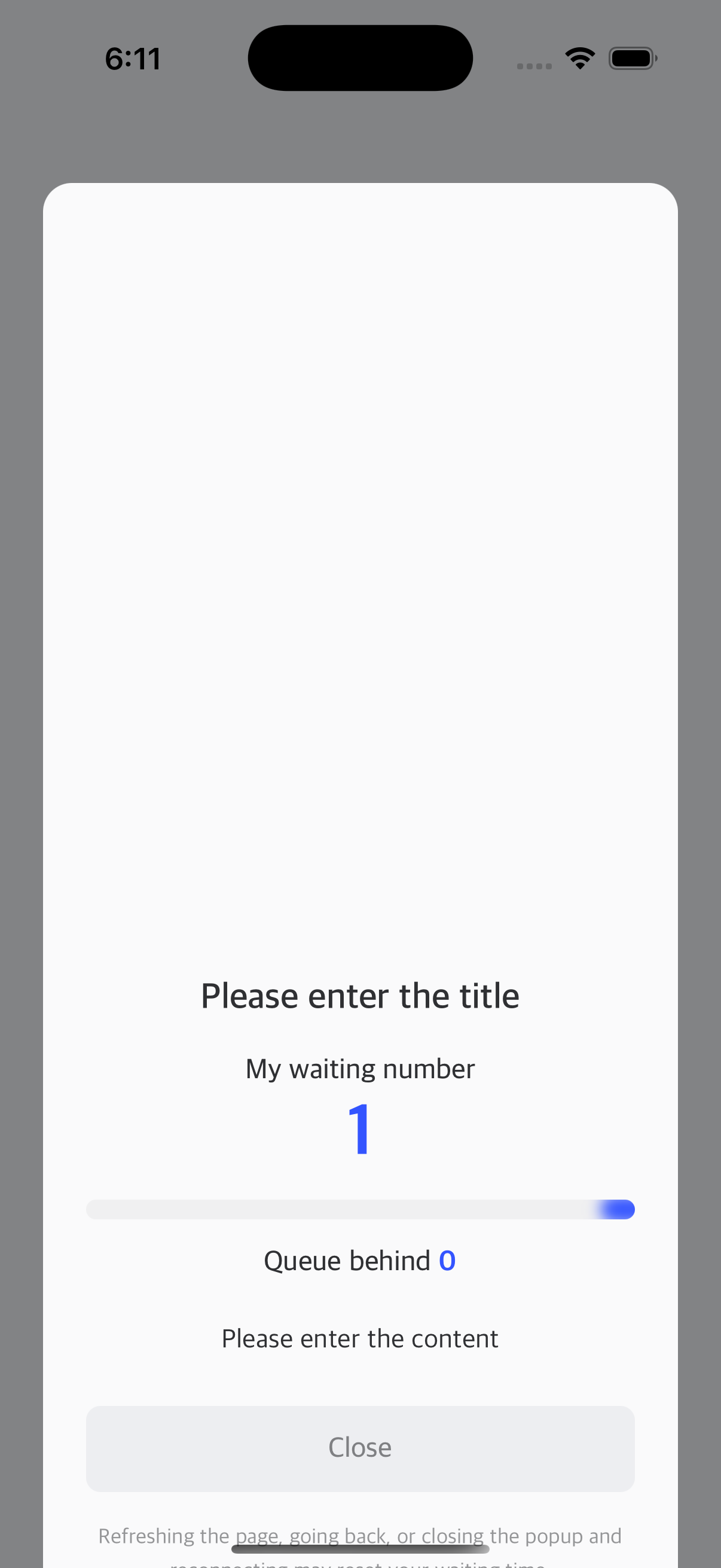
Expected result: Waiting room WebView appears on current screen
6.2 Verify Waiting Room Display
Check these elements are shown correctly:
With Limited Inflow set to 0 and only one user connected, verify:
- My waiting number: 1
- Estimated Wait Time: Not displayed (Section Control only)
- Queue behind: 0
Section Control does not display estimated wait time because users already in the section have varying completion times that are difficult to predict. Unlike Basic Control where entry is quick and predictable, Section Control users may spend different amounts of time completing their multi-step processes.
6.3 Check Xcode Console Activity
Verify NetFUNNEL logs:
Enable debug logging by setting printLog = true in your AppDelegate, then check the Xcode console. You should see logs like:
[NF4] [2025-09-19 16:56:42.832] Initialization successful. NetFUNNEL Version: 4.3.2-onprem
[NF4] [2025-09-19 16:56:58.500] Sending initialEntry request: https://nf4-onprem-demo-4525.stclab.com/ts.wseq?opcode=5101&sid=service_1&aid=segKey_2548
[NF4] [2025-09-19 16:56:58.651] Received initialEntry response: Response(timestamp: Optional(1758268618669), code: 201, key: Optional("A5E68F1AB764D05967A41DB8161C611D0952823AE901BA73FA347E320385E354A8FC7C43E5D15069EEB8F9252A1DFC79BCFD08B8F833299D4D743DBF3C84B6D4E168B227EF3E2A74958D7ED95766B706CFFE9F9934671086EDABAE8FEDFA67722C312C302C302C302C302C30"), nwait: Optional(0), nnext: Optional(0), tps: Optional(0.0), ttl: Optional(1), ip: Optional("nf4-onprem-demo-4525.stclab.com"), port: Optional(443), preBeginTs: nil, preEndTs: nil, postBeginTs: nil, postEndTs: nil, sticky: Optional("nf1"), vwrHtml: Optional("https://nf4-onprem-demo-4525.stclab.com/content/netfunnel-statics/assets/vwr-page/page/1/1/1/index.html"), liveMessage: nil, chkEnterCnt: Optional(0), waitOrderYn: Optional(0), msg: nil, vwrType: Optional("wait"))
[NF4] [2025-09-19 16:56:59.282] Fetching HTML content from following URL. https://nf4-onprem-demo-4525.stclab.com/content/netfunnel-statics/assets/vwr-page/page/1/1/1/index.html
[NF4] [2025-09-19 16:56:59.512] Sending reentry request: https://nf4-onprem-demo-4525.stclab.com:443/ts.wseq?opcode=5002&key=A5E68F1AB764D05967A41DB8161C611D0952823AE901BA73FA347E320385E354A8FC7C43E5D15069EEB8F9252A1DFC79BCFD08B8F833299D4D743DBF3C84B6D4E168B227EF3E2A74958D7ED95766B706CFFE9F9934671086EDABAE8FEDFA67722C312C302C302C302C302C30&sticky=nf1
[NF4] [2025-09-19 16:56:59.563] Received reentry response: Response(timestamp: Optional(1758268619604), code: 201, key: Optional("A5E68F1AB764D05967A41DB8161C611D462C3B2234ABB4D5F3283A4F82C0952F7F82C9A3B775DE797F13B051D1E06451BCFD08B8F833299D4D743DBF3C84B6D4E168B227EF3E2A74958D7ED95766B70694D7C8E4BEA05A019FF78476D2CEAF2F2C312C302C302C302C302C30"), nwait: Optional(0), nnext: Optional(0), tps: Optional(0.0), ttl: Optional(1), ip: Optional("nf4-onprem-demo-4525.stclab.com"), port: Optional(443), preBeginTs: nil, preEndTs: nil, postBeginTs: nil, postEndTs: nil, sticky: Optional("nf1"), vwrHtml: Optional("https://nf4-onprem-demo-4525.stclab.com/content/netfunnel-statics/assets/vwr-page/page/1/1/1/index.html"), liveMessage: nil, chkEnterCnt: Optional(0), waitOrderYn: Optional(0), msg: nil, vwrType: Optional("wait"))
... (repeated polling with code: 201) ...
Key indicators that everything is working:
| Log Message | What It Means | Status |
|---|---|---|
[NF4] Initialization successful | NetFUNNEL agent loaded correctly | ✅ Good |
[NF4] Sending initialEntry request | nfStartSection() was called successfully, Initial entry request sent to NetFUNNEL server | ✅ Good |
[NF4] Received initialEntry response with code: 201 | Server responded with WAIT status | ✅ Good |
[NF4] Received reentry response with code: 201 | Server responded with WAIT status | ✅ Good |
[NF4] Fetching HTML content | Waiting room WebView is loading, Waiting room HTML is being loaded | ✅ Good |
[NF4] Sending reentry request | Periodic re-entry requests (polling) | ✅ Good |
[NF4] Received reentry response with code: 201 | Server responded with WAIT status | ✅ Good |
Verify response:
- Look for
ts.wseq?opcode=5002requests in the logs - Check response shows
code=201(WAIT) 201= WAIT,200= PASS (entry allowed)- Here, since Limited Inflow is 0 (Section Capacity = 0), the correct response is
201
Step 7: Test Section Entry (Limited Inflow = 1)
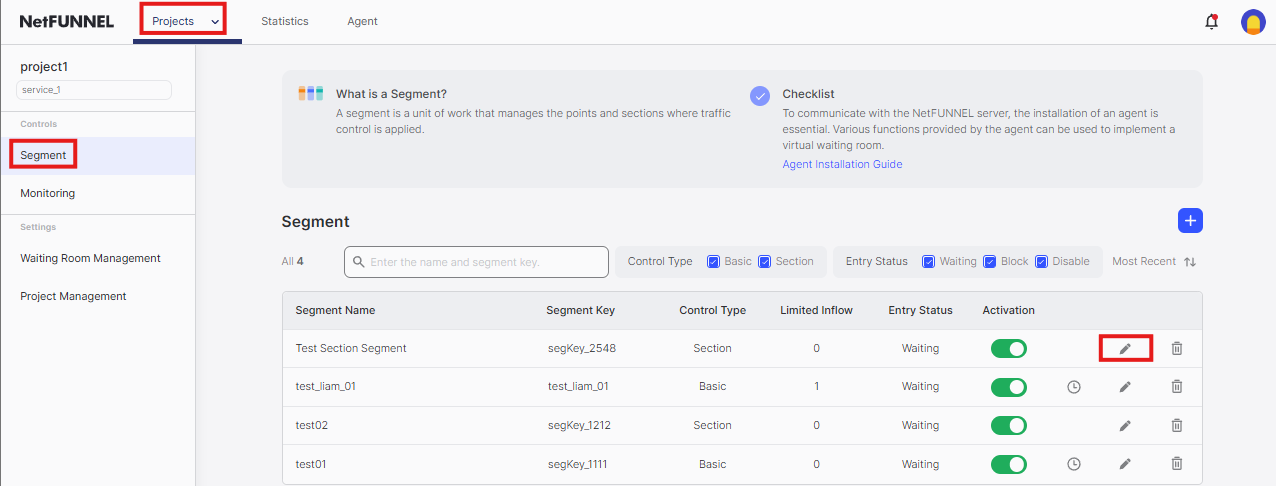
7.1 Update Segment Settings
- Return to NetFUNNEL console
- Click segment's
Editbutton to open the edit screen
- Change Limited Inflow from
0to1 - Click
Confirmat the bottom
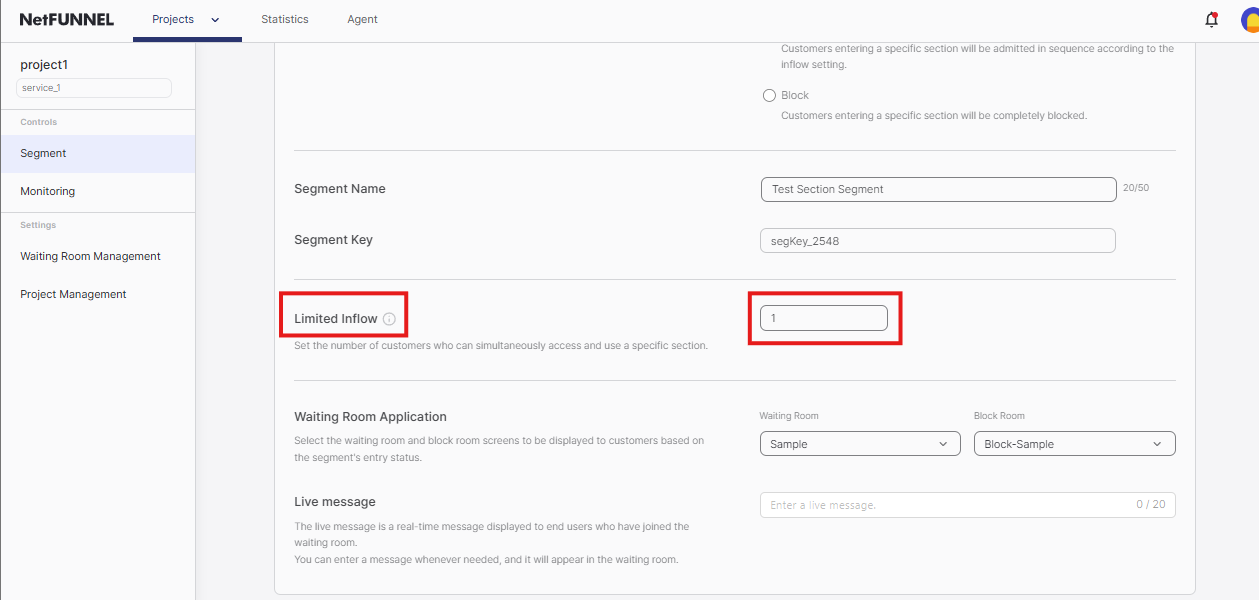
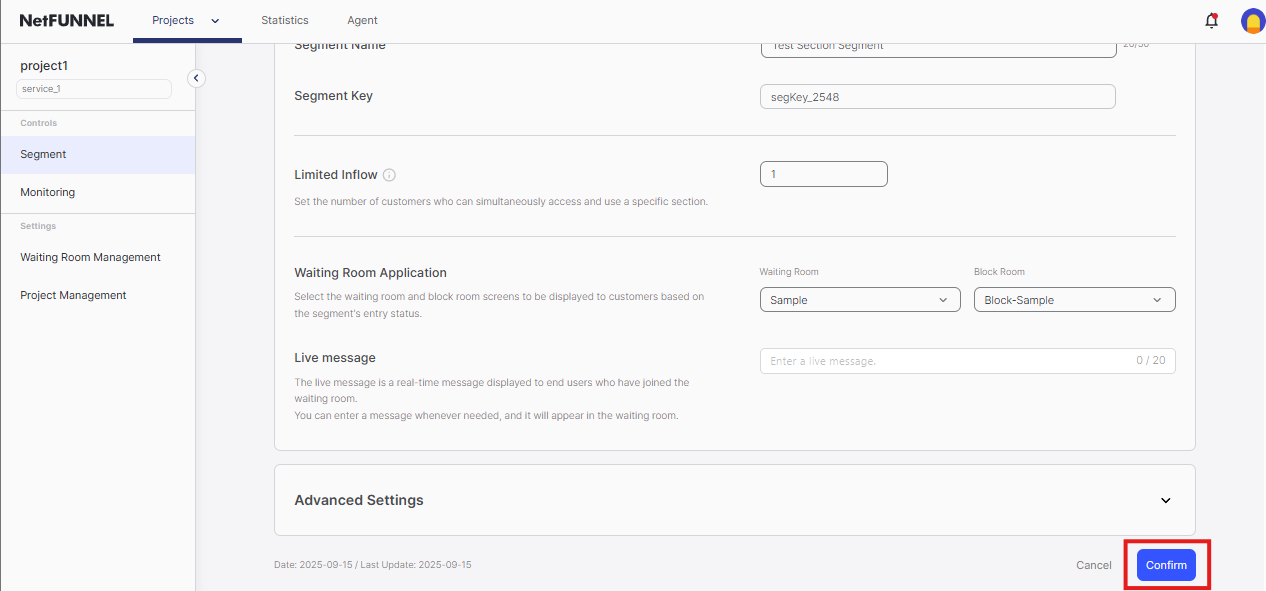
As soon as you click Confirm, the waiting room will disappear and you will immediately navigate to SectionControlSection1View. If you want to observe this moment, keep another screen open where the waiting room is currently displayed.
7.2 Verify Section Entry
Expected result: Waiting room disappears immediately, navigation to SectionControlSection1View occurs
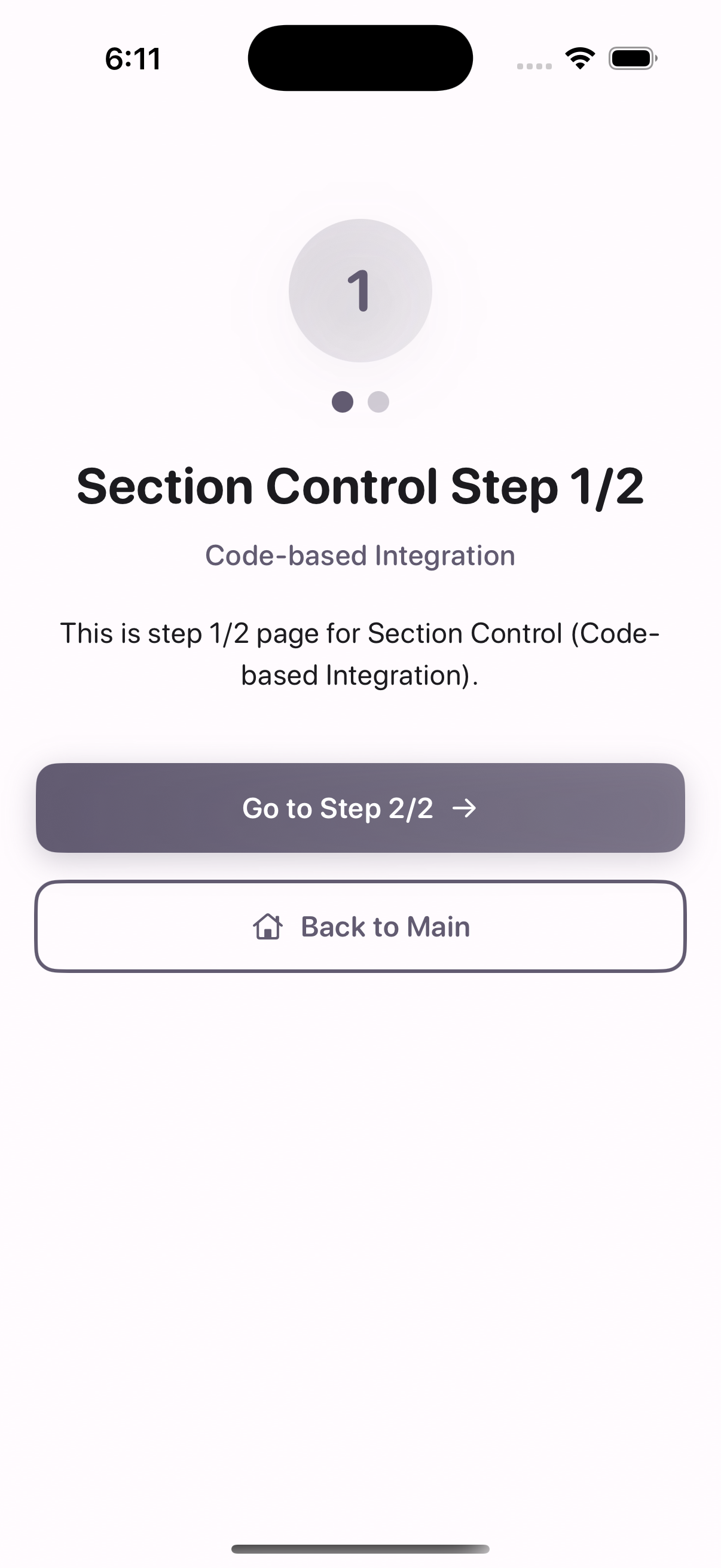
Check Xcode console for entry confirmation:
You should see logs like:
[NF4] [2025-09-19 16:57:06.903] Received reentry response: Response(timestamp: Optional(1758268626936), code: 200, key: Optional("A5E68F1AB764D05967A41DB8161C611DD2AA40A9437F4974D770B5C0AA132C311128743E2F216A772B70073896EB3DB127202420DE5AD49E70AB545EDE6D88C5DA85D3F8F85FA7FA7B7F120E3C54DAC2902D1EA62CCD2C8E006BBC45D5A08001715A51C76F286957F8DE56D6092043B1302C302C30"), nwait: Optional(0), nnext: Optional(0), tps: Optional(0.0), ttl: Optional(0), ip: Optional("nf4-onprem-demo-4525.stclab.com"), port: Optional(443), preBeginTs: nil, preEndTs: nil, postBeginTs: nil, postEndTs: nil, sticky: Optional("nf1"), vwrHtml: Optional("https://nf4-onprem-demo-4525.stclab.com/content/netfunnel-statics/assets/vwr-page/page/1/1/1/index.html"), liveMessage: nil, chkEnterCnt: Optional(1), waitOrderYn: Optional(0), msg: nil, vwrType: Optional(""))
[NF4] [2025-09-19 16:57:06.905] Sending key refresh request: https://nf4-onprem-demo-4525.stclab.com:443/ts.wseq?opcode=5003&key=A5E68F1AB764D05967A41DB8161C611DD2AA40A9437F4974D770B5C0AA132C311128743E2F216A772B70073896EB3DB127202420DE5AD49E70AB545EDE6D88C5DA85D3F8F85FA7FA7B7F120E3C54DAC2902D1EA62CCD2C8E006BBC45D5A08001715A51C76F286957F8DE56D6092043B1302C302C30&sticky=nf1
[NF4] [2025-09-19 16:57:06.949] Received refreshKey response. code=201, key=Optional("A5E68F1AB764D05967A41DB8161C611DD2AA40A9437F4974D770B5C0AA132C311128743E2F216A772B70073896EB3DB127202420DE5AD49E70AB545EDE6D88C5DA85D3F8F85FA7FA7B7F120E3C54DAC2902D1EA62CCD2C8E006BBC45D5A08001715A51C76F286957F8DE56D6092043B1312C302C30")
Key indicators of successful section entry:
| Log Message | What It Means | Status |
|---|---|---|
[NF4] Received reentry response with code=200 | Entry granted - waiting room should close | ✅ Good |
[NF4] Sending key refresh request | Section Control: Key timeout extension request sent (5003) | ✅ Good |
[NF4] Received refreshKey response with code=201 | Section Control: Key timeout successfully extended | ✅ Good |
7.3 Test Section Navigation
Navigate through the section flow:
- Section1 → Section2 → End: Complete the multi-step section process
- Verify each step works correctly: Ensure smooth navigation between Views
- Check timeout extension logs: Look for periodic 5003 requests during section
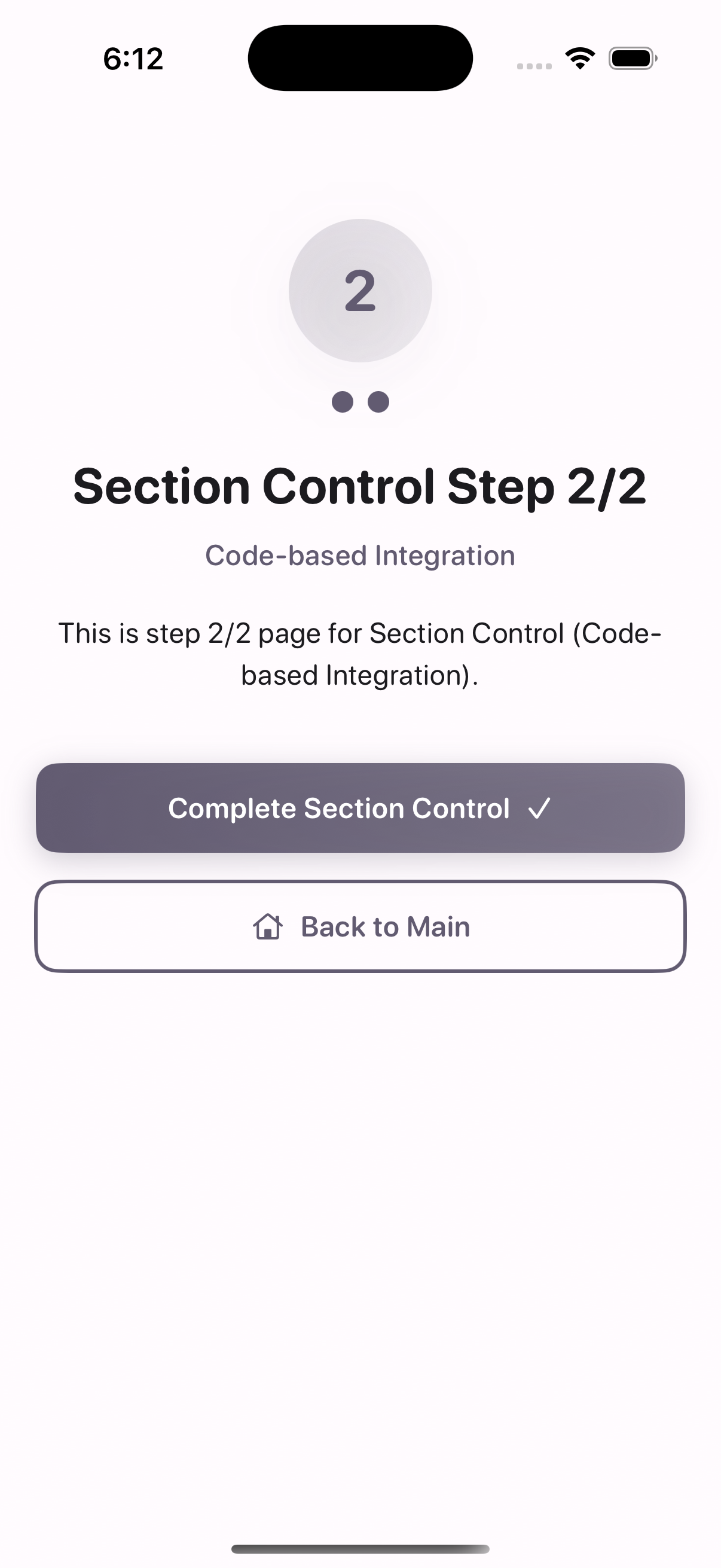
Expected behavior:
- User can freely navigate within the section (Section1 → Section2 → End)
- NetFUNNEL automatically extends key timeout (5003 requests) during section
- Section capacity is maintained until explicit completion
7.4 Check Key Return
Verify successful key return:
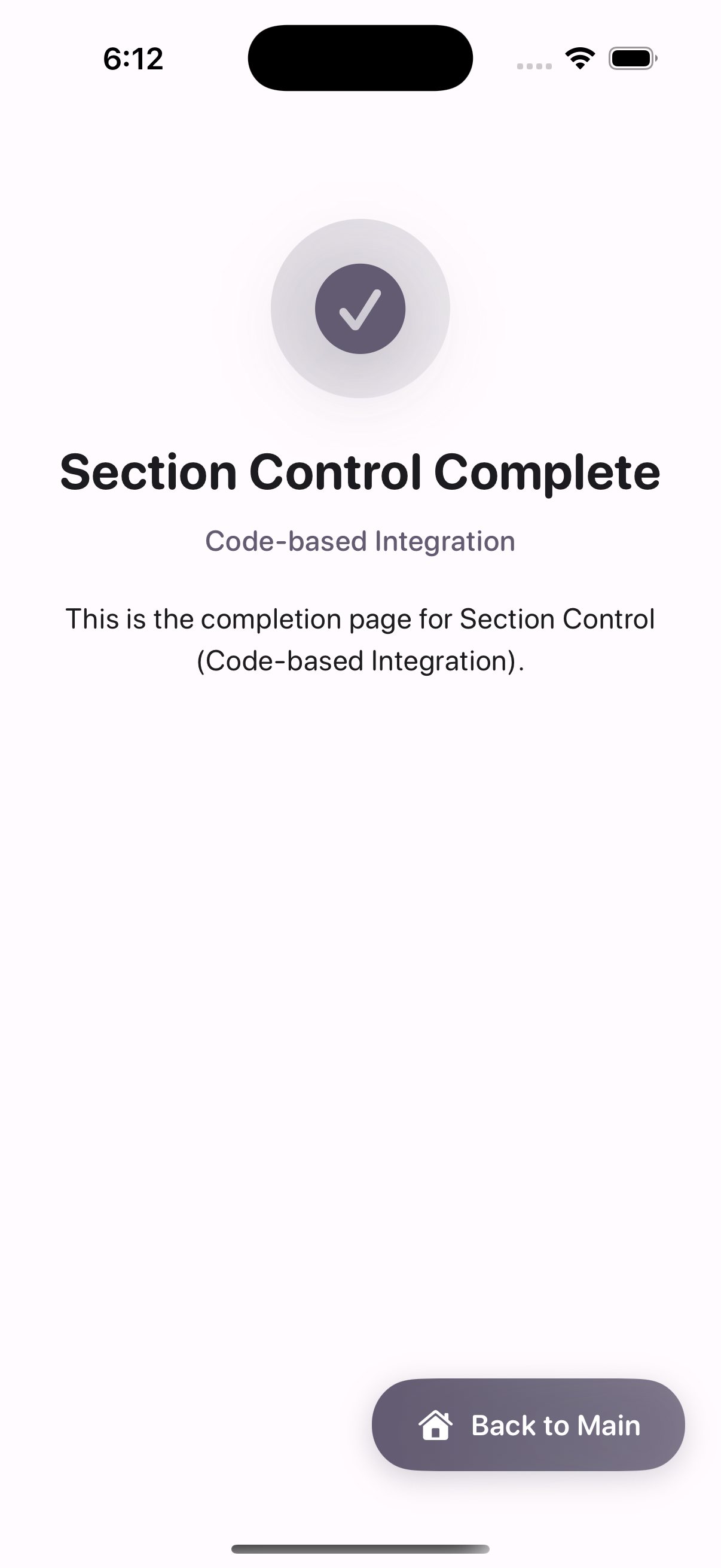
Look for these logs in Xcode console when reaching the End View:
[NF4] [2025-09-19 16:57:14.199] Sending returnKey request: https://nf4-onprem-demo-4525.stclab.com:443/ts.wseq?opcode=5004&key=A5E68F1AB764D05967A41DB8161C611D7F3D0E71CEF0573FF58477D0DD6D83AA1366D3C88161ABC35A8FE1E1DA92B83B27202420DE5AD49E70AB545EDE6D88C5DA85D3F8F85FA7FA7B7F120E3C54DAC2902D1EA62CCD2C8E006BBC45D5A080019F32F0077492B7D5F8DB92356655AFF1312C302C30&sticky=nf1
[NF4] [2025-09-19 16:57:14.236] Received returnKey response. code=200, key=Optional("A5E68F1AB764D05967A41DB8161C611D7F3D0E71CEF0573FF58477D0DD6D83AA1366D3C88161ABC35A8FE1E1DA92B83B27202420DE5AD49E70AB545EDE6D88C5DA85D3F8F85FA7FA7B7F120E3C54DAC2902D1EA62CCD2C8E006BBC45D5A080019F32F0077492B7D5F8DB92356655AFF1312C302C30")
Key indicators of successful key return:
| Log Message | What It Means | Status |
|---|---|---|
[NF4] Sending returnKey request | nfStopSection() was called (5004) | ✅ Good |
[NF4] Received returnKey response with code=200 | Key return successful | ✅ Good |
Summary
Essential Points (Must Do)
Setup:
- Complete Installation & Initialization and verify NetFUNNEL agent loads correctly
- Create segment in console with Section Control
- Get Project Key and Segment Key from console
- Set Limited Inflow to 0 for testing, 1+ for production
Integration:
- Add required imports:
Netfunnel_iOSandNetfunnelDelegate - Implement ALL delegate methods (iOS protocol requirement)
- Wrap section entry with
Netfunnel.shared.nfStartSection()in button handlers - Handle
onSuccessdelegate to execute section entry logic - Call
Netfunnel.shared.nfStopSection()after section completes - Use identical keys in both
nfStartSection()andnfStopSection()
Error Handling:
- Handle
onErrorby proceeding with section entry (maintains service availability) - Handle
onNetworkErrorby logging only (useuseNetworkRecoveryMode = true) - Handle
onBlockby showing appropriate user message - Handle
onCloseby staying on current view controller (user canceled) - Implement comprehensive logging for all delegate responses
Testing:
- Test waiting room appears with Limited Inflow = 0
- Test entry works with Limited Inflow = 1
- Verify key return occurs after section completion
- Check Xcode console for NetFUNNEL logs
Optional Items (Nice to Have)
Error Handling Enhancements:
- Add user-friendly error messages instead of basic logging
- Implement custom error handling strategies for different response types
- Add analytics tracking for NetFUNNEL events
Code Organization:
- Create centralized configuration constants
- Build reusable NetFUNNEL wrapper functions
- Implement modular integration patterns across multiple view controllers
Best Practices
Required Imports
- Swift
- Objective-C
import Netfunnel_iOS
#import <Netfunnel_iOS/Netfunnel_iOS.h>
Why these imports matter:
- Essential for NetFUNNEL integration
- Must be added to any View using NetFUNNEL
- Required for both
nfStartSection()andnfStopSection()functions
Complete Callback Implementation
- Swift
- Objective-C
private func setupCallbacks() {
    NetfunnelHandler.shared.onSuccess = { projectKey, segmentKey, statusCode, message in
        NSLog("onSuccess \(statusCode) \(message)")
        // Execute original business logic when NetFUNNEL allows entry
        navigationManager.navigateWithDelay(to: .sectionControlSection1)
    }

    NetfunnelHandler.shared.onError = { projectKey, segmentKey, statusCode, message in
        NSLog("onError \(statusCode) \(message)")
        // System error occurred - proceed with original logic for robust service availability
        navigationManager.navigateWithDelay(to: .sectionControlSection1)
    }

    NetfunnelHandler.shared.onNetworkError = { projectKey, segmentKey, statusCode, message in
        NSLog("onNetworkError \(statusCode) \(message)")
        // Network error occurred - log for debugging, but don't execute business logic
    }

    NetfunnelHandler.shared.onBlock = { projectKey, segmentKey, statusCode, message in
        NSLog("onBlock \(statusCode) \(message)")
        // User is blocked - show appropriate message
    }

    NetfunnelHandler.shared.onClose = { projectKey, segmentKey, statusCode, message in
        NSLog("onClose \(statusCode) \(message)")
        // User closed waiting room - handle appropriately
    }

    NetfunnelHandler.shared.onContinue = { projectKey, segmentKey, statusCode, message, aheadWait, behindWait, waitTime, progressRate in
        NSLog("onContinue \(statusCode) \(message)")
        // Update waiting progress information
    }
}
- (void)setupCallbacks {
    NetfunnelHandler.shared.onSuccess = ^(NSString *projectKey, NSString *segmentKey, NSInteger statusCode, NSString *message) {
        NSLog(@"onSuccess %ld %@", (long)statusCode, message);
        // Execute original business logic when NetFUNNEL allows entry
        [self.navigationManager navigateWithDelayToDestination:NavigationDestinationSectionControlSection1];
    };

    NetfunnelHandler.shared.onError = ^(NSString *projectKey, NSString *segmentKey, NSInteger statusCode, NSString *message) {
        NSLog(@"onError %ld %@", (long)statusCode, message);
        // System error occurred - proceed with original logic for robust service availability
        [self.navigationManager navigateWithDelayToDestination:NavigationDestinationSectionControlSection1];
    };

    NetfunnelHandler.shared.onNetworkError = ^(NSString *projectKey, NSString *segmentKey, NSInteger statusCode, NSString *message) {
        NSLog(@"onNetworkError %ld %@", (long)statusCode, message);
        // Network error occurred - log for debugging, but don't execute business logic
    };

    NetfunnelHandler.shared.onBlock = ^(NSString *projectKey, NSString *segmentKey, NSInteger statusCode, NSString *message) {
        NSLog(@"onBlock %ld %@", (long)statusCode, message);
        // User is blocked - show appropriate message
    };

    NetfunnelHandler.shared.onClose = ^(NSString *projectKey, NSString *segmentKey, NSInteger statusCode, NSString *message) {
        NSLog(@"onClose %ld %@", (long)statusCode, message);
        // User closed waiting room - handle appropriately
    };

    NetfunnelHandler.shared.onContinue = ^(NSString *projectKey, NSString *segmentKey, NSInteger statusCode, NSString *message, NSInteger aheadWait, NSInteger behindWait, NSString *waitTime, NSInteger progressRate) {
        NSLog(@"onContinue %ld %@", (long)statusCode, message);
        // Update waiting progress information
    };
}
Key principle: Always implement ALL callback methods - NetfunnelDelegate requirement.
Centralized Configuration
- Swift
- Objective-C
// Store your keys in one place
struct NetFunnelConfig {
    static let projectKey = "your_project_key"
    static let segmentKey = "your_segment_key"
}

// Use the same config everywhere
Netfunnel.shared.nfStartSection(
    projectKey: NetFunnelConfig.projectKey,
    segmentKey: NetFunnelConfig.segmentKey
)

Netfunnel.shared.nfStopSection(
    projectKey: NetFunnelConfig.projectKey,
    segmentKey: NetFunnelConfig.segmentKey
)
// Store your keys in one place
@interface NetFunnelConfig : NSObject
+ (NSString *)projectKey;
+ (NSString *)segmentKey;
@end

@implementation NetFunnelConfig
+ (NSString *)projectKey { return @"your_project_key"; }
+ (NSString *)segmentKey { return @"your_segment_key"; }
@end

// Use the same config everywhere
[[Netfunnel shared] nfStartSectionWithProjectKey:[NetFunnelConfig projectKey]
                                     segmentKey:[NetFunnelConfig segmentKey]];

[[Netfunnel shared] nfStopSectionWithProjectKey:[NetFunnelConfig projectKey]
                                    segmentKey:[NetFunnelConfig segmentKey]];
Benefits:
- Easy to update keys across your entire app
- Reduces copy-paste errors
- Single source of truth for configuration
Robust Error Handling Strategy
- Swift
- Objective-C
// Why onError executes business logic but onNetworkError doesn't:

NetfunnelHandler.shared.onError = { projectKey, segmentKey, statusCode, message in
    NSLog("onError \(statusCode) \(message)")
    // Scenario: NetFUNNEL server encounters internal errors
    // Strategy: Execute business logic to maintain service availability
    // Rationale: Server errors are typically temporary and shouldn't block user access
    // Result: Robust service that continues even when NetFUNNEL has issues
    navigationManager.navigateWithDelay(to: .sectionControlSection1)
}

NetfunnelHandler.shared.onNetworkError = { projectKey, segmentKey, statusCode, message in
    NSLog("onNetworkError \(statusCode) \(message)")
    // Scenario: Network connectivity problems (offline, timeout)
    // Strategy: Log only, don't execute business logic
    // Rationale: Use useNetworkRecoveryMode = true for automatic network recovery
    // Result: Users stay in waiting room during network issues and auto-resume when connectivity returns
}
// Why onError executes business logic but onNetworkError doesn't:

NetfunnelHandler.shared.onError = ^(NSString *projectKey, NSString *segmentKey, NSInteger statusCode, NSString *message) {
    NSLog(@"onError %ld %@", (long)statusCode, message);
    // Scenario: NetFUNNEL server encounters internal errors
    // Strategy: Execute business logic to maintain service availability
    // Rationale: Server errors are typically temporary and shouldn't block user access
    // Result: Robust service that continues even when NetFUNNEL has issues
    [self.navigationManager navigateWithDelayToDestination:NavigationDestinationSectionControlSection1];
};

NetfunnelHandler.shared.onNetworkError = ^(NSString *projectKey, NSString *segmentKey, NSInteger statusCode, NSString *message) {
    NSLog(@"onNetworkError %ld %@", (long)statusCode, message);
    // Scenario: Network connectivity problems (offline, timeout)
    // Strategy: Log only, don't execute business logic
    // Rationale: Use useNetworkRecoveryMode = true for automatic network recovery
    // Result: Users stay in waiting room during network issues and auto-resume when connectivity returns
};
Key principle: Always proceed with business logic on system errors to maintain service availability.
Network Recovery Mode Configuration
- Swift
- Objective-C
// AppDelegate.swift
Netfunnel.initialize(
    clientId: "{{CLIENT_ID}}",
    delegate: NetfunnelHandler.shared,  // Use NetfunnelHandler, not self
    useNetworkRecoveryMode: true  // Enable automatic network recovery
)
// AppDelegate.m
[agent initializeWithClientId:@"{{CLIENT_ID}}"
                                  delegate:[NetfunnelHandler sharedInstance]  // Use NetfunnelHandler, not self
                    useNetworkRecoveryMode:YES];  // Enable automatic network recovery
Benefits:
- Automatic handling of network connectivity issues
- Users automatically resume when network returns
- Reduces manual network error handling complexity
Always Return Keys
- Swift
- Objective-C
// Return key after successful operation
struct SectionControlEndView: View {
    var body: some View {
        VStack {
            // Your UI content
        }
        .onAppear {
            // Return key when SwiftUI view is fully loaded
            Netfunnel.shared.nfStopSection(
                projectKey: NetFunnelConfig.projectKey,
                segmentKey: NetFunnelConfig.segmentKey
            )
        }
    }
}
// Return key after successful operation
- (void)viewDidLoad {
    [super viewDidLoad];

    // Return key when view controller is fully loaded
    [[Netfunnel shared] nfStopSectionWithProjectKey:[NetFunnelConfig projectKey]
                                         segmentKey:[NetFunnelConfig segmentKey]];
}
When to return keys:
- After SwiftUI View loads completely
- After section completes (Section1 → Section2 → End)
- After business operations finish
- Even when operations fail
Key Matching
- Swift
- Objective-C
// Start and stop must use identical keys
let projectKey = "your_project_key"
let segmentKey = "your_segment_key"

Netfunnel.shared.nfStartSection(
    projectKey: projectKey,
    segmentKey: segmentKey
)

Netfunnel.shared.nfStopSection(
    projectKey: projectKey,  // Must match exactly
    segmentKey: segmentKey   // Must match exactly
)
// Start and stop must use identical keys
NSString *projectKey = @"your_project_key";
NSString *segmentKey = @"your_segment_key";

[[Netfunnel shared] nfStartSectionWithProjectKey:projectKey
                                     segmentKey:segmentKey];

[[Netfunnel shared] nfStopSectionWithProjectKey:projectKey  // Must match exactly
                                    segmentKey:segmentKey];  // Must match exactly
Comprehensive Logging
- Swift
- Objective-C
// Enable debug logging in AppDelegate
Netfunnel.initialize(
    clientId: "{{CLIENT_ID}}",
    delegate: NetfunnelHandler.shared,  // Use NetfunnelHandler, not self
    printLog: true  // Enable detailed logging
)

// Check Xcode console for logs
// Enable debug logging in AppDelegate
[agent initializeWithClientId:@"{{CLIENT_ID}}"
                                  delegate:[NetfunnelHandler sharedInstance]  // Use NetfunnelHandler, not self
                                  printLog:YES];  // Enable detailed logging

// Check Xcode console for logs
Logging benefits:
- Easy debugging of NetFUNNEL integration issues
- Track request/response flow
- Monitor key return operations
- Identify network connectivity problems
Common Issues & Troubleshooting
Waiting Room Never Appears
Symptoms: Button click works normally, no waiting room shows up
Debug Steps:
- Check Xcode console for iOS errors:
⌘+Shift+Y→ Filter by "Error" - Verify NetFUNNEL initialization in AppDelegate
- Confirm segment is activated (not deactivated) in console
- Check Limited Inflow is set to 0 for testing
- Verify Project Key and Segment Key match console exactly (case-sensitive)
Delegate Never Fires
Symptoms: nfStartSection() called but no response received
Debug Steps:
- Check Xcode console for NetFUNNEL logs: Filter by "NetFUNNEL"
- Verify network connectivity to NetFUNNEL servers
- Check if segment is activated (not deactivated)
- Try with Limited Inflow = 0 to force waiting room
- Ensure ALL callback methods are implemented (NetfunnelDelegate requirement)
Users Stuck in Queue
Symptoms: First user enters, but second user never gets through
Debug Steps:
- Check if
nfStopSection()is being called after section completes - Verify keys in
nfStopSection()matchnfStartSection()exactly - Look for iOS errors preventing
nfStopSection()execution - Check Xcode console for
[NF4] Sending returnKey requestlogs - Verify
[NF4] Sending returnKey requestappears in logs
Waiting Room Shows But Never Allows Entry
Symptoms: Waiting room appears but user never gets through, even with Limited Inflow = 1
Debug Steps:
- Check segment status in console - ensure it's not in "Block" mode
- Verify Limited Inflow is set to 1 or higher
- Check Xcode console for
[NF4] Sending reentry request(re-entry requests) - Look for error responses in the NetFUNNEL logs
- Verify network connectivity to NetFUNNEL servers
App Crashes on NetFUNNEL Calls
Symptoms: App crashes when calling nfStartSection() or nfStopSection()
Debug Steps:
- Check if required imports are added:
Netfunnel_iOS - Verify NetFUNNEL is initialized in AppDelegate
- Ensure ALL callback methods are implemented (NetfunnelDelegate requirement)
- Check if delegate is set correctly in initialization (
NetfunnelHandler.shared) - Verify NetFUNNEL agent is properly installed
Key Return Fails
Symptoms: nfStopSection() called but key not returned
Debug Steps:
- Verify keys in
nfStopSection()matchnfStartSection()exactly (case-sensitive) - Check Xcode console for
[NF4] Sending returnKey requestmessage - Look for
[NF4] Sending returnKey requestin logs - Verify
[NF4] Received returnKey responsewithcode=200 - Ensure
nfStopSection()is called in appropriate lifecycle method
Section Timeout Issues
Symptoms: Keys are automatically returned before section completion
Debug Steps:
- Check timeout settings in NetFUNNEL console → Segment → Advanced Settings →
Timeout - Verify section duration exceeds timeout period (default 20s)
- Look for
[NF4] Sending key refresh requestlogs (key timeout extension) - Ensure
nfStopSection()is called before timeout expires - Check if section navigation flow completes within timeout period
Network Recovery Issues
Symptoms: Users get stuck during network connectivity problems
Debug Steps:
- Verify
useNetworkRecoveryMode = truein AppDelegate initialization - Check network connectivity to NetFUNNEL servers
- Test with airplane mode on/off to simulate network issues
- Monitor Xcode console for
onNetworkErrordelegate calls - Ensure
onNetworkErrordoesn't execute business logic (relies on recovery mode)
QA Checklist
Pre-Implementation Verification
- Project Key / Segment Key match console exactly (reconfirm in console)
- NetFUNNEL agent properly initialized in AppDelegate
- Required imports added:
Netfunnel_iOS - ALL callback methods implemented (NetfunnelDelegate requirement)
Waiting Room Testing (Limited Inflow = 0)
- With Limited Inflow = 0, waiting room WebView displays correctly
- Waiting room shows correct details:
- My waiting number: 1
- Estimated Wait Time: Not displayed (Section Control only)
- Queue behind: 0
- While waiting,
[NF4] Sending reentry requestappears periodically in Xcode console -
[NF4] Received reentry responseshowscode=201(WAIT)
Section Entry Testing (Limited Inflow = 1)
- When changing to Limited Inflow = 1,
onSuccesscallback fires -
onSuccesscallback executes original section entry logic - Waiting room disappears immediately upon entry
- Navigation to SectionControlSection1View occurs successfully
Section Navigation Testing
- Section navigation works correctly (Section1 → Section2 → End)
- Key timeout extension occurs automatically (5003 requests)
-
[NF4] Sending key refresh requestappears periodically during section -
[NF4] Received refreshKey responseshowscode=201 - Section capacity is maintained until explicit completion
Key Return Verification
- At section completion point, key return works correctly
-
[NF4] Sending returnKey requestappears in Xcode console -
[NF4] Sending returnKey requestoccurs with HTTP 200 -
[NF4] Received returnKey responseshowscode=200 - Key return happens exactly once per
nfStartSectioncall - Key return occurs after section completion
Error Handling
- Callback branching implemented for all required states:
-
onSuccess- executes original logic -
onError- handles system errors appropriately (proceeds with section entry) -
onNetworkError- handles network issues appropriately (logs only) -
onBlock- handles blocked state appropriately -
onClose- handles user cancellation appropriately -
onContinue- handles waiting progress appropriately
-
- Network recovery mode enabled in AppDelegate initialization
- Key matching -
projectKey/segmentKeyidentical innfStartSectionandnfStopSection - Comprehensive logging implemented for all delegate responses
Xcode Console Verification
- NetFUNNEL logs visible in Xcode console (Filter by "NetFUNNEL")
- Initialization successful message appears
- Sending initialEntry request message appears on button click
- Fetching HTML content message appears
- Sending key refresh request message appears (Section Control specific)
- Sending returnKey request message appears
- Received returnKey response with
code=200appears