User Management
Manage IPs/IDs blocked by Repeated Request Block policies and manually configure blocking or bypass settings through Blacklist/Whitelist. These lists control access to the NetFUNNEL server, not your customer service endpoints.
User Management Screen
The User Management screen allows you to check and manage the status of IPs/IDs blocked by Repeated Request Block settings for making excessive requests to the NetFUNNEL server.

How to Access
To access the User Management screen, follow these steps:
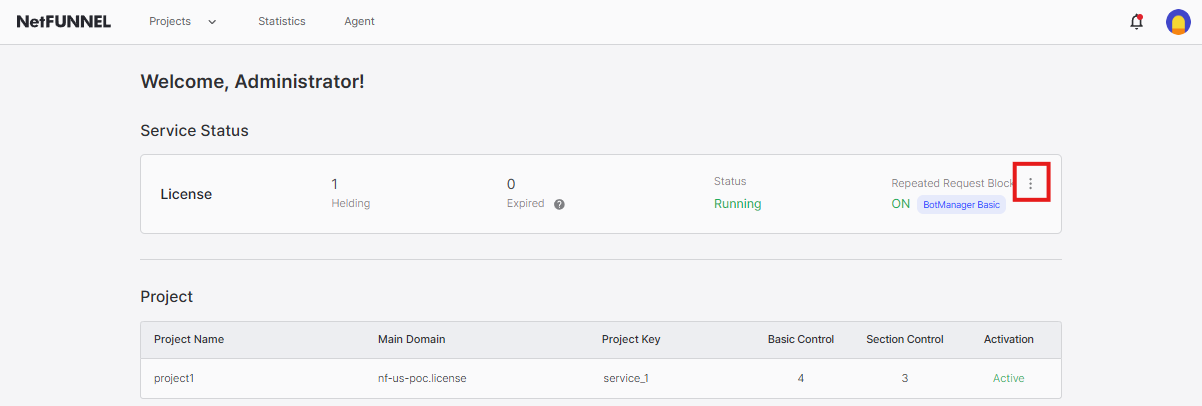
- From the home screen, click the button to access Repeated Request Block settings.
- Click the User Management tab (the second menu option).

Note: User management lists are global and apply across all projects.
List Types
The User Management screen allows you to manage the following 4 types of lists:
| List Type | Description | Management Method |
|---|---|---|
| Temporary Block | IPs/IDs automatically blocked by policy settings when exceeding limits. Shown in list during block time, automatically removed when expired. | Read only (auto-expires) |
| Unblock | Whitelist for Repeated Request Block. IPs/IDs not blocked even if policy limits are exceeded. Receive normal responses instead of 302 block responses. | Manually add/delete |
| Permanent Block | Blacklist that always blocks requests. IPs/IDs receive 302 block responses regardless of policy limits. | Manually add/delete |
| Whitelist | Bypass Allow List (function). IPs/IDs completely bypass NetFUNNEL traffic control. Receive 303 bypass responses, waiting room never shown. | Manually add/delete |
Temporary Block List
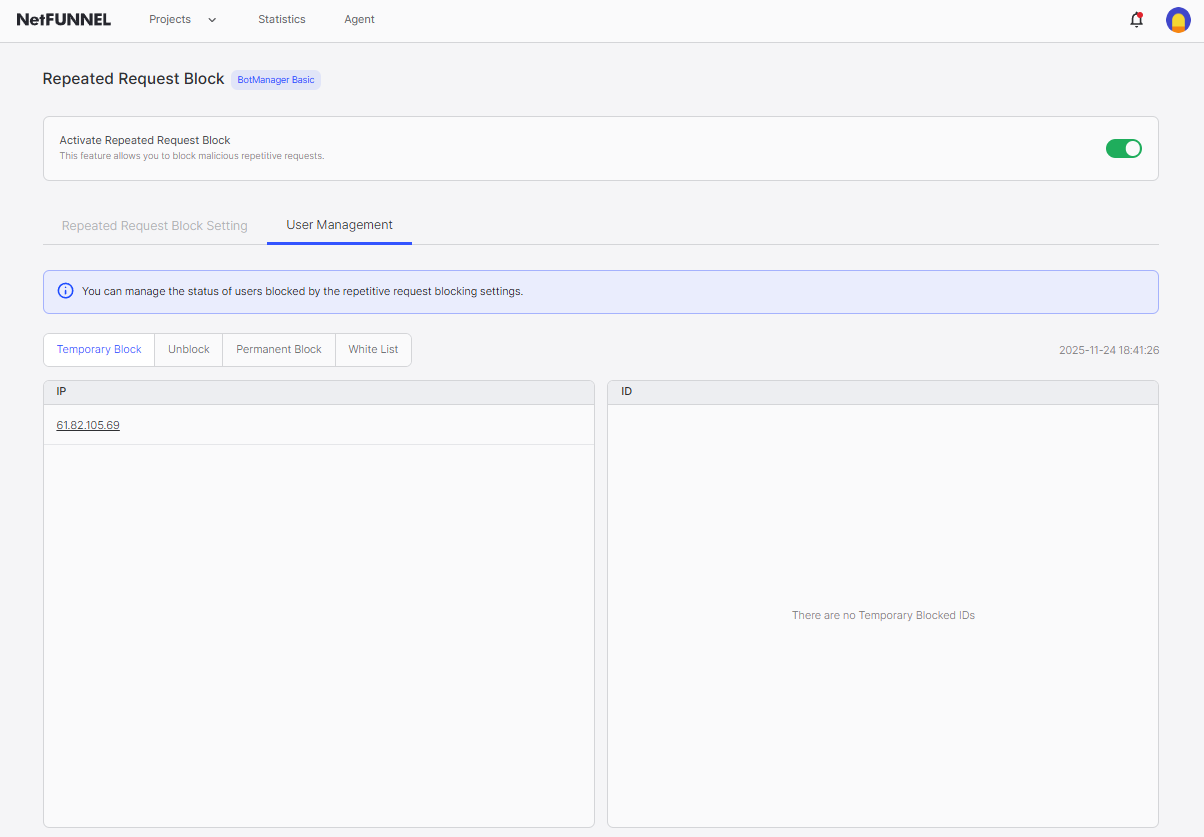
Shows IPs/IDs currently blocked by policy settings. Blocked entries remain in the list during the block time period. Once block time expires, entries are automatically removed from the list.
Unblock List
A whitelist for Repeated Request Block. IPs/IDs registered in this list are not blocked even if they exceed policy limits. They receive normal responses instead of 302 block responses.
Use case: Useful for internal testing when you need to send a large number of requests intentionally while Repeated Request Block is enabled.
To add entries:
- Click Unblock Register button

- Enter IP address or user ID in the dialog

- Click Confirm button. The IP/ID will be added to the Unblock list.

IP addresses must be registered individually. CIDR notation (e.g., 61.82.105.0/24) is not supported. Each IP address must be registered separately.
To delete entries:
Click the trash icon next to the entry you want to delete. The entry will be removed immediately.
Permanent Block List (Blacklist)
A list that permanently blocks specified IPs/IDs from making requests to the NetFUNNEL server. IPs/IDs registered in this list receive 302 block responses regardless of whether they exceed policy limits. The block screen displayed is the same UI as the Repeated Request Block page.
Use cases:
- Block known malicious IP addresses attempting to simulate NetFUNNEL agents
- Permanently block IPs/IDs that repeatedly attempt to acquire entry keys illegitimately
- Block IPs identified as security threats to NetFUNNEL server
- Block IPs/IDs that repeatedly cause problems with NetFUNNEL server requests
To add entries:
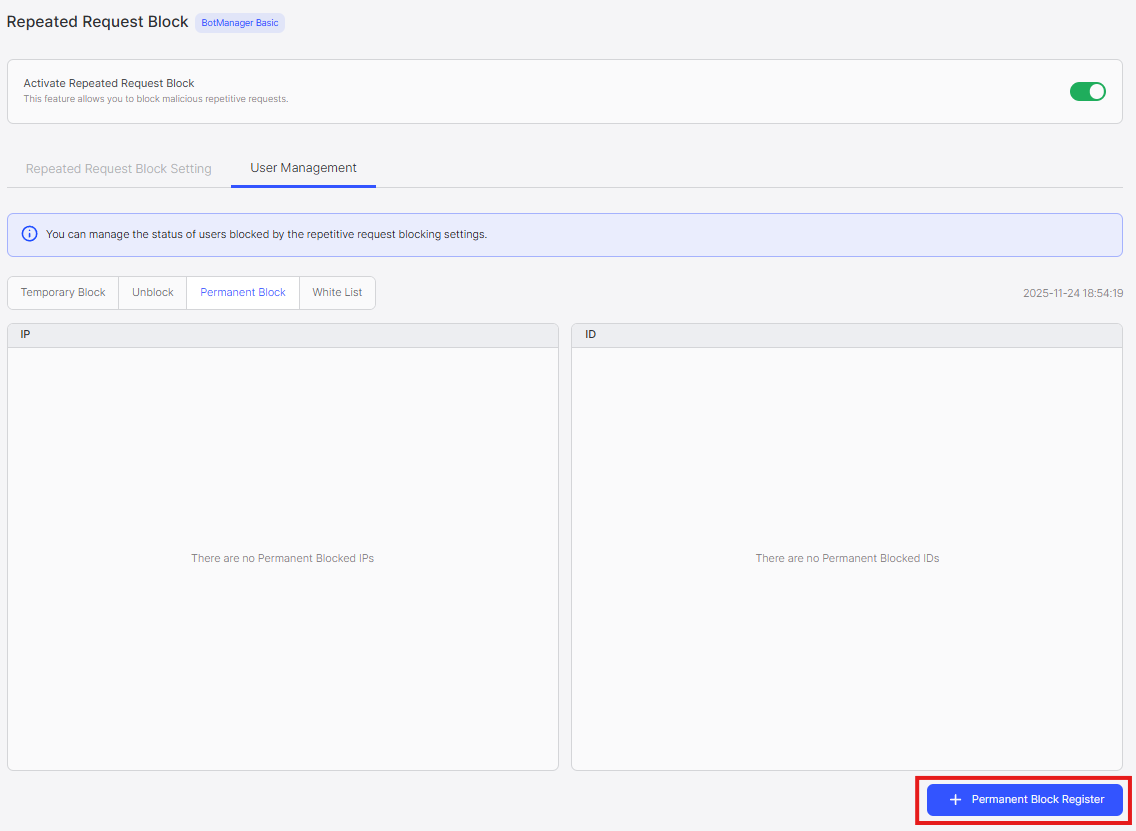
- Click Permanent Block Register button
- Enter IP address or user ID in the dialog
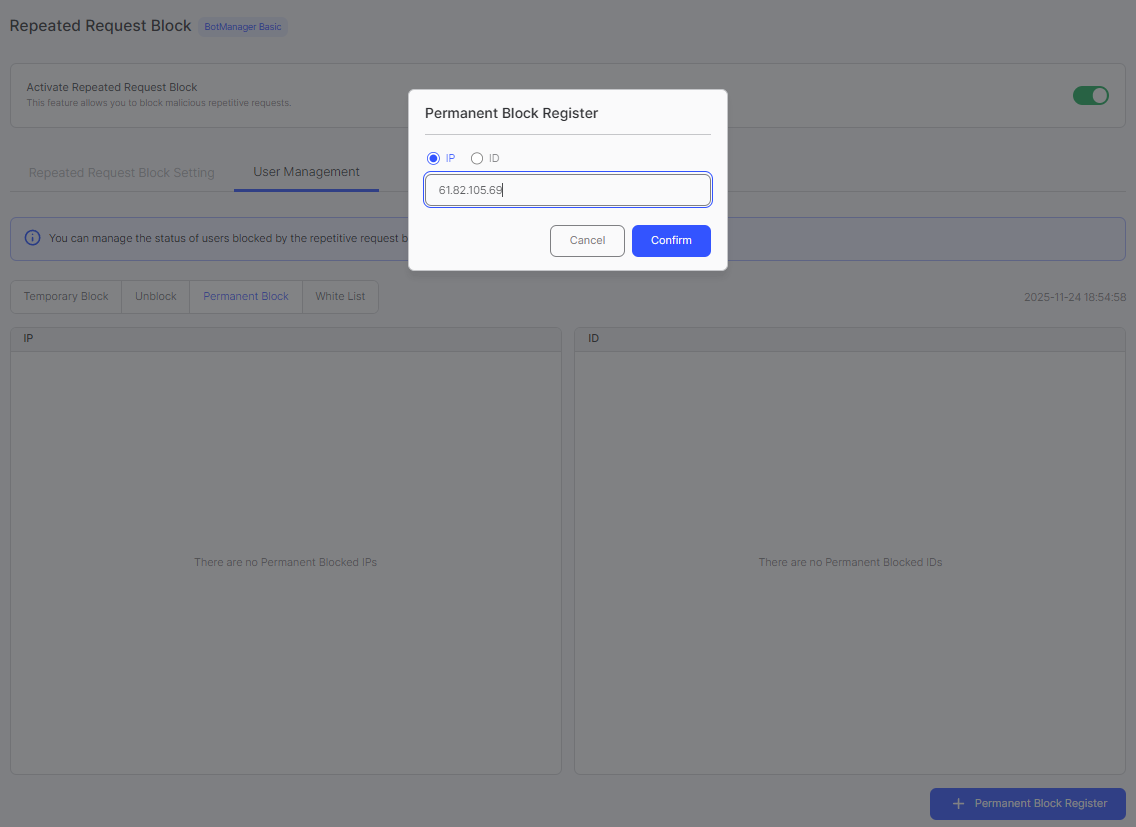
- Click Confirm button. The IP/ID will be added to the Permanent Block list.
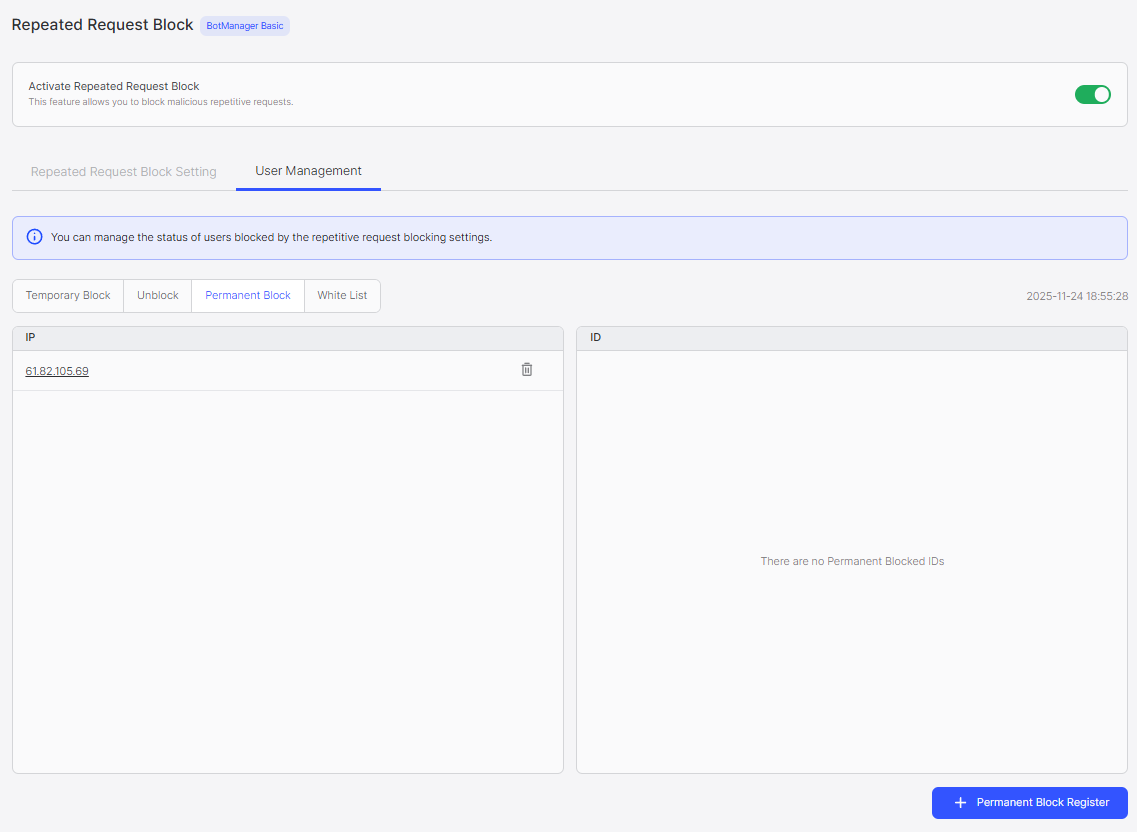
IP addresses must be registered individually. CIDR notation (e.g., 61.82.105.0/24) is not supported. Each IP address must be registered separately.
To delete entries:
Click the trash icon next to the entry you want to delete. The entry will be removed immediately.
Whitelist (Bypass Allow List)
Note: The UI displays this as "Whitelist", and it functions as a Bypass Allow List.
IPs/IDs registered in this list completely bypass NetFUNNEL traffic control. They do not enter the waiting room and receive 303 bypass responses instead. The waiting room screen is never shown to these users.
Use case: Ideal for VIPs or internal testers who must always be allowed through without any waiting or blocking.
To add entries:
- Click Bypass Register button
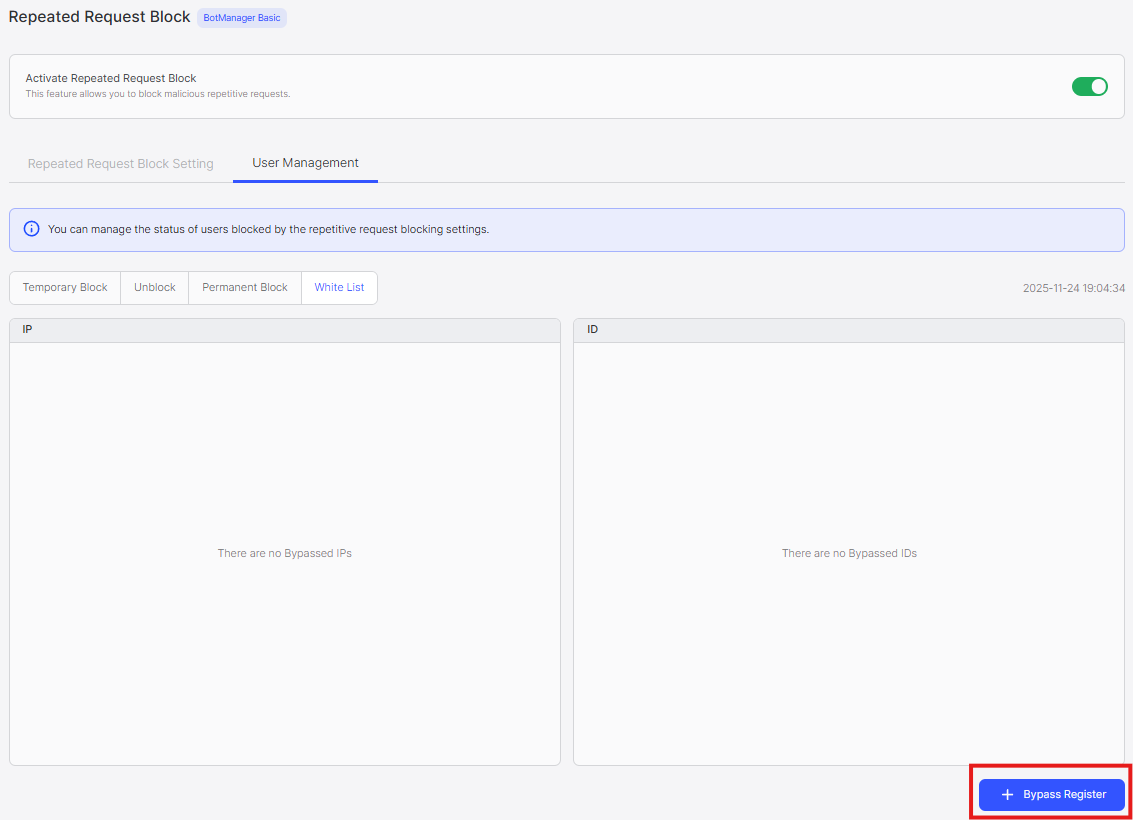
- Enter IP address or user ID in the dialog
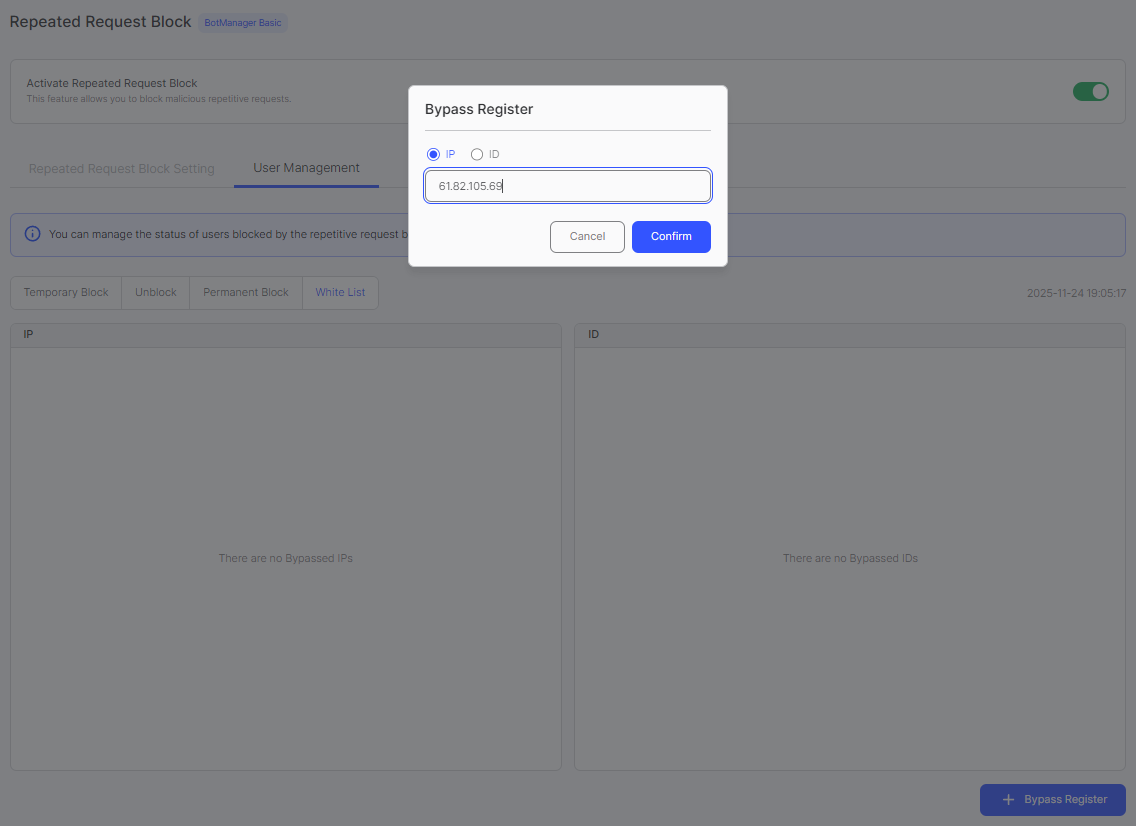
- Click Confirm button. The IP/ID will be added to the Whitelist.
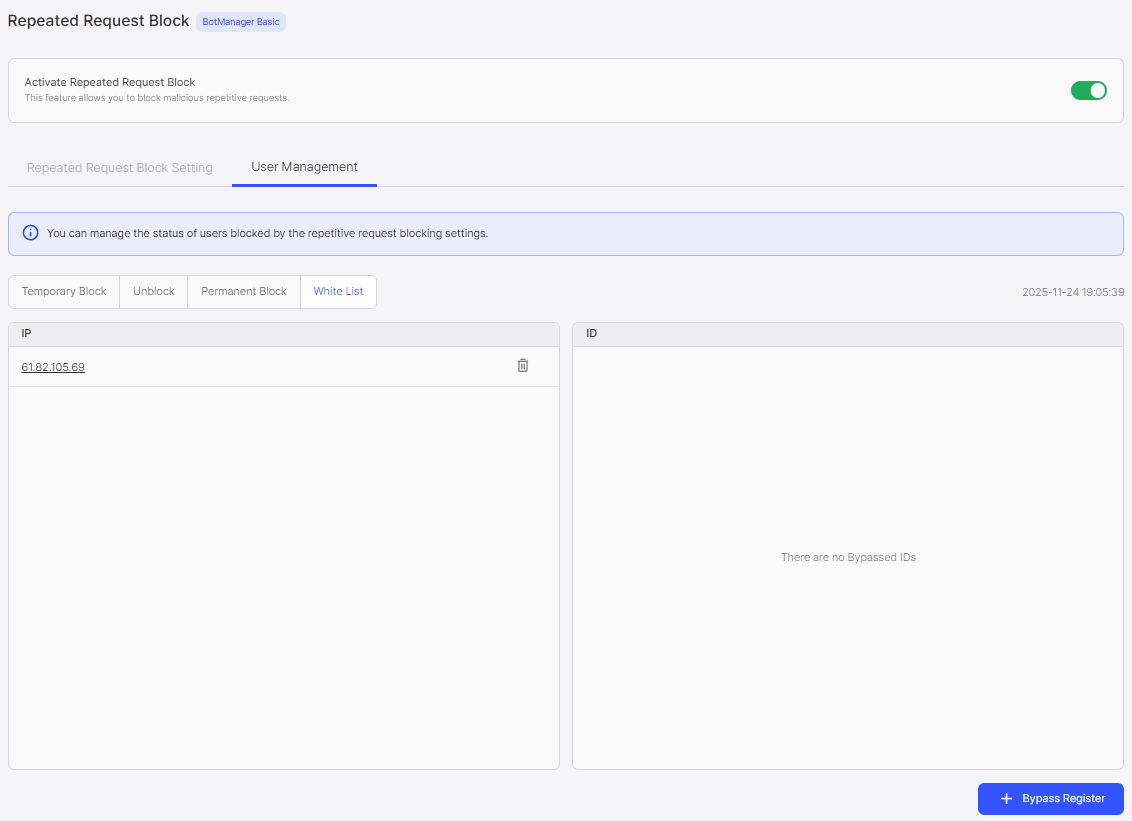
IP addresses must be registered individually. CIDR notation (e.g., 61.82.105.0/24) is not supported. Each IP address must be registered separately.
To delete entries:
Click the trash icon next to the entry you want to delete. The entry will be removed immediately.
Mutual Exclusivity Between Lists
Unblock List, Permanent Block List, and Whitelist (Bypass Allow List) are mutually exclusive. If you register the same IP/ID in multiple lists, the entry is automatically removed from the previously registered list(s). This is because these functions have conflicting purposes:
- Unblock List: Allows requests even if policy limits are exceeded (normal responses)
- Permanent Block List: Always blocks requests (302 block responses)
- Whitelist: Completely bypasses NetFUNNEL traffic control (303 bypass responses)
Example: If IP 61.82.105.69 is registered in the Unblock list, and you then register the same IP in the Permanent Block list, it will be automatically removed from the Unblock list. Similarly, registering it in the Whitelist will remove it from both other lists.
Best Practices
Temporary Block List
Use the Temporary Block list to monitor blocked IPs/IDs and identify patterns. Review frequently blocked entries to determine if policy settings need adjustment.
When to Register in Each List
- Unblock List: Register when you need to send a large number of requests for internal testing while Repeated Request Block is enabled
- Permanent Block List: Register known malicious IPs/IDs that should always be blocked
- Whitelist: Register VIPs or critical systems that must never be blocked or wait