Installation & Initialization
This guide covers the essential setup steps that apply to both URL-Triggered and Code-based integration methods.
Step 1: Get Your Initialization Code
The code below is an example only. You must use the dedicated initialization code from your NetFUNNEL console.
How to get your real initialization code:
- Go to NetFUNNEL console
- Click
Agentmenu at the top - Navigate to
Client-side Agent→JavaScript - In section
2. Installation Methods, copy your project-specific code
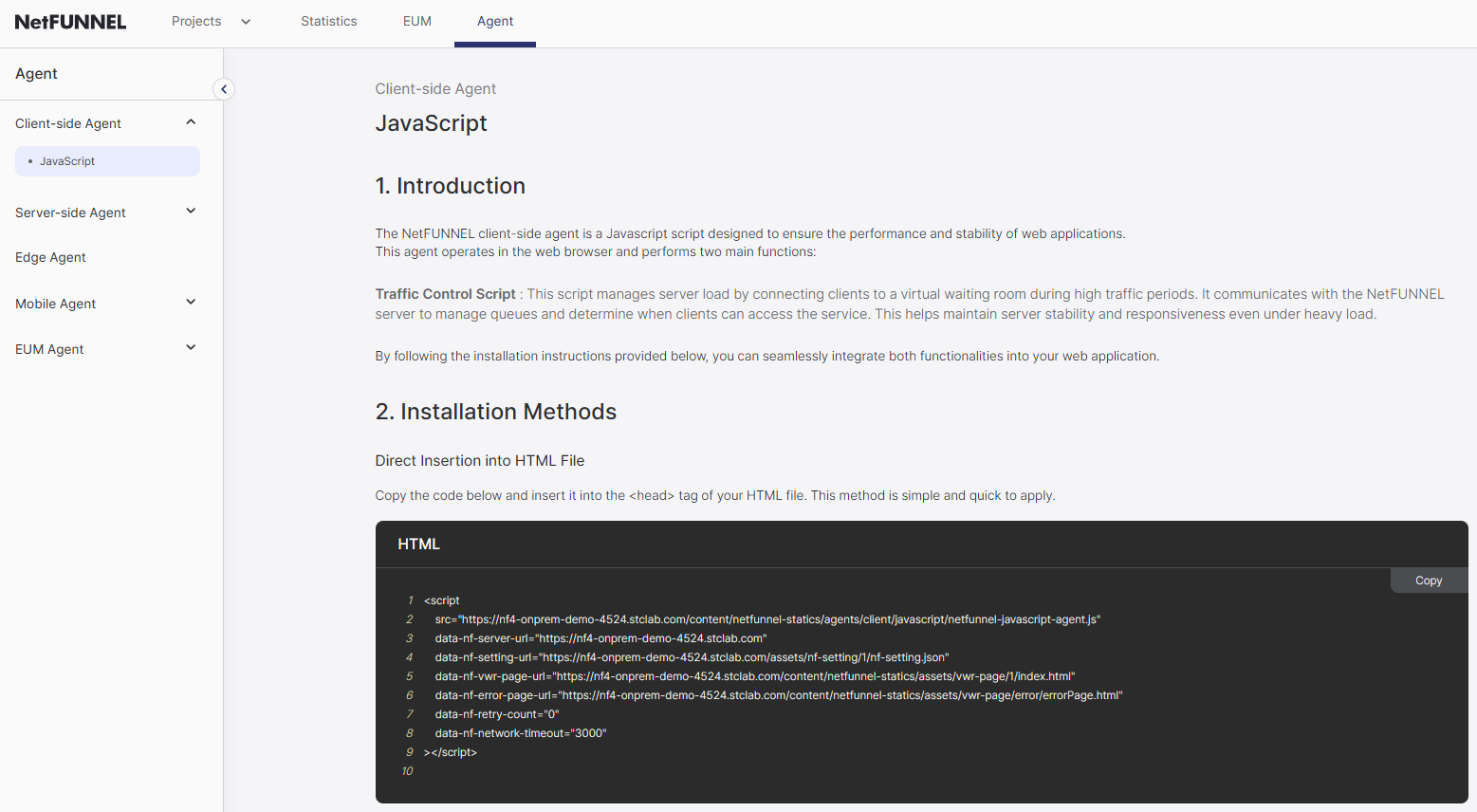
The NetFUNNEL console displays data-nf-client-id in the initialization script. Refer to this documentation for the complete list of all available attributes.
Example initialization code:
<script
    src="https://agent-lib.stclab.com/agents/client/javascript/netfunnel-javascript-agent.js"
    data-nf-client-id="your-client-id"
></script>
Required Attributes
The initialization script requires these mandatory attributes:
| Attribute | Description | Required |
|---|---|---|
data-nf-client-id | Client identifier | Yes |
For detailed information about all available attributes, including optional network settings, storage options, and debugging features, see the Initialization Option Reference.
Step 2: Apply to All HTML Files
Method A: Direct HTML Insertion (Recommended)
Apply the initialization script directly to each HTML file for maximum reliability and performance.
The NetFUNNEL agent must run before anything else on page load. Place it at the very top of the <head> in every HTML file.
Why this matters:
- Traffic control only applies to pages where the script is loaded
- The agent needs to intercept requests before other scripts run
- Missing this step = bypass mode (no waiting room protection)
Important timing requirements:
- Never use
deferorasyncattributes on the NetFUNNEL script - The script must execute synchronously and immediately
Important: Always implement error handling to prevent users from bypassing traffic control. See the Error Handling - Method A section for detailed implementation.
Common locations:
- Main page (
index.html) - Landing pages
- SPA entry points
- Error pages (if you want them protected)
Example for multiple pages:
<!-- main/index.html -->
<head>
  <script
      src="https://agent-lib.stclab.com/agents/client/javascript/netfunnel-javascript-agent.js"
      data-nf-client-id="your-client-id"
  ></script>
  <!-- other head elements -->
</head>

<!-- landing/index.html -->
<head>
  <script
      src="https://agent-lib.stclab.com/agents/client/javascript/netfunnel-javascript-agent.js"
      data-nf-client-id="your-client-id"
  ></script>
  <!-- other head elements -->
</head>
Method B: Dynamic Script Injection (Alternative)
If you have many HTML files and want to centralize the NetFUNNEL initialization, you can use dynamic script injection through a common JavaScript file.
Even with dynamic injection, the NetFUNNEL script must still be the first script to execute on the page. Ensure your common JavaScript file loads before any other scripts.
Why this matters:
- Traffic control only applies to pages where the script is loaded
- The agent needs to intercept requests before other scripts run
- Missing this step = bypass mode (no waiting room protection)
Important timing requirements:
- Use
insertBefore(script, head.firstChild)to ensure first position - Never use
deferorasyncattributes on the NetFUNNEL script - The script must execute synchronously and immediately
Important: Always implement error handling to prevent users from bypassing traffic control. See the Error Handling - Method B section for detailed implementation.
Step 1: Create a common JavaScript file
Create a file called netfunnel-init.js (or similar) in your project:
// netfunnel-init.js
(function() {
  // Check if NetFUNNEL is already loaded
  if (window.NetFUNNEL || document.querySelector('script[data-nf-client-id]')) {
    return;
  }

  // Create and configure the NetFUNNEL script element
  var scriptNF = document.createElement("script");

  // Set required attributes
  scriptNF.setAttribute("data-nf-client-id", "your-client-id");
  scriptNF.setAttribute("data-nf-retry-count", "0");
  scriptNF.setAttribute("data-nf-network-timeout", "3000");

  // Set the script source
  scriptNF.src = "https://agent-lib.stclab.com/agents/client/javascript/netfunnel-javascript-agent.js";

  // Insert the script at the beginning of head
  var head = document.head || document.getElementsByTagName('head')[0];
  head.insertBefore(scriptNF, head.firstChild);
})();
Step 2: Include the common script in your HTML files
<html>
  <head>
    <!-- NetFUNNEL initialization must be first -->
    <script src="./netfunnel-init.js"></script>
    <!-- other scripts -->
    <script src="./app.js"></script>
    <script src="./analytics.js"></script>
  </head>
  <body>...</body>
</html>
Verification: Regardless of the method used, always verify that:
- The NetFUNNEL script loads first (check Network tab)
- Both
netfunnel-javascript-agent.jsandnf-setting.jsonreturn HTTP 200 - No JavaScript errors occur during initialization
Step 3: Verify Installation
After implementing the NetFUNNEL agent, verify that it's working correctly by checking the following:
Required Files Loading
Check these files load with HTTP 200:
netfunnel-javascript-agent.js- The main agent filenf-setting.json- Configuration file
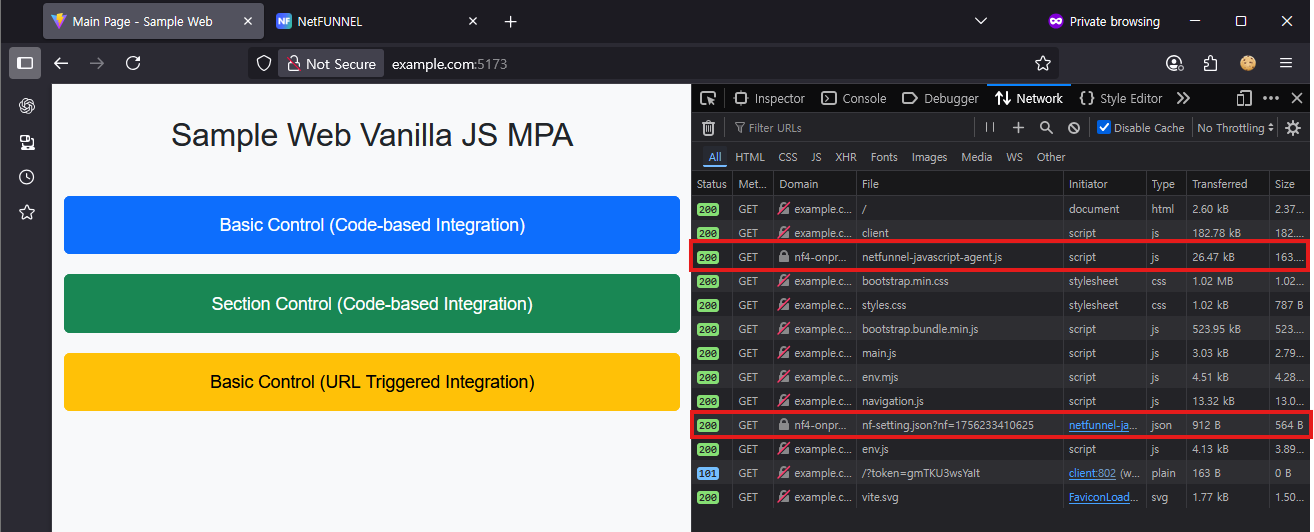
Browser DevTools Verification
Step 1: Open Browser DevTools
- Press
F12or right-click → "Inspect" - Go to the Network tab
Step 2: Configure Network Tab
- Enable "Preserve log" or "Persist Log" (to keep logs after page navigation)
- Enable "Disable cache" (to ensure fresh requests)
- Clear existing network logs
Step 3: Reload the Page
- Refresh the page (
Ctrl+F5orCmd+Shift+R) - Watch the Network tab for the following files:
| File | Expected Status | Purpose |
|---|---|---|
netfunnel-javascript-agent.js | 200 OK | Main NetFUNNEL agent script |
nf-setting.json | 200 OK | Agent configuration settings |
Error Handling
Error handling is crucial for maintaining security and preventing users from bypassing traffic control. When the NetFUNNEL agent fails to load, users should be redirected to an error page rather than being allowed to bypass the waiting room.
Why Error Handling Matters:
- Security: Prevents users from blocking the NetFUNNEL script to bypass traffic control
- User Experience: Provides clear feedback when the agent fails to load
- Compliance: Ensures traffic control policies are enforced consistently
Method A: Direct HTML Insertion
Add the onerror attribute directly to the NetFUNNEL script tag:
<script
    src="https://agent-lib.stclab.com/agents/client/javascript/netfunnel-javascript-agent.js"
    data-nf-client-id="your-client-id"
    onerror="(function () { window.location.href='/your-custom-error-page.html' })()"
></script>
Method B: Dynamic Script Injection Add error handling to the script creation:
// netfunnel-init.js
(function() {
  if (window.NetFUNNEL || document.querySelector('script[data-nf-client-id]')) {
    return;
  }

  var scriptNF = document.createElement("script");
  scriptNF.setAttribute("data-nf-client-id", "your-client-id");
  // ... other attributes

  scriptNF.src = "https://agent-lib.stclab.com/agents/client/javascript/netfunnel-javascript-agent.js";

  // Error handling
  scriptNF.onerror = function() {
    console.error('NetFUNNEL agent failed to load');
    // Choose one of the following options:
    window.location.href = "/your-custom-error-page.html";  // Custom error page
    // window.location.href = "/";  // Redirect to homepage
    // document.body.innerHTML = '<div>Service temporarily unavailable</div>';  // Show message
  };

  scriptNF.onload = function() {
    console.log('NetFUNNEL agent loaded successfully');
  };

  document.head.insertBefore(scriptNF, document.head.firstChild);
})();
Error Handling Options
All methods support the following error handling strategies:
- Custom error page:
window.location.href='/your-custom-error-page.html' - Main page redirect:
window.location.href='/'(redirect to homepage) - Service unavailable page:
window.location.href='/service-unavailable.html' - Custom message:
document.body.innerHTML='<div>Service temporarily unavailable</div>'
Choose the option that best fits your application's error handling strategy.
Troubleshooting
Script not loading:
- Check the
srcURL is correct - Verify network connectivity to NetFUNNEL servers
- Ensure no ad blockers are interfering
Bypass mode (no waiting room):
- Verify
data-nf-client-idis present - Check segment is activated in console
- Confirm Limited Inflow is not set to unlimited
Script placement issues:
- Move script to very top of
<head> - Remove any
deferorasyncattributes - Ensure no other scripts run before NetFUNNEL